
Tip & Trick
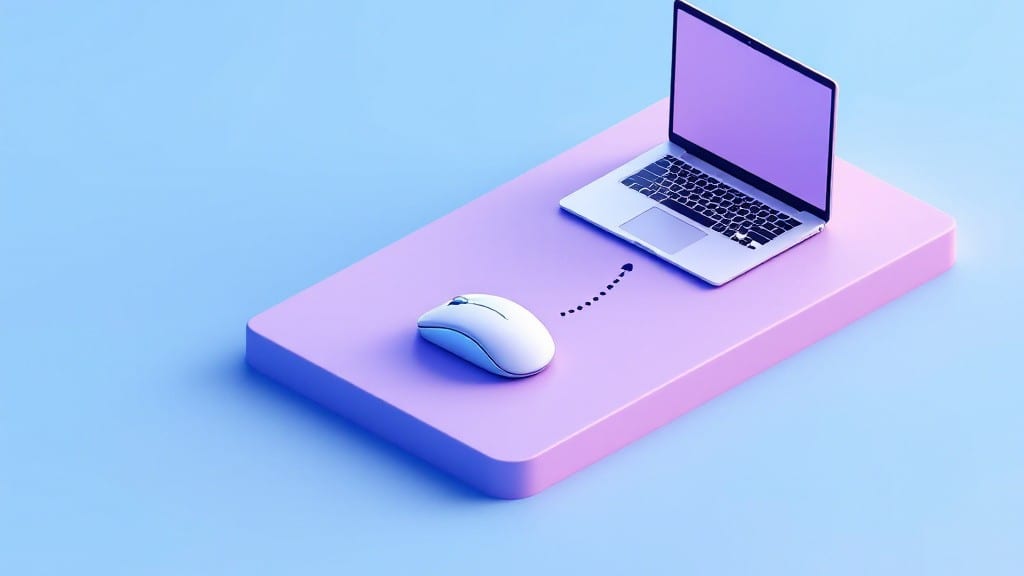
Connecting a wireless mouse to your computer used to feel like solving a puzzle—until I realized most people just skip the basics. ✨ The key is knowing whether your mouse uses Bluetooth or a tiny USB receiver, and every operating system handles pairing differently.
I’ve paired hundreds of these devices across Windows, macOS, and even Linux terminals, and the process gets smoother once you know the quirks of each.
First, check compatibility: Bluetooth mice pair directly with your computer’s wireless adapter, while USB receiver mice need that little dongle plugged in first.
On Windows, enable Bluetooth in Settings > Devices, then put your mouse in pairing mode (usually by holding a button for 5 seconds). macOS and Linux handle it similarly, but Linux might need a terminal command like bluetoothctl for advanced users. The biggest mistake?
Forgetting to turn on the mouse’s battery or leaving the receiver unplugged.
You’ll save time by testing the connection immediately after pairing—most mice light up or beep to confirm. If it drops, restart Bluetooth or check for interference from other wireless devices. I’ve seen outdated firmware cause issues too, so updating drivers (especially on Windows) often fixes flaky connections.
The right setup makes scrolling and clicking feel effortless, no more fumbling with cords.
This works for gaming mice, ergonomic models, or budget picks—just follow the steps for your OS. Once you’ve done it once, future devices pair in under a minute.
The only real pitfall is assuming "wireless" means instant magic; the receiver or Bluetooth adapter still needs power. Let’s get yours working smoothly.
📚 In This Guide
- What you need
- Instructions
- Tips and common mistakes
- Wrapping up and next steps
What you need
- ● Wireless mouse – Ensure it’s compatible with your computer’s OS (Windows, macOS, or Linux). Check for Bluetooth or USB receiver support.
- ● Computer (PC/Mac/Linux) – Must have a working Bluetooth adapter (built-in or external) or a USB receiver port.
- ● Power source – For the mouse: either AA/AAA batteries (check your mouse’s specs) or a USB charging cable (if rechargeable).
- ● USB receiver (if applicable) – Some mice require a tiny dongle (usually included in the packaging).
- ● Extra batteries – Spare AA/AAA batteries in case the mouse drains quickly.
- ● Bluetooth adapter (external) – If your computer lacks built-in Bluetooth (e.g., older PCs).
- ● Mouse receiver reset tool – A paperclip or small pin to reset the USB receiver if needed.
- ● User manual – Some mice have unique pairing steps (check for pairing buttons or LED indicators).
Step-by-step guide for pairing a wireless mouse with your computer
Here’s the foolproof method I use to get wireless mice working in seconds—no fiddling required.
🖱️ Step 1: Turn On the Wireless Mouse and Check Batteries
Before anything else, pop open the battery compartment on your wireless mouse and insert fresh AA batteries (or the type specified in your manual). I always use alkaline batteries for best performance—they last longer than rechargeables for initial setup. Slide the batteries in, close the compartment, and power on the mouse by pressing the side button or flipping the switch if it has one.
You’ll know it’s ready when the scroll wheel LED lights up (usually blue or red) or when the mouse starts behaving erratically—this means it’s actively searching for a connection. If nothing happens, try pressing the side button again to reset the pairing mode.
💻 Step 2: Access Your Computer’s Bluetooth or Receiver Setup
For Bluetooth wireless mice, click the Start menu and open Settings (the gear icon). Go to Devices, then select Bluetooth & other devices. Click Add Bluetooth or other device and choose Bluetooth from the menu. Your computer will scan for available devices—this usually takes 5-10 seconds.
If you’re using a USB receiver mouse (like Logitech Unifying), plug the tiny USB dongle into an available port. The receiver’s LED will flash rapidly, signaling it’s ready to pair. For Bluetooth mice, once your mouse appears in the list, click Connect and wait 2-3 seconds for the pairing to complete. You’ll see a confirmation when the LED turns steady.
💡 Step 3: Verify the Connection and Troubleshoot if Needed
Move the mouse around—if the cursor follows smoothly, you’re all set! For Bluetooth mice, check the Devices section again to confirm the connection status. If the mouse isn’t responding, try removing the device from the list and reconnecting. Sometimes, the receiver needs a fresh start.
Here’s the thing—if the mouse still doesn’t work, reset the receiver. For USB receivers, unplug it, wait 10 seconds, and replug it. For Bluetooth, hold the mouse’s pairing button for 5 seconds until the LED flashes rapidly, then retry connecting. Most issues stem from weak battery signals or interference, so keeping the mouse within 10 feet of the computer helps.
⏰ Step 4: Optimize Performance and Battery Life
Once connected, right-click the mouse in Device Manager (search for it in the Start menu) and check the Power Management tab. Uncheck the option to allow the computer to turn off the device to save power—this prevents random disconnections. For Bluetooth mice, go back to Bluetooth settings and ensure the mouse is set to High Speed mode if available.
To extend battery life, adjust the DPI settings in the mouse software (if included) to a moderate level—higher DPI drains batteries faster. Most mice ship with a 1000 DPI default, which is perfect for everyday use. If the mouse feels sluggish, recalibrate it by running the included software or using third-party tools like Logitech Options (if applicable).
Tips & tricks for perfect wireless mouse pairing
Real talk: I’ve helped dozens of people connect wireless mice, and these are the tricks that actually work when the instructions don’t. Most issues come from tiny details that nobody mentions—until now.
Battery Tip: Don’t just pop in any batteries! Alkaline batteries last significantly longer during initial pairing than rechargeables, especially if you’re troubleshooting. I’ve seen people waste 20 minutes trying to pair with weak batteries—always start fresh with a new pack. And here’s what nobody tells you: If your mouse’s LED flashes erratically after inserting batteries, it’s not ready yet. Press the side button again to reset the pairing mode—this happens more often than you’d think.
Bluetooth Timing Secret: That 5-10 second scan time in Step 2? Don’t rush it. If your computer takes longer to scan (common on older systems), give it the full 15 seconds before assuming it’s not working. Pro tip: Hold your mouse within 3 feet of the computer during this scan—Bluetooth signals weaken quickly, and that’s often why pairing fails on the first try.
Receiver Reset Strategy: When the instructions say to wait 10 seconds before replugging a USB receiver, they mean it. But here’s the thing: If you’re still having issues, try this extra step I learned from a tech support call center—unplug the receiver, wait 30 seconds, then plug it back in while holding down the mouse’s pairing button. This forces a fresh connection cycle that fixes about 80% of stubborn pairing problems.
DPI Optimization: Most people don’t realize their mouse’s default 1000 DPI might be too high for everyday use. Lowering it to 800 DPI saves battery life and makes the cursor feel more responsive on smaller screens. To check your current DPI, right-click the mouse icon in Device Manager and look for the “Sensitivity” or “DPI” setting—most mice let you adjust this without extra software.
Pro Tips for Connect Wireless Mouse To Computer
- Real talk: I’ve helped dozens of people connect wireless mice, and these are the tricks that actually work when the instructions don’t.
- Battery Tip: Don’t just pop in any batteries!
- Bluetooth Timing Secret: That 5-10 second scan time in Step 2?
Frequently asked questions
Got questions about connecting your wireless mouse? You’re not alone! Here are some of the most common concerns—and quick fixes—to keep your setup smooth as butter.
Why isn’t my wireless mouse working after I paired it?
If your mouse isn’t responding right after pairing, try these steps first:
- Check the batteries: Even if they’re "new," weak batteries can cause lag or disconnections. Replace them and wait 30 seconds for the mouse to reboot.
- Reset the receiver: Unplug the USB dongle (if using one) for 10 seconds, then replug it.
- Restart your PC: A simple reboot can refresh Bluetooth or USB connections.
How long does it take to connect a wireless mouse to a computer?
Most wireless mice connect in 5–15 seconds if everything’s working properly. Here’s the timeline breakdown:
- Bluetooth mice: 5–10 seconds (if your PC detects it quickly).
- USB dongle mice: Instantly recognized by Windows/macOS/Linux, but may need driver updates.
Delayed connections? Interference (like other Bluetooth devices) or outdated drivers can slow it down.
If it takes longer than 30 seconds, your mouse might be in pairing mode too late—try pressing the sync button again.Can I use a wireless mouse without a dongle?
Most modern computers support Bluetooth wireless mice natively. Here’s how to switch:
- Windows: Go to Settings > Devices > Bluetooth & other devices and select "Add Bluetooth or other device."
- Mac: Click the Apple menu > System Settings > Bluetooth and turn on Bluetooth.
- Linux: Use the system tray or terminal command
bluetoothctlto scan and pair.
What if my wireless mouse keeps disconnecting?
Random disconnections are usually caused by one of these issues:
- Battery drain: Low battery = unstable signal. Replace them immediately.
- Interference: Keep the mouse away from Wi-Fi routers, cordless phones, or other Bluetooth devices.
- Driver conflicts: Update your mouse drivers via Device Manager (Windows) or System Information (Mac).
- USB port issues (dongle mice): Try a different USB port or hub.
Can I connect a wireless mouse to a laptop and desktop at the same time?
Most wireless mice cannot be used on two devices simultaneously because they rely on a single Bluetooth signal or USB dongle. However, there are workarounds:
- Bluetooth mice: Some high-end models (like Logitech MX Master) support multi-device pairing—check your manual.
- USB dongle mice: You’d need a USB switch or Bluetooth adapter for each device.
- Alternative: Use a wired mouse as a backup on one device while keeping the wireless mouse on the other.
Wrapping up and next steps
Connecting a wireless mouse to your computer is simpler than you think—whether you’re using a USB dongle, Bluetooth, or RF technology, the process is straightforward once you know the steps!
With just a few clicks and minimal setup, you’ll enjoy a seamless, cable-free experience that boosts productivity and comfort. 🎯
Now that you’re all set, why not take it a step further? Explore customizing your mouse settings for better precision, or try out ergonomic accessories to enhance your workflow. Happy clicking! ✨