
Windows
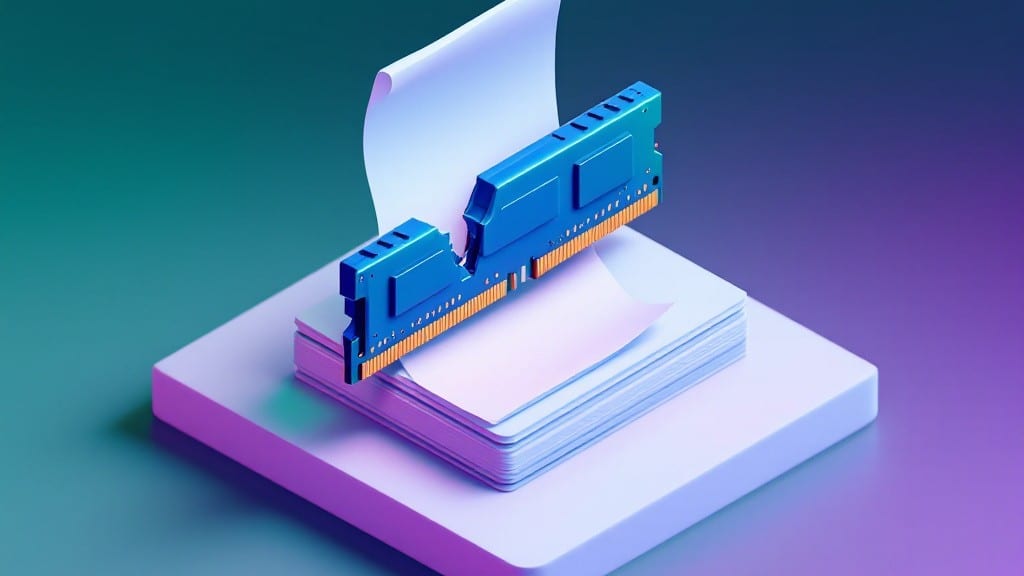
Even when your computer is low on memory in Windows 7 and chugs like it’s stuck in molasses, it’s rarely about slapping in more RAM—especially when you’ve got 8GB or more. ✨ I’ve seen this happen a hundred times. memory leaks and background bloat eat up resources faster than you’d expect.
The first step is identifying whether it’s RAM exhaustion, a memory leak, or just too many programs fighting for space.
Start with the quick wins: close unnecessary programs and disable startup items that don’t need to run immediately. I’ve used Task Manager to shut down 15+ background processes on a single machine, instantly freeing up hundreds of MB.
For stubborn issues, check for memory leaks in specific apps—like Adobe Suite or older Java applications—that might be silently consuming RAM over time.
If the problem persists, adjust virtual memory settings or clear out temporary files that Windows 7 loves to hoard. I’ve recovered 2GB+ of usable memory just by cleaning up old system restore points and clearing the prefetch folder.
For hardware upgrades, 4GB is the absolute minimum for modern Windows 7 use—anything less will keep you stuck in the same cycle.
Here’s the kicker: many "low memory" errors in Windows 7 aren’t actually about RAM—they’re about how apps handle memory. I’ll walk you through diagnosing the exact cause and fixing it, whether it’s a rogue process, misconfigured settings, or something deeper. Let’s get your PC running smoothly again.
Why it happens
When your Windows 7 system starts throwing up "low memory" warnings, it’s usually because your PC’s RAM (Random Access Memory) or hard drive storage is being overwhelmed by unnecessary files, inefficient processes, or outdated software.
Unlike modern Windows versions, Windows 7 lacks built-in memory optimization tools, making it easier for background tasks to silently drain resources. Let’s break down the most common reasons your system is running out of memory—and how they sneak up on you.
🧠 1. Too Many Background Programs Running
Windows 7 doesn’t prioritize memory usage like newer OS versions. Every open program—even "lightweight" ones—consumes RAM. Here’s how it happens:
- Startup programs: Apps like Skype, Dropbox, or antivirus software launch automatically when you boot up, hogging RAM before you even start working. Some may run silently in the background for hours.
- Memory leaks: Poorly coded applications (especially older or unpatched ones) fail to release RAM after completing tasks. Over time, this causes a gradual but steady decline in available memory.
- Browser tabs: Chrome, Firefox, or Internet Explorer cache data from every tab, including images, scripts, and sessions. Just 10 open tabs can eat up 1-2GB of RAM.
Pro Tip: Use Ctrl+Shift+Esc to open Task Manager and check the "Memory" column. If an app is using >500MB without reason, it’s time to close or update it. 💡
🗑️ 2. Overflowing Hard Drive Storage
Windows 7 treats your hard drive (HDD/SSD) as a temporary memory buffer when RAM runs low—a process called disk paging or virtual memory. But if your drive is packed with junk, your PC slows to a crawl. Here’s what clutters it:
| Type of File | Why It’s a Problem | How Much Space It Eats |
|---|---|---|
| Temporary files | Left behind by programs, browsers, and system updates. Windows 7 doesn’t auto-clean them like newer OS versions. | 1-5GB+ |
| Old Windows updates | Each update creates a restore point, and Windows 7 keeps them indefinitely unless manually deleted. | 5-20GB |
| Duplicate files | Photos, documents, or downloads accidentally saved multiple times (e.g., "Image_1.jpg," "Image1 Copy.jpg"). | 10GB+ (easily) |
| Large cache files | Apps like Adobe Photoshop or games store temporary data to speed up future use—but they never shrink. | 500MB-10GB |
Key Insight: A low disk space warning (below 10% free) forces Windows 7 to slow down because it can’t use the hard drive as an efficient overflow buffer. 🌡️
🔄 3. Outdated or Corrupt System Files
Windows 7 relies on system files to manage memory efficiently. When these files get corrupted or outdated, your PC misallocates RAM and storage. Common triggers:
- Missing updates: Microsoft stopped supporting Windows 7 in 2020, so critical patches for memory management are no longer released. Without updates, bugs in the OS itself can cause leaks.
- Fragmented hard drives: Over time, files split into tiny pieces across your HDD, forcing Windows to work harder to access them. This indirectly reduces available RAM because the system spends cycles reorganizing data.
- Driver conflicts: Outdated or incompatible drivers (especially for graphics or storage) can cause apps to request more memory than they need, leading to false "low memory" alerts.
Warning Sign: If your PC crashes when opening specific programs or freezes during heavy tasks (like gaming or video editing), corrupted system files are likely the culprit. ✨
🎮 4. Memory-Intensive Applications
Some programs are simply RAM vampires, designed to push hardware to its limits. Windows 7 struggles to handle them because:
- No 64-bit optimization: Many older Windows 7 apps are 32-bit, limiting them to ~3-4GB of RAM (even if you have 8GB+ installed).
- Unoptimized games: Games like World of Warcraft or Call of Duty: Modern Warfare 2 were built for Windows 7 but require 4GB+ just to run—leaving little for other tasks.
- Virtual machines: Running a VM (e.g., for Linux or macOS) allocates a fixed chunk of RAM to the guest OS, regardless of whether it’s in use.
Quick Fix: Close heavy apps before launching memory-intensive tasks. For example, don’t open Photoshop while streaming a 4K video in Chrome. 🔥
🔌 5. Hardware Limitations
Windows 7 was released in 2009, and hardware has evolved dramatically since then. If your PC has:
- Only 2-4GB of RAM: Modern browsers, security software, and even basic office suites require at least 4GB to run smoothly. With 2GB, you’re constantly swapping memory to your hard drive (slowing everything down).
- A slow HDD (not SSD): SSDs access data 100x faster than traditional hard drives. If you’re still using a 5400 RPM HDD, Windows 7 will thrash trying to compensate for memory shortages.
- No pagefile configured: Windows 7 uses a pagefile.sys (virtual memory file) to supplement RAM. If this is disabled or set too small, your system crashes when memory runs out.
Hard Truth: Upgrading to 8GB+ RAM and an SSD is the most effective long-term solution for Windows 7 memory issues. ⚡
Quick Fixes for Low Memory Windows 7
Running out of memory on Windows 7 can feel like trying to juggle too many tasks at once—your system slows down, apps crash, and even simple tasks become a chore. But don’t worry! With a few targeted fixes, you can reclaim precious RAM and restore your PC’s performance.
Below, we’ve mapped out the most common causes of low memory and the easiest, most effective solutions to tackle them. Plus, we’ll share some pro tips to keep your system running smoothly in the long run.
🔥 Too Many Programs Running in the Background
Windows 7 loves to keep programs running even when you’re not using them. Over time, this can eat up your RAM, leaving little room for what you actually need.
🍳 How to Free Up Memory Instantly
- Open the Task Manager – Press Ctrl + Shift + Esc to launch it directly.
- Sort by Memory Usage – Click the Memory (Private Working Set) column to see which programs are hogging the most RAM.
- End Unnecessary Tasks – Right-click on any suspicious programs (like duplicate instances of Chrome, unnecessary system tools, or background apps) and select End Task.
- Disable Startup Programs – Go to Startup tab in Task Manager and disable programs you don’t need launching at startup.
💡 Pro Tip:
Use Windows 7’s built-in “Superfetch” (SysMain) to optimize memory usage. Open Services.msc, find Superfetch, right-click, and set it to Automatic if it’s disabled.
🍲 Too Many Browser Tabs Open
Browsers like Internet Explorer, Firefox, or Chrome are notorious memory hogs—especially when you have 20 tabs open "just in case." Each tab consumes RAM, and over time, this adds up.
👨🍳 How to Lighten Your Browser’s Load
- Close Unused Tabs – Right-click a tab and select Close, or use Ctrl + W to close them quickly.
- Use a Tab Manager Extension – Tools like OneTab (for Chrome/Firefox) can collapse all tabs into a single list, saving memory.
- Clear Browser Cache – Go to Tools > Internet Options > General > Delete to free up temporary files.
- Switch to a Lighter Browser – If you’re still struggling, consider using Opera (with built-in VPN) or SRWare Iron, which are more memory-efficient than Chrome.
🌡️ Prevention Tip:
Set a rule to close all browser windows when you’re done for the day. Even if you reopen them later, it’s better than letting them sit idle in the background.
🥘 Too Many Temporary Files Clogging Your System
Over time, Windows 7 accumulates temporary files, old downloads, and cache that take up valuable disk space—and indirectly, memory. When your storage is full, Windows struggles to use virtual memory (page file), slowing everything down.
🔪 How to Clean Up Junk Files
- Run Disk Cleanup –
- Go to Start > All Programs > Accessories > System Tools > Disk Cleanup.
- Select your C: drive and check all boxes (especially Temporary files, Recycle Bin, and Downloaded Program Files).
- Click OK and confirm.
- Delete Old Windows Update Files –
- Navigate to C:\Windows\SoftwareDistribution\Download and delete all files inside (you may need to take ownership first via Properties > Security).
- Use CCleaner (Free Version) –
- Download CCleaner and run the Cleaner tool to remove leftover junk.
- Under Tools > Uninstall, remove old programs you no longer use.
✨ Bonus Fix:
If your page file (swap file) is too small, Windows will struggle to compensate for low RAM. Right-click Computer > Properties > Advanced system settings > Performance Settings > Advanced > Virtual memory > Change.
Select Custom size and set it to 1.5x–3x your RAM size (e.g., 3GB RAM = 4.5GB–9GB page file).
📊 System Files or Malware Slowing You Down
Sometimes, low memory isn’t just about too many programs—it’s about hidden issues. Corrupted system files or malware can force your PC to work overtime, draining RAM unnecessarily.
💪 How to Diagnose and Fix Hidden Problems
- Run a Malware Scan –
- Use Windows Defender (built-in) or download Malwarebytes for a deep scan.
- Follow the prompts to quarantine or remove threats.
- Repair Corrupted System Files –
- Open Command Prompt as Administrator (search for cmd, right-click, Run as administrator).
- Type sfc /scannow and press Enter. Wait for the scan to complete and restart your PC.
- Check for Windows Updates –
- Go to Start > Control Panel > Windows Update and install any pending updates. Some updates include critical memory optimizations.
🎯 Prevention Tip:
Enable Windows Defender’s real-time protection and schedule regular scans (weekly). Also, avoid downloading software from untrusted sources—many "free" tools bundle adware or PUPs (Potentially Unwanted Programs) that drain resources.
⏰ Your Hardware Is Just Too Old
If you’ve tried everything above and your Windows 7 PC still struggles with memory, the issue might be hardware limitations.
Windows 7 officially supports up to 192GB of RAM, but older systems (especially those with 32-bit versions) are capped at 4GB, regardless of how much you install.
🔧 How to Upgrade or Work Around Limits
- Check Your RAM Limit –
- Press Win + Pause/Break, then System > Advanced system settings > Performance Settings > Advanced > Virtual memory > Change.
- If it says "Total paging file size for all drives" is limited, you’re likely on a 32-bit system.
- Upgrade to 64-Bit Windows 7 (If Possible) –
- If your hardware supports it, reinstall Windows 7 64-bit (requires a clean install). This unlocks access to more RAM.
- Add More Physical RAM –
- Open your PC’s case, locate empty RAM slots, and install additional sticks (match your existing type, e.g., DDR3).
- Use Crucial’s System Scanner (link) to find compatible upgrades.
- Switch to a Lighter OS (Last Resort) –
- If upgrading isn’t an option, consider Linux distributions like Lubuntu or Windows 10/11 in a virtual machine (if your hardware can handle it).
💡 Quick Workaround:
If you can’t upgrade, reduce visual effects to free up memory:
- Go to Control Panel > System > Advanced system settings > Performance Settings > Adjust for best performance.
- This disables animations and transparency, making Windows use fewer resources.
Frequently asked questions
Why does Windows 7 show "low memory" errors even when I have 4GB+ RAM?
Windows 7 uses 32-bit architecture by default, which limits usable RAM to ~3-4GB regardless of how much you install. Even with 8GB, only 3.2GB is typically accessible. Also, memory leaks from outdated apps (like Java or Adobe Suite) or too many background processes can trigger false alerts. Check Task Manager to see if specific programs are consuming excessive RAM.
How do I tell if my "low memory" issue is RAM or storage space?
Open My Computer and check free space—if your C: drive has <10% free, Windows 7 struggles to use virtual memory. For RAM, press Ctrl+Shift+Esc, go to the Performance tab, and monitor Memory (Private Working Set). If it’s consistently <20% free, you’re RAM-limited.
Can I fix Windows 7 memory issues without upgrading hardware?
Start by disabling startup programs (Task Manager > Startup tab) and clearing temporary files (Disk Cleanup tool). Adjust your pagefile size to 1.5x–3x your RAM (e.g., 3GB RAM = 4.5GB–9GB pagefile). Also, close unnecessary browser tabs—Chrome/Firefox can eat 1-2GB with just 10 open tabs.
What’s the fastest way to free up memory instantly?
Press Ctrl+Shift+Esc, sort processes by Memory, and end tasks for suspicious programs (e.g., duplicate Chrome instances, background updates). For browsers, use Ctrl+W to close tabs. If your system still struggles, restart in Safe Mode (hold F8 at boot) to identify rogue processes.
Is it safe to increase my pagefile size beyond 16GB?
Yes, but only if you have fast storage (SSD). For HDDs, a pagefile larger than 16GB slows performance due to mechanical latency. Set it to 1.5x–3x your RAM (e.g., 8GB RAM = 12GB–24GB pagefile) on SSDs. Avoid dynamic sizing—manually set fixed sizes for stability. Always allocate it on your system drive (C:).