
Tip & Trick
Struggling to unlock SharePoint’s full potential? These eight beginner-friendly tips will transform how you manage documents, collaborate, and automate workflows—without needing advanced technical skills. Perfect for new users looking to save time and reduce frustration.
Master SharePoint Navigation with Quick Launch
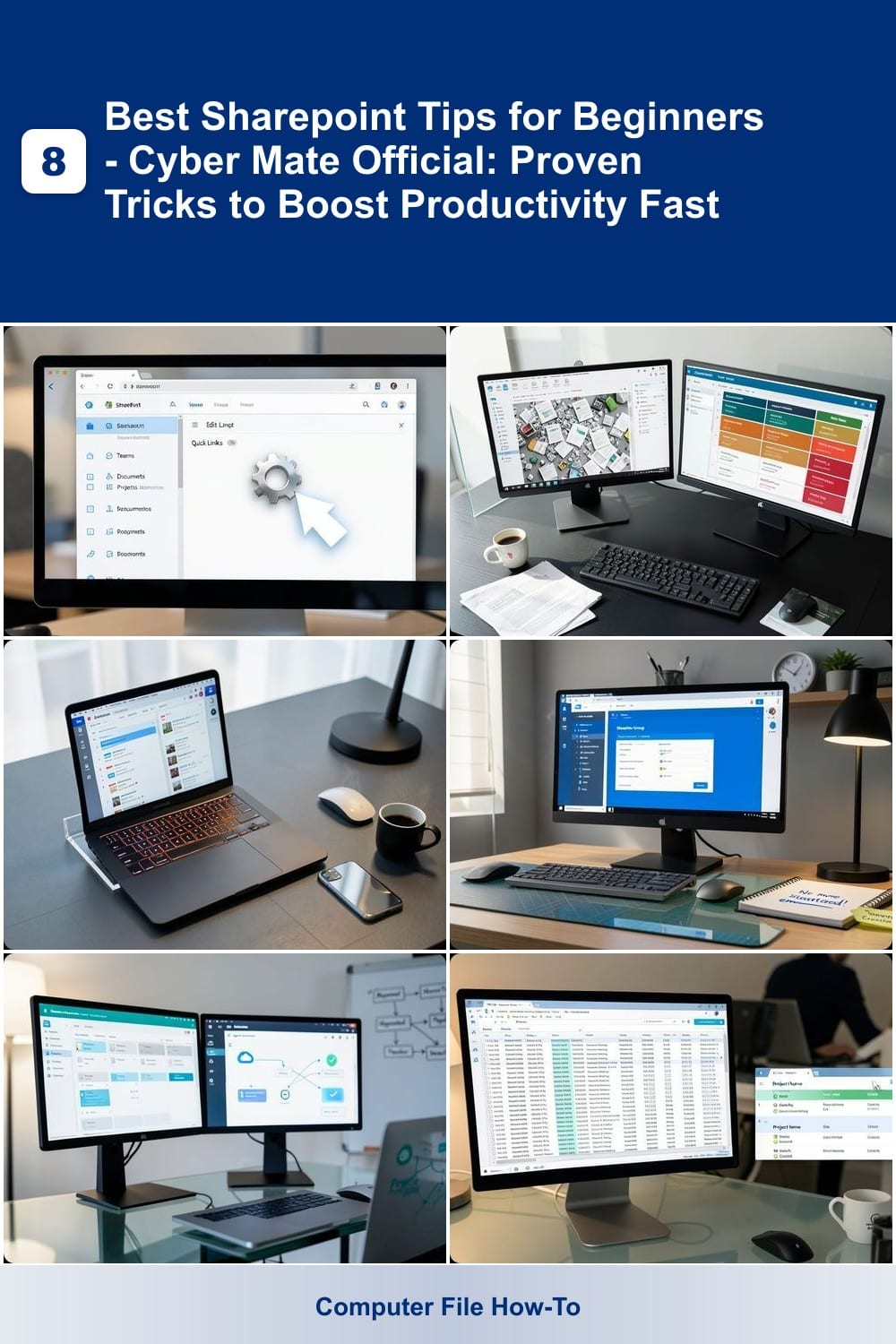
Tired of clicking through endless menus just to find your most-used SharePoint sites? The Quick Launch bar is your secret weapon—a customizable navigation hub that puts your essential tools at your fingertips in seconds.
Simply edit the bar by selecting "Edit Links" (gear icon) to add or remove sites, libraries, or even external links. Pin your frequently visited locations (like project sites or document libraries) to the top for instant access. You can also rearrange items by dragging and dropping, so your workflow stays intuitive and clutter-free. No more digging through submenus!
This trick is a game-changer for new users overwhelmed by SharePoint’s structure or teams juggling multiple projects. Spend less time navigating and more time getting work done. ✨
Use Document Libraries Like a Pro
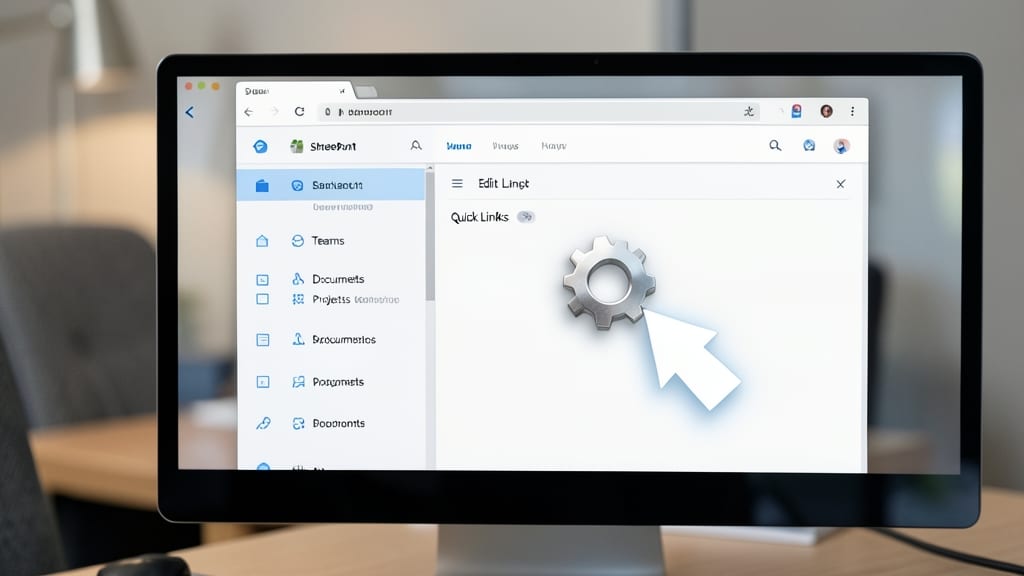
Tired of drowning in a sea of documents with no clear way to track changes or find the right file? SharePoint’s document libraries are your secret weapon for organization and collaboration—when used the right way.
Start by leveraging metadata columns (like department, project name, or status) to categorize files instantly. Enable versioning to recover lost edits with a single click—no more "finalfinalv3.docx" chaos. For retrieval, use the search bar with filters to pinpoint documents in seconds, even across thousands of files.
This is a game-changer for marketing teams, project managers, and remote collaborators juggling shared files. With these tricks, you’ll spend less time searching and more time working. ✨
Leverage SharePoint Alerts for Real-Time Updates

Tired of missing critical updates buried in SharePoint’s endless feeds? Email alerts deliver real-time notifications straight to your inbox—no manual checks required. This feature is a game-changer for professionals juggling multiple projects or teams.
Set up alerts for document changes, new list items, or even comments with just a few clicks. You can customize frequency (daily/weekly) and choose which libraries or lists trigger notifications. For example, receive an instant email when a client contract is updated, ensuring you never miss a deadline again.
Ideal for project managers, HR teams, or anyone relying on shared documents, alerts turn passive monitoring into proactive work. No more refreshing pages—just seamless updates delivered to your inbox. ✨
Simplify Collaboration with SharePoint Groups
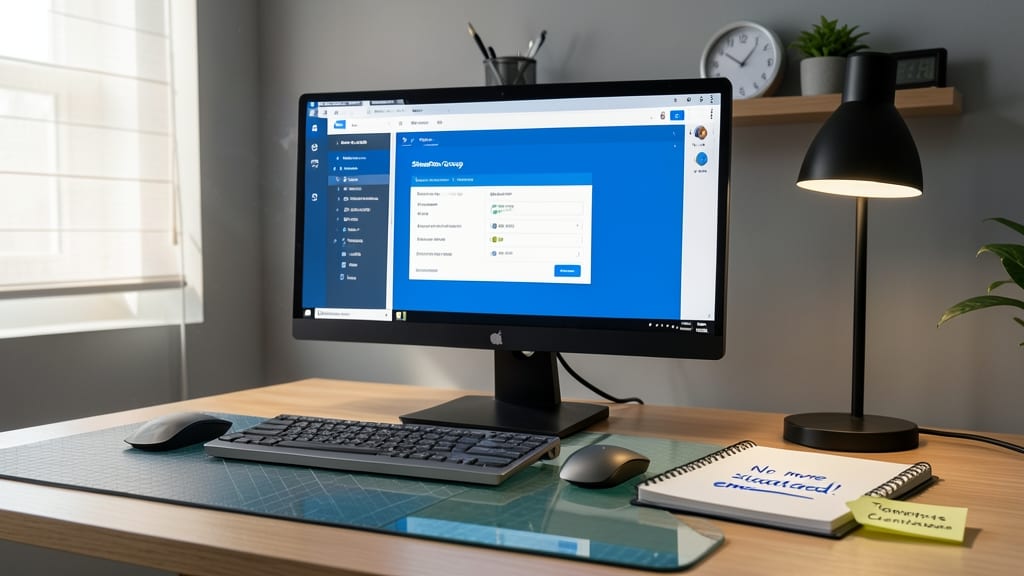
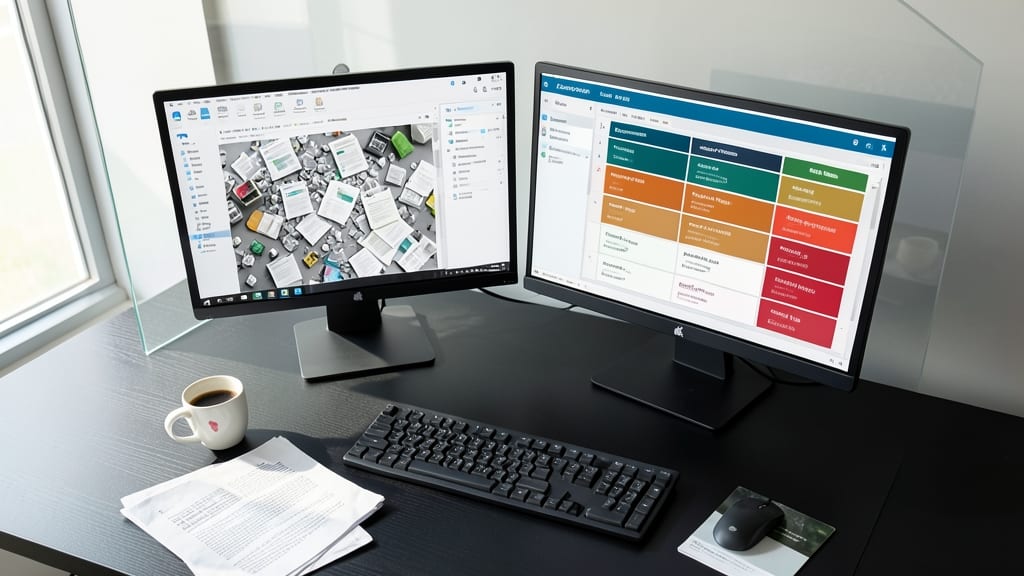
Tired of sending separate permission requests or hunting down the right team members for updates? SharePoint Groups let you bundle users, permissions, and communication into one centralized hub—no more scattered emails or access confusion.
With just a few clicks, you can create a group for your cross-department project team, assign granular permissions (like edit-only for contractors), and enable built-in Microsoft Teams integration for instant chat or video calls. The automatic email notifications keep everyone aligned without manual follow-ups, while the audit logs track who accessed what—perfect for compliance-heavy industries.
This is your go-to solution for remote teams or departments that frequently collaborate across locations. Whether you’re managing a client portal or an internal workflow, groups turn SharePoint from a document storage tool into a true team workspace. ✨
Automate Workflows with Power Automate Integration
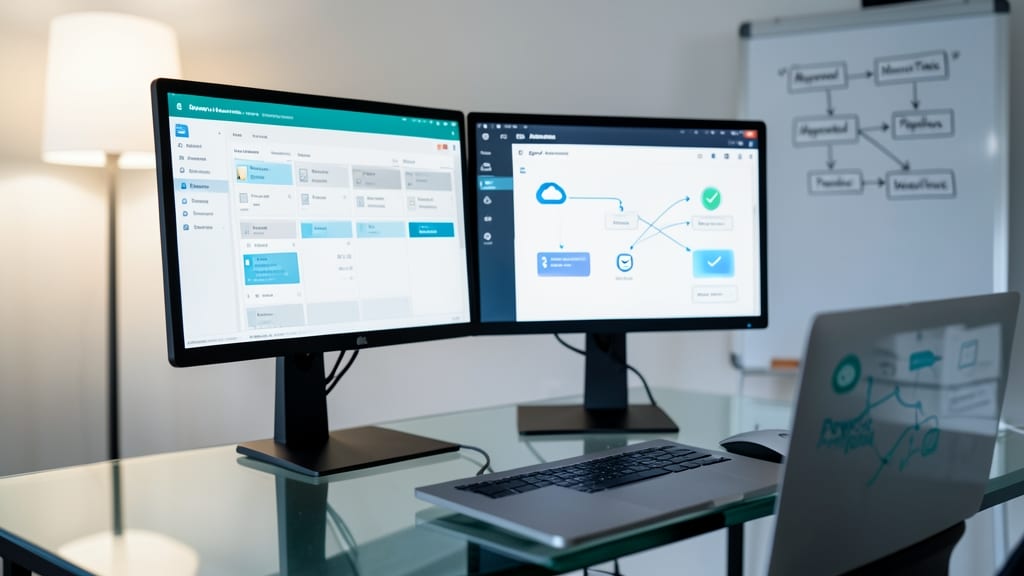
Tired of manually moving files or approving requests in SharePoint? Power Automate turns repetitive tasks into automated workflows with just a few clicks—no coding required. This integration lets you connect SharePoint triggers (like new files or updated lists) to actions (sending emails, creating tasks, or copying files) in seconds.
Start with pre-built templates for common tasks, such as "Send me an email when a new file is added" or "Copy files to OneDrive automatically." The drag-and-drop designer makes it easy to customize flows, and SharePoint triggers ensure your workflows stay synced with real-time changes. Best of all, it’s included with your Microsoft 365 subscription, so there’s no extra cost.
Perfect for admins managing approvals, project teams tracking updates, or individuals juggling multiple tasks—this is the tool that turns busywork into effortless efficiency. ✨
Customize Views to Fit Your Workflow
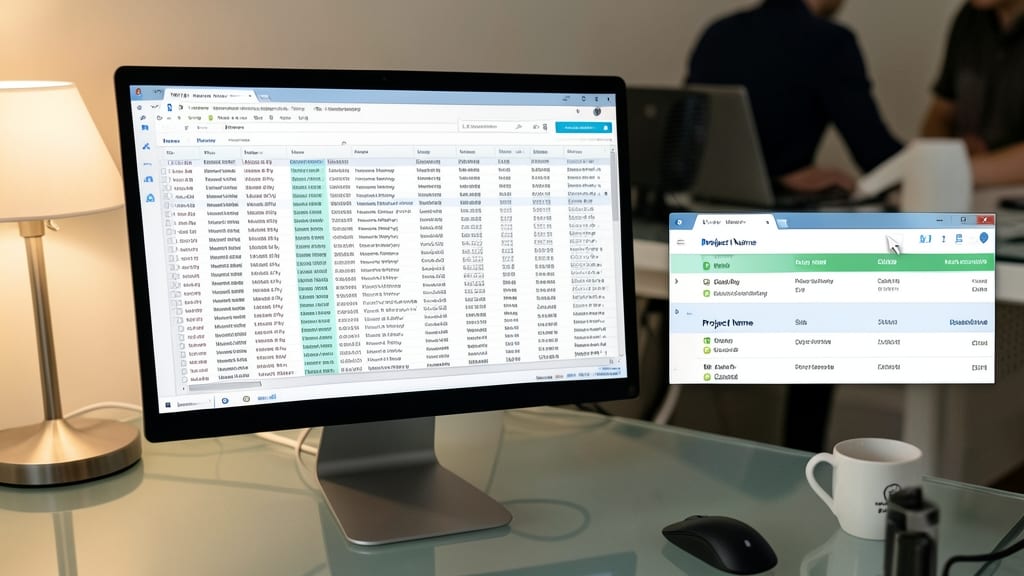
Drowning in SharePoint’s default list views packed with unnecessary columns? You’re not alone—customizing views is the secret weapon for cutting through the clutter and focusing on what matters to you.
With just a few clicks, you can hide irrelevant columns, rearrange headers, and apply filters to show only the data critical to your role. Need to track project deadlines? Create a custom view showing only the "Due Date" and "Status" columns. Managing approvals? Sort by "Modified Date" to spot pending tasks instantly. SharePoint even lets you save multiple views—like "My Tasks" or "High Priority"—so you can switch between workflows without confusion.
This tip is a game-changer for project managers, team leads, or anyone juggling multiple responsibilities. Spend less time scrolling and more time acting—your future self will thank you. ✨
Sync SharePoint Files to Your Desktop
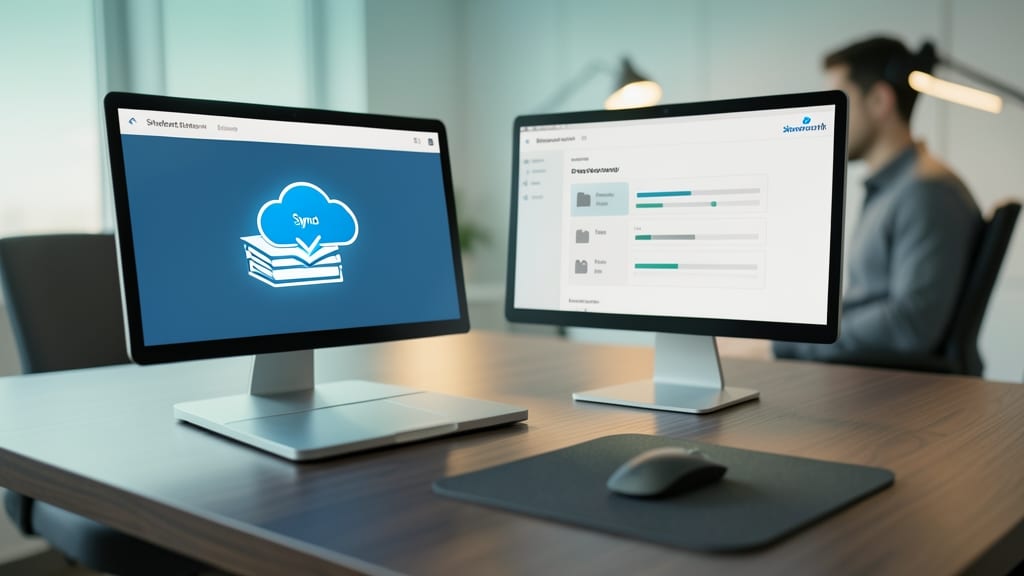
Tired of waiting for files to load every time you’re offline or stuck in a meeting? SharePoint’s sync feature lets you mirror key libraries to your desktop, giving you instant access—no internet required. This is a game-changer for remote workers or anyone with spotty connections.
Simply navigate to your library, click the sync button in the top-right corner, and select which folders to keep updated. Your files sync automatically in the background, just like OneDrive, but with SharePoint’s version control intact. Need to edit a document while traveling? Your local copy stays up-to-date, and changes sync the next time you connect. ⚡
Use SharePoint Mobile App for On-the-Go Access

Forget being tied to your desk—your SharePoint files can now live in your pocket. The SharePoint Mobile App (available for iOS and Android) gives you instant access to sites, documents, and tasks from anywhere, with offline capabilities for when Wi-Fi is spotty.
With the app, you can edit Word, Excel, and PowerPoint files directly on your phone, receive push notifications for updates, and even approve workflows on the go. The intuitive interface mirrors the desktop experience, so no training curve exists—just tap to browse libraries, search across sites, and collaborate in real time with colleagues.
Perfect for sales teams in the field, remote workers, or anyone who needs to respond to urgent requests while traveling. Stay connected without sacrificing productivity—your SharePoint data is always within reach. 💻