
Software
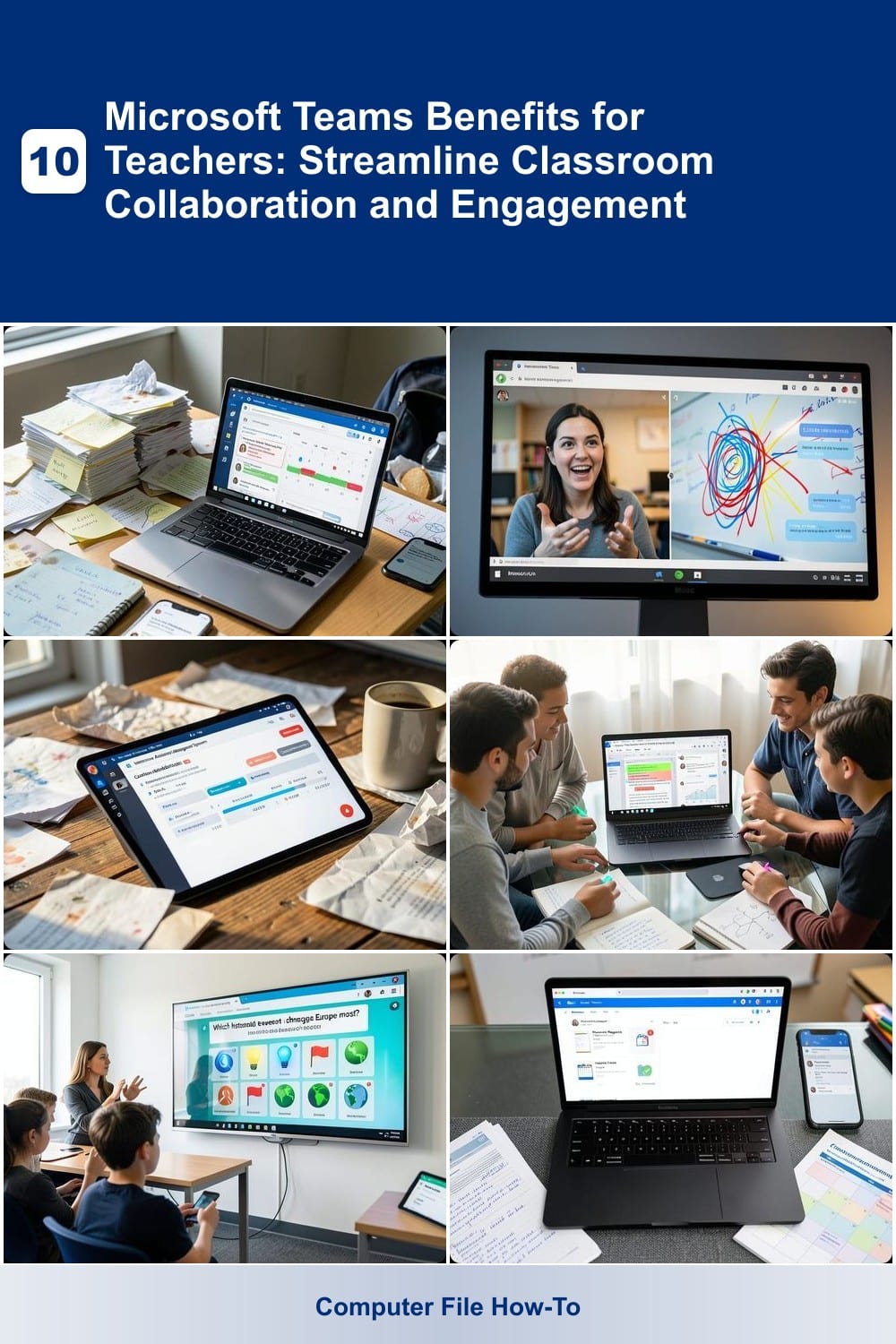
Microsoft Teams is transforming classrooms by making collaboration, communication, and lesson delivery more efficient. Discover how educators can leverage this powerful tool to save time, boost engagement, and create seamless learning experiences for students.
Seamless Classroom Communication Hub
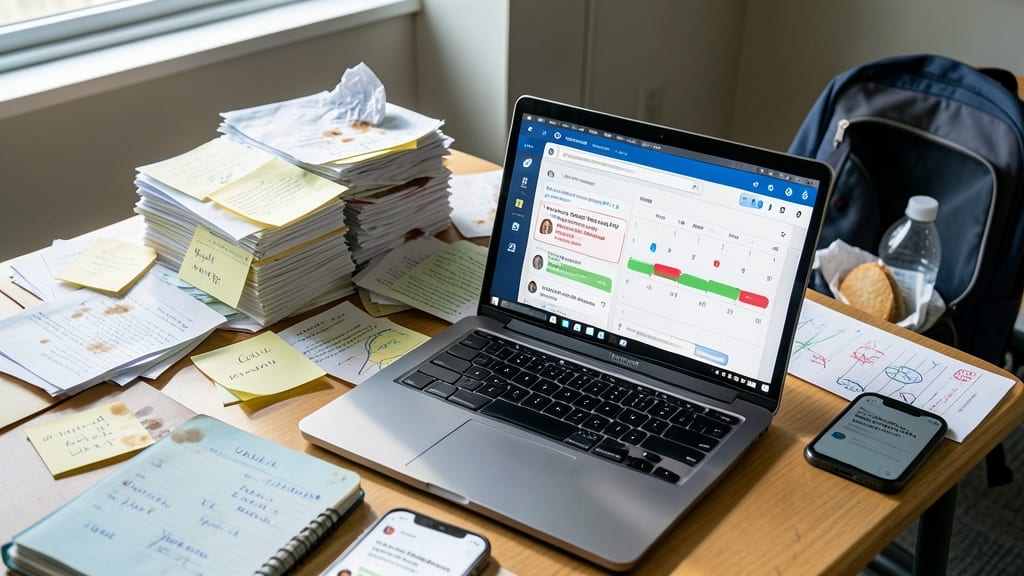
Say goodbye to the chaos of juggling emails, text messages, and forgotten reminders—Microsoft Teams acts as your classroom’s command center, keeping every announcement, deadline, and update in one organized, searchable hub. No more lost messages in overflowing inboxes or students claiming they "didn’t see" the assignment—just a single, reliable platform where everything stays visible and accessible.
With customizable notifications, you control what alerts students receive (e.g., urgent deadlines vs. general updates) while the activity feed tracks who’s viewed messages. The @mention feature ensures critical reminders cut through the noise, and post scheduling lets you plan announcements in advance—perfect for substitute days or last-minute updates. Plus, file attachments and quick links keep all resources tied to discussions, so students never have to hunt for materials.
This is the ultimate solution for busy teachers drowning in communication tools or hybrid classrooms where digital engagement is key. Your messages will finally reach every student—on time, every time. 🌟
Real-Time Virtual Classroom Sessions
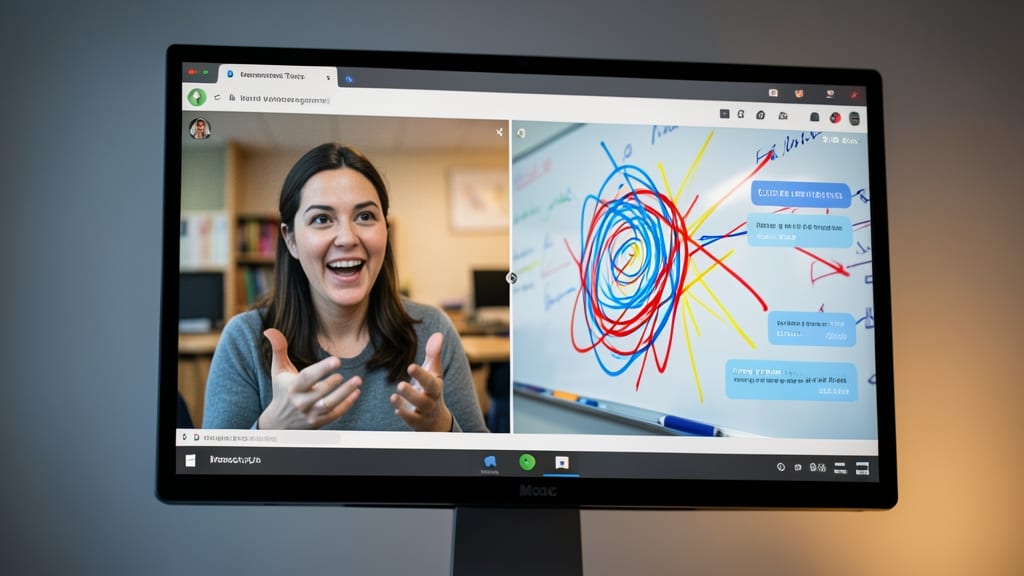
Bring the energy of an in-person classroom into any setting with Microsoft Teams’ real-time virtual sessions, designed to make hybrid or fully remote teaching feel just as dynamic. Whether you're delivering a lecture, hosting a group discussion, or collaborating on a project, the platform’s high-definition video and audio ensure crystal-clear communication—no more muffled voices or pixelated faces disrupting your flow.
Take engagement to the next level with breakout rooms for small-group activities, screen sharing to walk students through complex concepts, and live captions for accessibility. The whiteboard tool lets you sketch diagrams or annotate slides in real time, while reaction buttons (thumbs up, clapping hands) let students show their understanding without interrupting. Plus, recording sessions means no student misses a lesson, and you can review discussions later for follow-ups.
This feature is a lifesaver for hybrid teachers balancing in-class and virtual students, or remote educators who want to foster the same camaraderie as a physical classroom. With zero setup hassle and built-in reliability, it’s the ultimate tool for keeping students connected and engaged—no matter where they’re learning from. ⚡
Interactive Assignment Management System
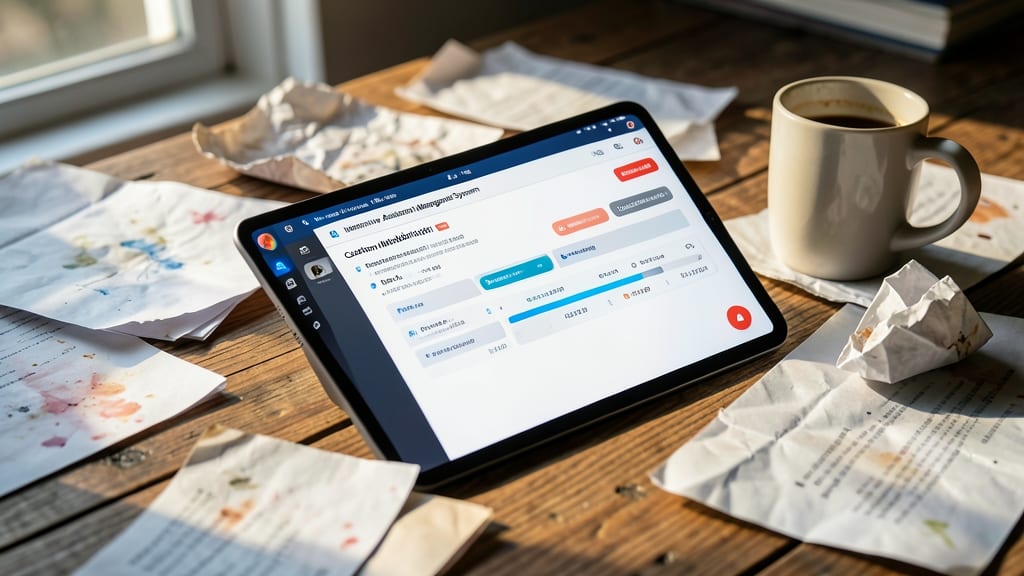
Tired of drowning in stacks of papers and chasing down late submissions? Microsoft Teams’ Interactive Assignment Management System turns grading from a headache into a streamlined process—all within the platform you already use.
Create custom rubrics with weighted criteria, set automated deadlines, and track submissions in real-time with visual progress bars. The Feedback tool lets you annotate directly on Word/PDF files, and version history ensures you never lose a student’s work. Plus, plagiarism checkers integrate seamlessly for added peace of mind.
Perfect for teachers juggling 50+ students or complex projects, this system cuts grading time by 40% while keeping everything organized. Say goodbye to lost papers and hello to effortless workflows. ✨
Collaborative Document Editing Tools
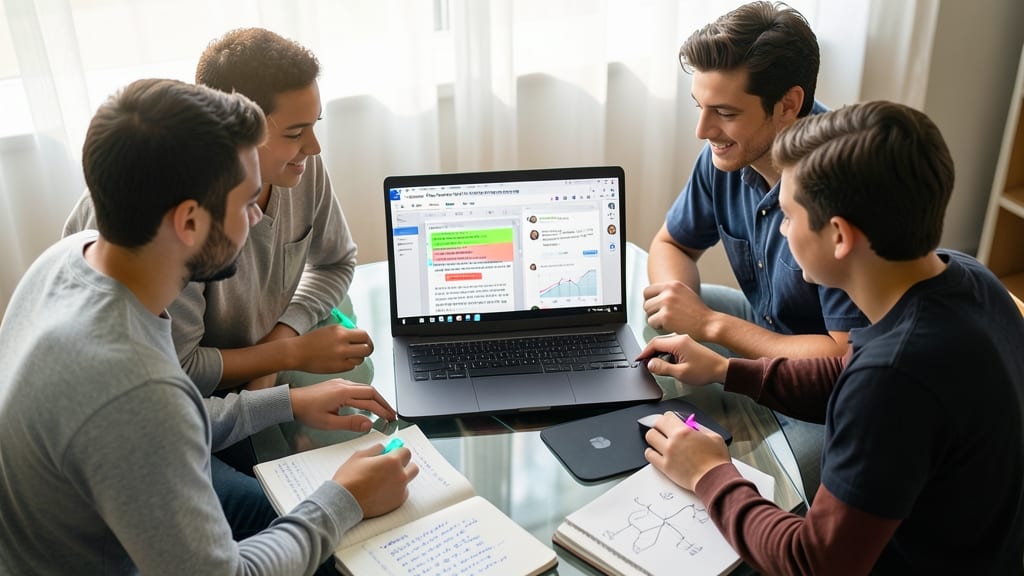
Turn group projects from chaotic email chains into smooth, real-time collaborations with Microsoft Teams' built-in document editing tools. Students can now co-author essays, presentations, and research projects simultaneously—seeing each other’s changes in real-time with multiple cursors and version history tracking.
The integration with Word, PowerPoint, and OneNote means no more "final draft" confusion. Teachers can leave comment threads directly in documents, and students receive instant notifications when feedback is added. The commenting and @mention system ensures no suggestion gets lost in the shuffle, while permission controls keep documents secure for classroom use.
Perfect for group research projects, peer-edited essays, or collaborative lesson plans, this tool transforms passive assignments into interactive learning experiences. ⚡
Built-In Classroom Polls and Quizzes
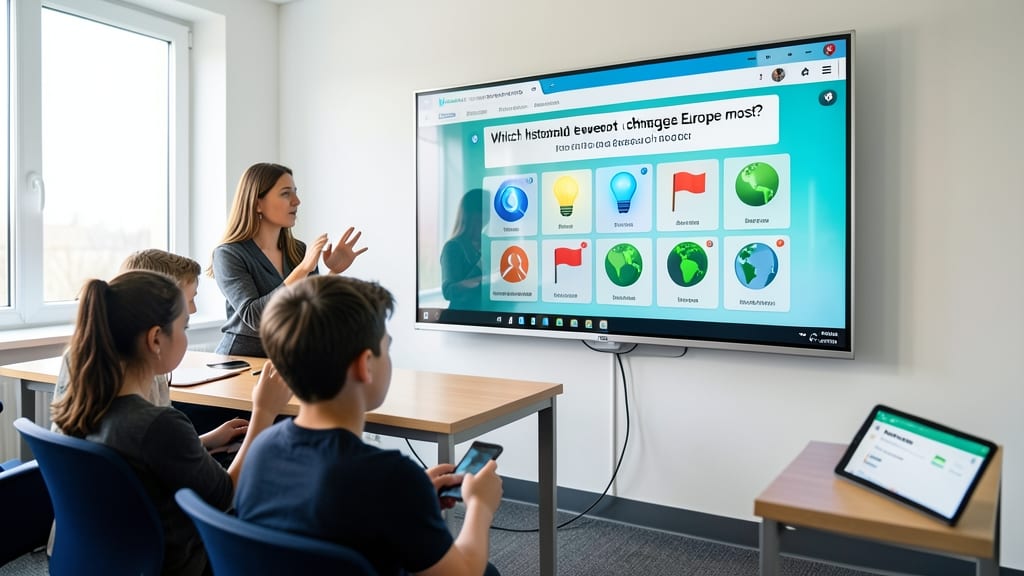
Turn passive learning into interactive discussions with Microsoft Teams’ built-in polls and quizzes, designed to keep students engaged in real time. Whether you’re checking for understanding mid-lesson or wrapping up with an exit ticket, these tools transform static lectures into dynamic exchanges—all without switching platforms.
Create live polls with multiple-choice, text, or emoji reactions to gauge opinions instantly, or assign graded quizzes with auto-scoring for quick feedback. The Insights dashboard even tracks participation trends, helping you identify who needs extra support. Best of all, these features integrate seamlessly with your existing Teams classroom setup.
Perfect for hybrid or remote teachers who want to replicate in-person engagement, or busy educators who need to assess comprehension without grading stacks of paper. 💡
Secure Parent-Teacher Communication Channel
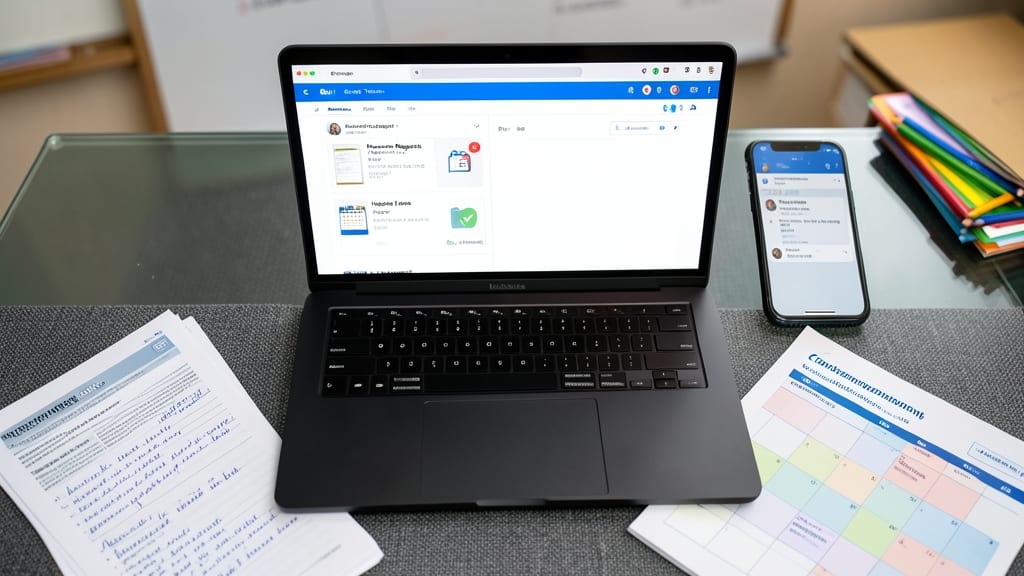
Parent-teacher communication often gets lost in long email chains or missed phone calls—but Microsoft Teams solves this with a secure, dedicated channel that keeps conversations organized and private.
Create private class teams where you can share progress reports, upcoming events, and helpful resources without exposing sensitive data. The end-to-end encryption ensures compliance with student privacy laws like FERPA, while threaded chats keep discussions clear. Parents can also join live meetings for quick check-ins, all within the same platform you already use for teaching.
This feature is a game-changer for elementary teachers juggling parent conferences or high school educators managing multiple grade levels. 💻
Integration with Office 365 Tools
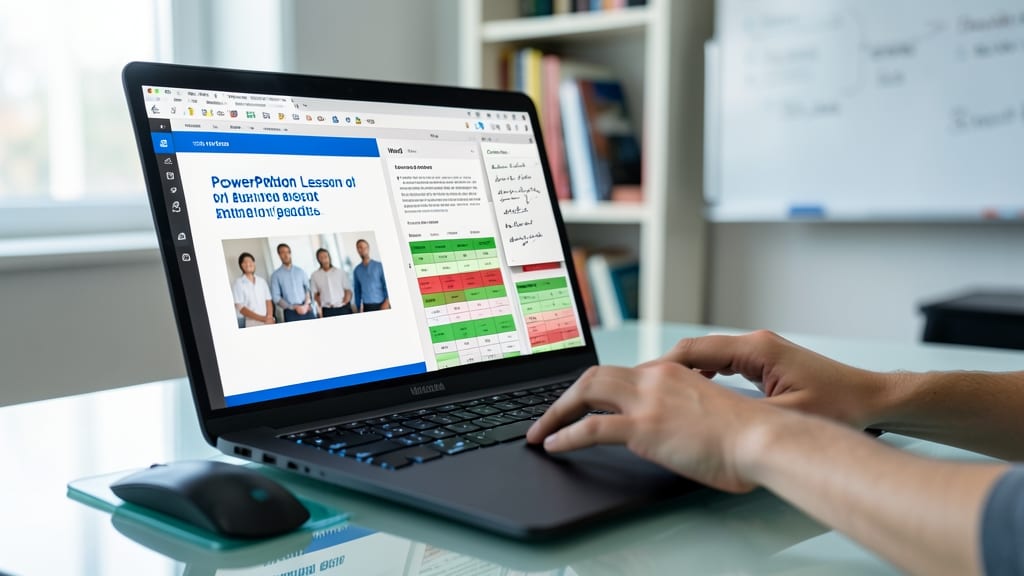
Tired of bouncing between apps to create lesson plans, grade assignments, and share resources? Microsoft Teams eliminates that frustration by embedding Word, Excel, PowerPoint, and OneNote directly into your workflow.
With one-click access to these tools, you can draft a PowerPoint lesson while referencing an Excel spreadsheet, then instantly share the finished presentation in Teams—all without leaving the platform. The integration also supports real-time co-authoring, so students can collaborate on Word documents or OneNote class notebooks while you provide live feedback.
This is a game-changer for teachers juggling multiple tools—whether you're designing a hybrid lesson plan or need students to edit a shared research project. Say goodbye to app-switching chaos! ✨
Automated Gradebook Synchronization
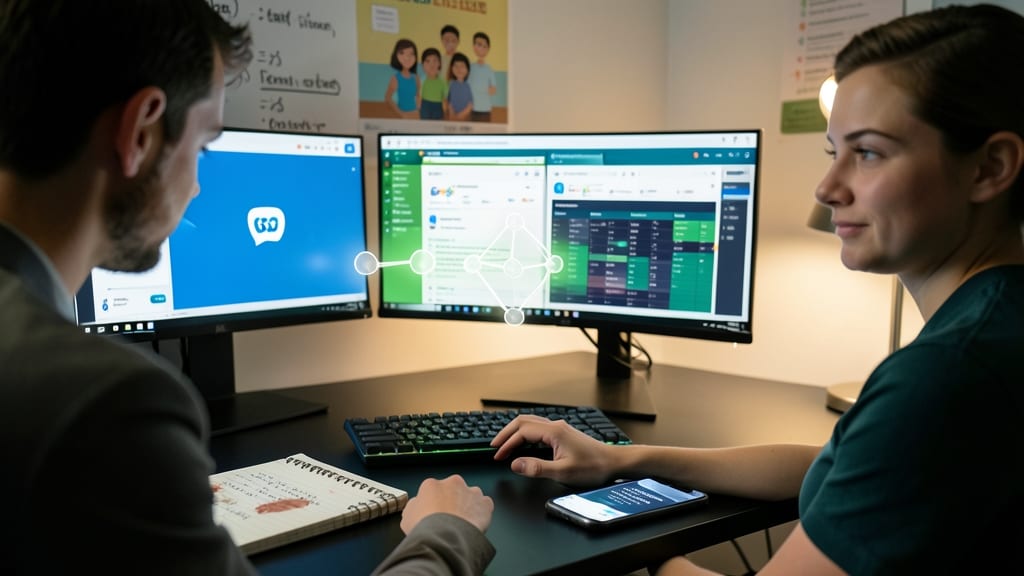
Tired of manually inputting grades into multiple systems? Microsoft Teams’ automated gradebook synchronization bridges the gap between your LMS platform (like Google Classroom or Canvas) and Teams, ensuring grades update instantly across both systems. This eliminates the tedious task of double-entry and reduces human error, giving you more time to focus on what matters—teaching.
The integration works seamlessly with third-party apps like Gradebook Sync for Teams, which automatically pulls scores from assignments, quizzes, and discussions. You can even customize sync rules to match your grading workflow, such as excluding certain assignments or applying weightings. Plus, the real-time updates mean parents and students always see the most current grades without you lifting a finger.
This feature is a game-changer for teachers juggling multiple platforms, especially those who use Canvas or Google Classroom alongside Teams. It’s the perfect solution for streamlining your grading process while keeping everything organized in one place. ✨
Student-Friendly Mobile Access
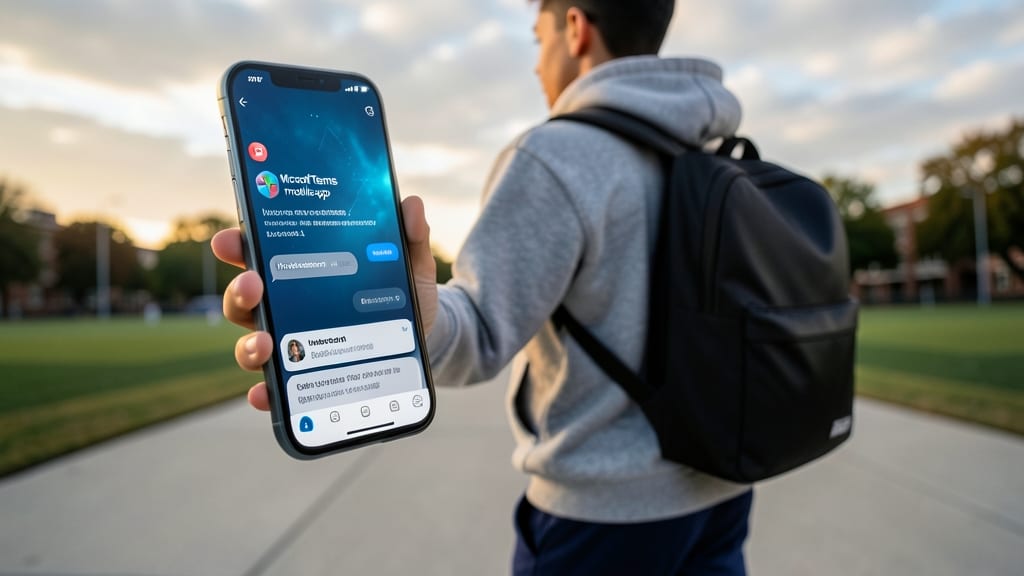
For students who juggle schedules between classes, sports, and study groups, the Microsoft Teams mobile app turns their phone into a pocket-sized classroom. With push notifications for deadlines, discussion replies, and live session alerts, students stay connected even when they're on the move.
The app mirrors the full desktop experience, letting students submit assignments, join 1:1 or group chats, and even participate in class discussions—all from their smartphones. Offline mode ensures they can download files and materials to review later, while real-time sync keeps everything updated once they reconnect. The intuitive interface makes it easy for younger learners to navigate, too.
This feature is a game-changer for high schoolers, college students, and hybrid learners who rely on flexibility. Whether they’re waiting for the bus or studying between classes, the mobile app keeps them engaged without sacrificing accessibility. ✨
Customizable Classroom Tabs and Resources
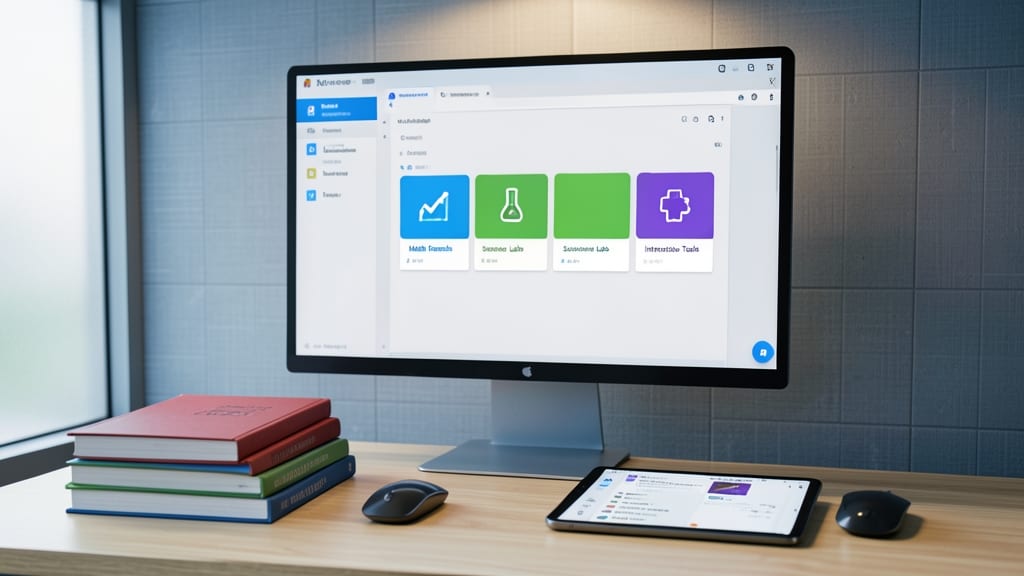
Tired of students drowning in a sea of scattered links and documents? Microsoft Teams’ customizable tabs let you organize everything—videos, PDFs, and interactive tools—into neat, labeled sections that students can access instantly.
Create dedicated tabs for each unit (like "Math Formulas" or "Science Labs") and pin frequently used resources at the top. You can even embed OneNote pages, Office 365 files, or external web tools—all without overwhelming students with clutter. The drag-and-drop interface makes it easy to update materials mid-semester.
Perfect for teachers juggling multiple subjects or hybrid learning, this feature ensures students spend less time searching and more time learning. 💡