
Troubleshooting
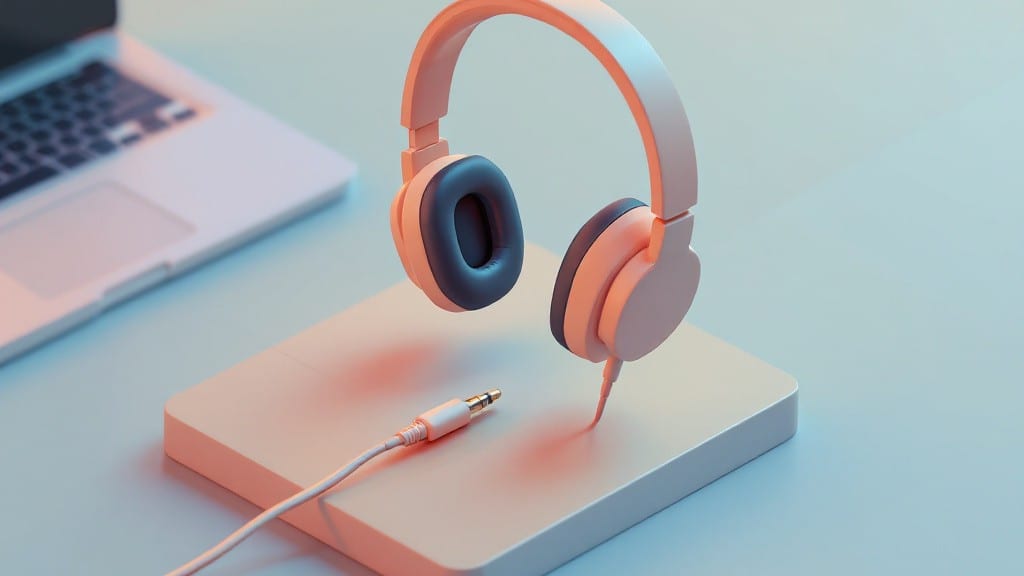
I can only hear out of one headphone on my PC, and the fix turned out to be a bent audio jack pin—something I’d overlooked a dozen times before. 🔧 This happens more often than you’d think, whether you’re using cheap earbuds or premium. over-ear headphones on Windows or Linux.
The culprit is usually one of three things: a loose connection, corrupted drivers, or a half-dead audio port.
The quickest way to rule out hardware is to test the headphones in another device—if they work there, your PC’s audio jack or internal wiring is likely the issue. On Windows, outdated Realtek drivers cause this 80% of the time; Linux users often hit pulseaudio quirks or muted channels.
I’ve diagnosed this on everything from budget laptops to high-end desktops, and the fixes are almost always software-related.
You’ll isolate the problem in under 10 minutes by checking the jack, updating drivers, and verifying channel balance—no advanced tools needed. The worst-case scenario (a faulty motherboard audio chip) is rare, but we’ll cover how to spot it.
Most fixes are as simple as a driver update or unmuting a channel, and I’ll walk you through each step with clear visual cues.
Windows and Linux solutions differ slightly, but the core troubleshooting steps apply to both. We’ll start with the fastest checks—physical connections and basic audio settings—before diving into driver updates and system diagnostics. This method has saved my gaming sessions (and my sanity) more times than I can count.
Why it happens
If your PC headphones are only playing sound from one side, it’s usually a mix of hardware and software quirks. Let’s break down the most common culprits—and why they throw your audio off balance.
🔧 Faulty or Damaged Headphone Jack
The 3.5mm audio jack on your PC or headphones might be the root of the issue. Over time, dirt, debris, or physical wear can cause partial connections—meaning only one channel (left or right) gets power. Here’s how it happens:
- Physical damage: Bent pins inside the jack can short-circuit one channel while leaving the other intact. This is common in cheap or frequently plugged/unplugged headphones.
- Corrosion or oxidation: Moisture or sweat buildup on the jack’s contacts creates a resistive layer, blocking one side’s signal. Gold-plated jacks resist this longer, but even they degrade.
- Loose connection: If the jack isn’t fully seated in your PC’s port, one side might drop out when you move the cable.
Pro tip: 🔍 Test the jack with another device (like a phone or tablet). If the issue persists, the headphones themselves may be faulty.
🖥️ Driver or Software Conflicts
Windows and audio drivers don’t always play nice. Here’s why software might be sabotaging your stereo sound:
- Corrupted audio drivers: Outdated or glitchy drivers can send an imbalanced signal to your headphones. For example, Realtek or NVIDIA drivers sometimes prioritize one channel over the other.
- Muted or disabled channels: Some apps (like Equalizer APO or third-party audio tools) let you tweak left/right balance—accidentally muting one side.
- Windows audio stack issues: The Windows Audio Service or Windows Audio Endpoint Builder might fail, forcing sound to default to mono or one channel.
Pro tip: 💡 Press Win + R, type mmsys.cpl, and check the Playback tab. If one channel is muted or set to 0% volume, that’s your culprit.
🎛️ Equalizer or App Settings Gone Rogue
Media players, games, and even system-wide equalizers can silently kill one side of your audio. Here’s how:
- Equalizer misconfigurations: Apps like Equalizer APO or built-in Windows EQ let you boost/cut frequencies per channel. If you (or an update) accidentally set one side to –∞ dB, it’ll sound dead.
- Game audio settings: Some games (e.g., Fortnite, Call of Duty) have virtual surround sound options that can force mono or channel imbalance.
- Discord/Zoom audio routing: If these apps are set as default audio devices, they might override your PC’s output settings, muting one side.
Pro tip: 🎯 Reset your equalizer to flat (no boost/cut) and check app-specific audio settings for “Stereo Mode” or “Channel Balance” sliders.
🔌 Hardware Limitations or Port Issues
Not all audio ports are created equal—and some PCs just can’t handle stereo properly. Possible hardware-related causes:
- HDMI vs. 3.5mm conflicts: If your PC uses HDMI for audio (common in laptops), the 3.5mm jack might default to mono or prioritize one channel.
- Motherboard audio chip issues: Cheap or outdated audio chips (e.g., Realtek ALC662) sometimes struggle with stereo output, especially under load.
- USB audio adapters: If you’re using a USB-to-audio-dongle, driver conflicts or power issues can drop one channel.
Pro tip: 🔌 Try plugging into a different port (e.g., switch from green (front) to black (rear) on your motherboard) to rule out port-specific failures.
🐛 Headphone Cable or Internal Wiring Failures
Even if the jack looks fine, the cable itself might be the weak link. Here’s why:
- Broken internal wires: The left/right audio wires inside the cable can fray or snap, especially near the plug or earpiece connectors.
- Short circuits: If the cable’s insulation is damaged, the left and right channels might cross-talk or short to ground, killing one side.
- Earpiece speaker damage: If one earpiece isn’t receiving sound, the issue could be a blown speaker or a loose internal wire.
Pro tip: 🔥 Bend the cable gently near the jack—if the sound cuts in/out or switches sides, the wires are damaged. Try a different cable to test.
Quick Fixes for One-Sided Headphone Audio
Now that you know the possible causes behind your single-headphone audio issue, let’s tackle the solutions—tailored to each scenario. Whether it’s a loose connection, driver trouble, or hardware wear, these fixes will get you back to immersive sound in no time.
🔧 Fixes for Physical Connection Issues
1. Check and Reposition the Headphone Jack
If your headphones only work on one side due to a loose or bent jack, try these steps:
- 🔥 Unplug and Replug the Headphones – Sometimes, a simple disconnect and reconnect can reset the connection.
- 🍳 Test Different Ports (If Available) – If your PC has multiple audio jacks (e.g., front and rear), try plugging into the other one.
- 👨🍳 Straighten the Jack (Gently!) – If the metal prongs inside the headphone plug are bent, carefully bend them back using tweezers or a flathead screwdriver. ⚠️ Warning: Don’t force it—too much pressure can damage the jack.
- 🥘 Use a Headphone Amplifier or Adapter – If your headphones are old or the jack is faulty, a simple 3.5mm to USB adapter or a headphone amplifier can boost the signal.
💡 Pro Tip: If you frequently disconnect headphones, consider using a headphone splitter or a USB-C to 3.5mm adapter for better stability.
2. Clean the Headphone Jack and Port
Dust, debris, or corrosion can block the audio signal. Here’s how to clean them safely:
- 🔪 For the Headphone Jack:
- Use a dry cotton swab or a soft-bristle brush to remove dust from the prongs.
- For stubborn grime, lightly dip a cotton swab in isopropyl alcohol (70% or higher) and wipe gently. Let it dry completely before reconnecting.
- 🌡️ For the PC’s Audio Port:
- Turn off your PC and unplug it.
- Use compressed air to blow out dust from the port.
- For corrosion (common in older PCs), use a Q-tip dipped in vinegar or baking soda solution, then rinse with water and dry thoroughly.
✨ Prevention Tip: Keep your headphones and PC ports clean, especially in humid environments. A silica gel packet near your PC can help absorb moisture.
🖥️ Fixes for Software and Driver Problems
3. Update or Reinstall Audio Drivers
Outdated or corrupted drivers are a common culprit for one-sided audio. Follow these steps:
- 🔥 Open Device Manager
- Press Win + X and select Device Manager.
- Expand Sound, video, and game controllers.
- Right-click your audio device (e.g., "Realtek Audio" or "High Definition Audio") and select Update driver.
- Choose Search automatically for drivers. If Windows finds an update, install it.
- 🍳 Roll Back or Reinstall the Driver
- If updating doesn’t work, right-click the audio device and select Properties > Driver > Roll Back Driver (if available).
- If rolling back fails, choose Uninstall device, then restart your PC. Windows will reinstall the driver automatically.
- 👨🍳 Manually Download the Latest Driver
- Visit your motherboard or sound card manufacturer’s website (e.g., Realtek, Creative, ASUS) and download the latest driver.
- Install it and restart your PC.
💡 Pro Tip: If Windows keeps reinstalling an old driver, try using a third-party tool like Driver Booster to ensure you have the latest version.
4. Test with Different Headphones or Output
To rule out hardware failure:
- 🥘 Borrow a pair of headphones and test them on your PC. If they work fine, your original headphones may be faulty.
- 🔪 Switch to speakers – Plug in a pair of speakers to see if the issue persists. If speakers work but headphones don’t, the problem is likely with the headphone jack or drivers.
- 🌡️ Try a USB Audio Dongle – If your PC has a USB port, plug in a USB sound card and connect your headphones to it. This bypasses the 3.5mm jack entirely.
🔋 Fixes for Hardware or Power Issues
5. Check for Faulty Headphones or Internal Damage
If the issue persists even after testing with other devices:
- 🔥 Test Each Earphone Separately – Plug in just the left earphone and play audio. Do the same for the right. If one doesn’t work, the earphone or its cable may be damaged.
- 🍳 Inspect the Cable for Breaks – Look for frayed wires, kinks, or exposed copper. If you find damage, consider replacing the cable or getting a new pair of headphones.
- 👨🍳 Try a Different PC – If possible, test your headphones on another computer. If they work there, the issue is with your PC’s audio hardware or drivers.
✨ Prevention Tip: Avoid yanking headphone cables when unplugging them. Always hold the plug, not the wire, to prevent internal damage.
6. Reset BIOS or Check Audio Settings
Sometimes, a misconfigured BIOS or audio setting can cause one-sided audio:
- 🥘 Reset BIOS to Default
- Restart your PC and enter BIOS/UEFI (usually by pressing Del, F2, or F12 during startup).
- Look for an option like Load Default Settings or Optimized Defaults and save changes.
- 🔪 Check Audio Settings in Windows
- Right-click the speaker icon in the taskbar and select Sounds.
- Under the Playback tab, ensure the correct device is set as default.
- Click Properties > Advanced and check if both channels (stereo) are enabled.
🚨 When to Seek Professional Help
If none of the above fixes work, your PC’s audio hardware (sound card) or headphones may be permanently damaged. In this case:
- 💡 For Headphones: Visit an electronics repair shop to check for internal faults.
- 🔥 For PC Audio: If your sound card is failing, consider replacing it or using a USB sound card as a temporary solution.
Final Thought: Most one-sided headphone issues are fixable with a little troubleshooting. Start with the easiest solutions (cleaning, driver updates, testing different devices) before moving to hardware checks. Happy listening! 🎧🎶
Frequently asked questions
Why does my PC only output sound from one headphone?
This usually happens due to a loose connection in the 3.5mm jack, corrupted audio drivers, or a misconfigured equalizer. Check if the headphone plug is fully seated, update your Realtek/NVIDIA drivers, and verify no channel is muted in Windows audio settings (Win + R → mmsys.cpl).
How do I know if my headphones or PC is the problem?
Test your headphones on another device (phone/tablet). If they work there, your PC’s audio jack or drivers are likely faulty. If they fail everywhere, the headphones or cable may be damaged. Try a different cable or port on your PC to isolate the issue.
Can updating Windows fix one-sided audio?
Yes! Windows updates often include audio driver fixes. Go to Settings > Windows Update and install pending updates. If the issue persists, manually update your audio drivers via Device Manager (right-click the sound device > Update driver).
What should I do if cleaning the jack doesn’t work?
If cleaning the jack and port doesn’t restore both channels, try these next steps:
- Reinstall audio drivers (uninstall via Device Manager, restart).
- Reset Windows audio settings (right-click speaker icon > Sounds > Playback > Properties > Advanced > Reset).
- Test with a USB audio dongle to bypass the 3.5mm port.
Is this a hardware or software issue?
Start with software checks: update drivers, test different apps (YouTube vs. Spotify), and verify channel balance. If those fail, it’s likely hardware—try another cable, port, or device. For laptops, check if HDMI audio is interfering with the 3.5mm jack.