
Hardware
The F1 through F12 keys on your keyboard hold powerful shortcuts that can transform your workflow. From system recovery tools to browser navigation, these hidden functions save time and boost productivity—even if you’ve never used them before.
F1 Key Opens Help and Support

Stuck troubleshooting an error or curious about a software feature but don’t want to waste time searching online? The F1 key is your instant help desk—press it once in Windows or Linux, and you’ll get direct access to the system’s built-in help menus, manuals, and troubleshooting guides for whatever app or OS you’re using.
This shortcut works universally across Windows 10/11 and most Linux distributions, pulling up context-specific support without leaving your current task. Need help with a Blue Screen of Death (BSOD)? Press F1 in Safe Mode. Confused about Excel’s pivot tables? F1 opens the relevant guide. It even triggers browser help pages in Chrome, Firefox, and Edge—no more digging through menus or typing vague search queries.
Perfect for IT support teams, students learning new software, or anyone frustrated by unclear error messages. Master this, and you’ll resolve issues faster than ever—no Google tab required. 💡
F2 Key Renames Files and Folders
Frustrated by the slow, multi-step process of right-clicking to rename files? The F2 key is your speedy workaround—just press it once to instantly rename any file or folder in File Explorer, Windows Explorer, or even Command Prompt. No menus, no delays—just type your new name and hit Enter.
This shortcut works across Windows 10 and 11, and it’s especially powerful when organizing batches of files. Need to add dates to a dozen documents? Press F2, type, and move to the next—no mouse required. It also syncs with Linux file managers like Nautilus or Dolphin, making it a cross-platform power tool.
Perfect for data analysts, writers, or anyone drowning in digital clutter. Master this, and you’ll rename files in seconds instead of minutes. 💻
F3 Key Activates File Search
Tired of digging through folders to find that one file? The F3 key is your new best friend—it instantly launches Windows Search without opening File Explorer. No more navigating menus or remembering keyboard shortcuts like Ctrl+E; just press F3 and start typing.
This shortcut works across Windows 10 and 11, searching not just files but also emails, system settings, and even Cortana queries. It’s especially useful when you’re in the middle of a workflow—like finding a document while drafting an email or locating a driver update during troubleshooting.
Perfect for professionals juggling multiple tasks or anyone who hates wasted time scrolling through folders. Give it a try next time you’re hunting for a file! ✨
F4 Key Repeats Last Action
Tired of manually repeating the same actions in File Explorer or Command Prompt? The F4 key is your secret weapon—it instantly repeats your last command, whether you're copying files, navigating directories, or executing scripts.
Press F4 after typing a path in the address bar (like C:\Users\Documents\), and Windows auto-completes it. In Command Prompt, it repeats your last executed command—no retyping needed. This shortcut works across Windows 10/11, Linux terminals, and even some third-party file managers like Total Commander.
Perfect for developers, sysadmins, or anyone who works with files daily. Master this, and you’ll shave minutes off repetitive tasks every day. ✨
F5 Key Refreshes Web Pages

Tired of waiting for web pages to update—or worse, missing real-time changes like live scores or stock prices? The F5 key is your universal refresh button, working across 90% of browsers, email clients, and even system interfaces to pull the latest data with a single tap.
Beyond browsers, F5 refreshes Outlook emails, Slack messages, and even some system dialogs (like Windows Update status). Hold Shift + F5 for a hard refresh—ignoring cached files to load the absolute latest version. It’s the fastest way to clear stale content without digging through menus.
Perfect for real-time monitoring (e.g., live sports, trading dashboards) or collaborative tools where updates matter. Master this, and you’ll never manually click that circular arrow again. ⚡
F6 Key Moves Cursor in Address Bar

Tired of manually clicking your browser’s address bar every time you want to type a URL? The F6 key is your secret weapon for lightning-fast navigation—jumping directly to the address bar (or search field) in one keystroke.
In Chrome, Firefox, Edge, and most modern browsers, pressing F6 instantly moves the cursor to the address bar, skipping tabs and toolbars. This is a game-changer for power users who type URLs or commands (like Ctrl+K shortcuts) frequently. It also works in search fields across apps like Spotify, YouTube, and even system dialogs, making it versatile beyond browsing.
Perfect for developers testing URLs, researchers compiling references, or anyone who hates mouse clicks. Master this, and your workflow just got smoother. ⚡
F7 Key Opens Spell Checker
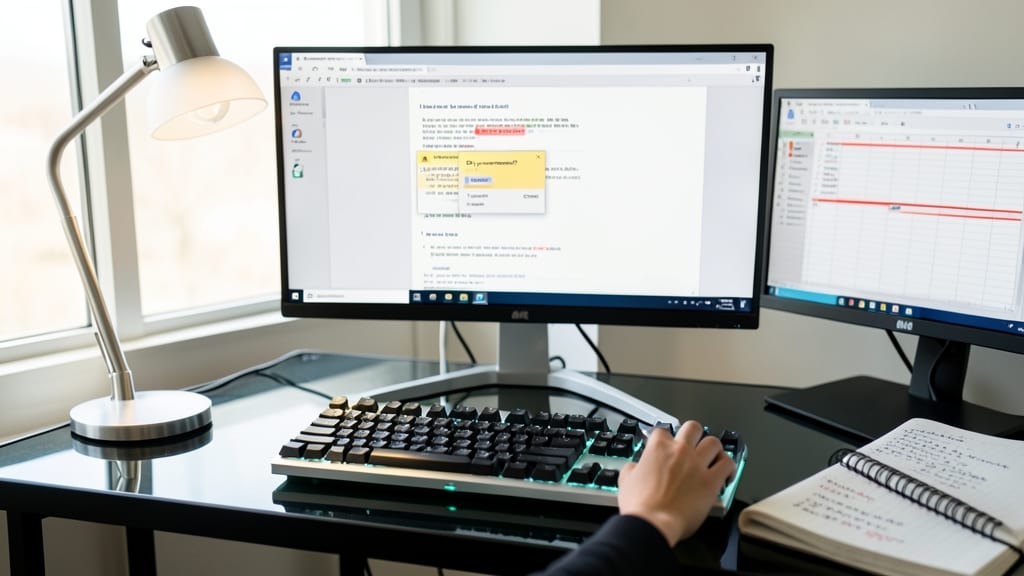
Tired of hunting through the Review tab in Microsoft Word to catch typos? The F7 key is your secret weapon—it triggers the spell and grammar checker instantly, saving you clicks and time.
Pressing F7 in Word, Excel, or Outlook launches the built-in proofing tool, highlighting errors in real-time. Unlike manual checks, it flags grammar mistakes, contextual errors, and style issues without requiring you to open the Review menu. This shortcut is especially useful for writers, students, and professionals who need polished documents quickly.
Perfect for anyone who drafts reports, emails, or essays regularly, F7 ensures your writing is error-free with minimal effort. ✨
F8 Key Enters Safe Mode
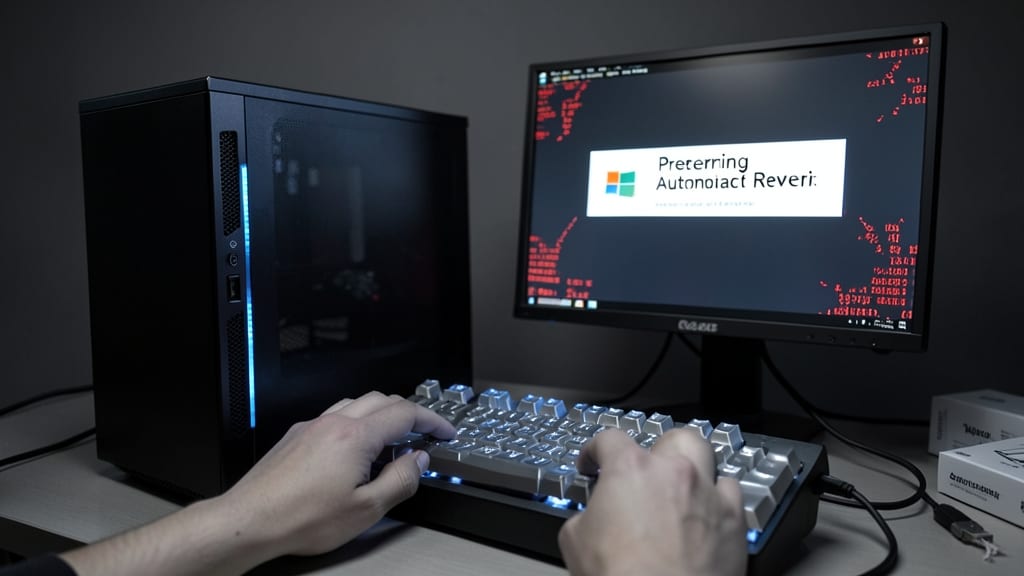
Stuck in a boot loop or plagued by mysterious system errors? The F8 key is your lifeline to Windows Safe Mode, a stripped-down environment designed to help diagnose and fix critical issues without interference from third-party software.
Pressing F8 repeatedly during startup (before the Windows logo appears) unlocks a menu where you can boot into Safe Mode with Networking, Safe Mode with Command Prompt, or Enable Boot Logging—tools that isolate problems like driver conflicts or malware. This is especially useful for IT professionals or power users troubleshooting BSODs (Blue Screens of Death) or corrupted system files.
Ideal for anyone dealing with persistent crashes or pre-installation checks, Safe Mode lets you uninstall problematic updates, scan for malware, or restore system files—all while keeping your hardware running. ⚡
F11 Key Toggles Full-Screen Mode
Tired of stretching your hands to toggle full-screen mode? The F11 key is your one-keystroke solution—universal across browsers, videos, and even presentations. Whether you're watching a movie, giving a PowerPoint, or deep in a coding session, this shortcut instantly maximizes your screen without reaching for the mouse.
Works seamlessly in Chrome, Firefox, Edge, and YouTube, plus apps like Microsoft PowerPoint and VLC. The best part? It’s consistent across Windows, macOS, and Linux, so you’ll never need to relearn it. Press once to enter full-screen, press again to exit—no menus, no delays, just pure efficiency.
Perfect for presenters, developers, and casual users who want to eliminate distractions. Master this, and you’ll wonder how you ever lived without it. ✨
F12 Key Opens Developer Tools
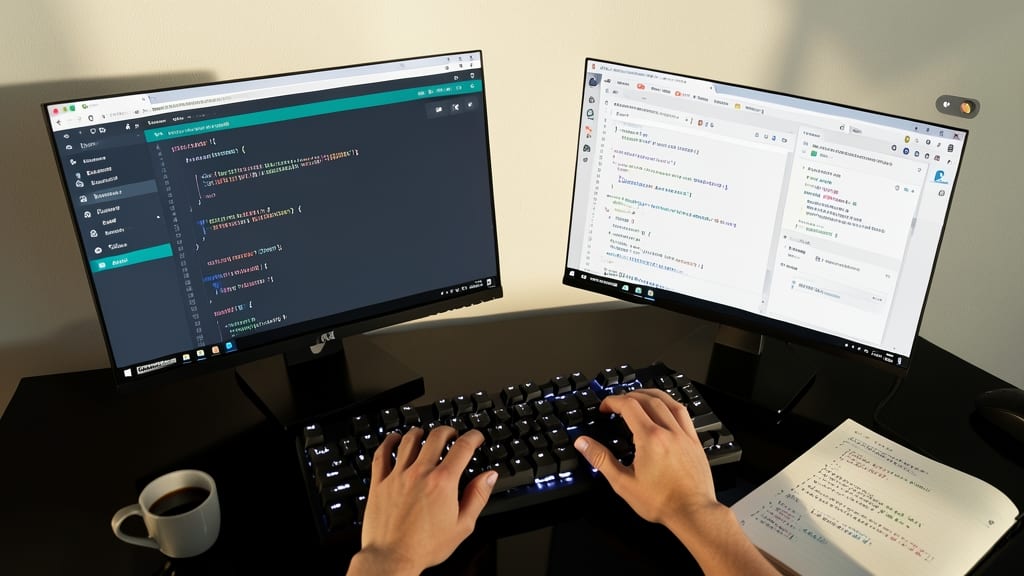
Stuck debugging a website or tweaking CSS on the fly? The F12 key is your secret weapon—with a single press, it instantly opens your browser’s Developer Tools across Chrome, Firefox, Edge, and Safari.
No more hunting through menus to inspect elements, debug JavaScript errors, or test responsive layouts. The DevTools panel gives you real-time access to HTML/CSS editors, network activity logs, and performance metrics—critical for developers but also useful for anyone troubleshooting broken links or ad blockers.
Perfect for web developers, designers, and even casual users who want to peek under the hood of a website. Master this shortcut, and you’ll save hours of manual navigation. ✨