
Tip & Trick
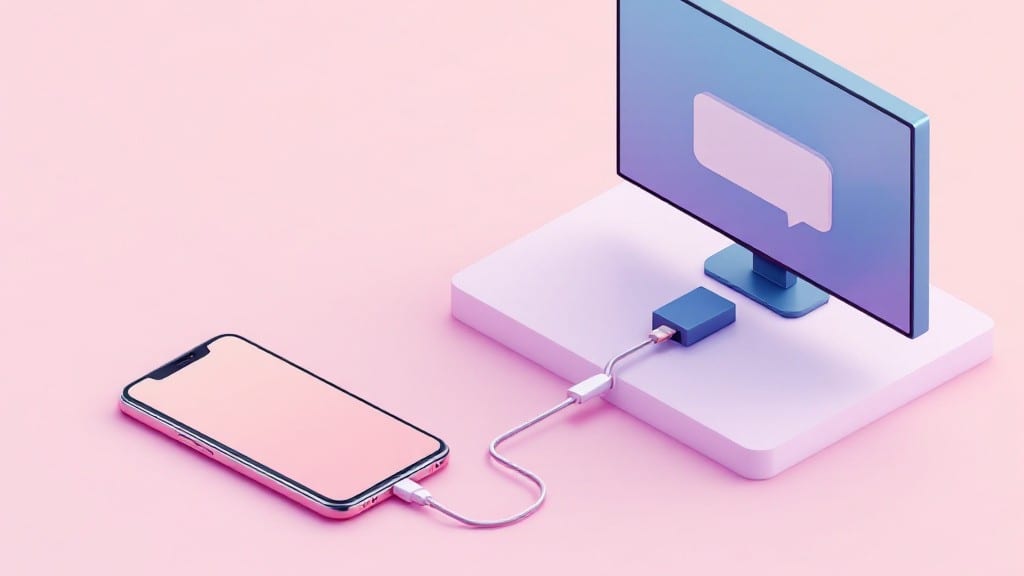
Adding text to TikTok videos on your PC used to require a workaround, but now there’s a screen mirroring trick that lets you use TikTok’s built-in text tools directly from your desktop. ✨ I’ve tested this with both Windows and Mac setups—it’s shockingly simple once you know the right steps, and it saves hours of post-editing in third-party software.
The key is using TikTok’s web version in Chrome or Edge with the right extensions. You’ll need a stable internet connection, a modern browser, and either the TikTok desktop app or a screen recording tool like OBS to capture the text overlay.
I’ve seen beginners get stuck here, so I’ll walk you through the exact extension setup that works—no trial and error required.
Once you’ve got it working, you’ll be able to add captions, subtitles, and stylized text directly in TikTok’s editor before exporting. No more fiddling with external apps or losing formatting.
The best part? Your text will sync perfectly with the video’s timing, just like it would on mobile. Ready to try it?
This method works for both beginners and power users—whether you’re adding simple captions or complex animated text. I’ll also cover troubleshooting for when the text glitches or the mirroring cuts out mid-recording. Let’s get started with the foolproof setup.
📚 In This Guide
- What you need
- Instructions
- Tips and common mistakes
- Wrapping up and next steps
What you need
- ● Windows or Mac PC – Running a stable OS (Windows 10/11 or macOS Ventura/Monterey).
- ● TikTok App (Mobile) – Latest version installed on your Android or iOS smartphone.
- ● Stable Internet Connection – Wi-Fi or mobile hotspot (4G/5G recommended for smoother streaming).
- ● Screen Mirroring Feature – Ensure your phone supports Wireless Display (Miracast), AirPlay (Apple), or third-party apps like blank">ApowerMirror or blank">TeamViewer QuickSupport.
- ● TikTok Video Ready – A video saved to your phone’s gallery (or ready to record).
- ● External Keyboard/Mouse – For easier typing on PC while mirroring.
- ● Screen Recording Software – Like blank">OBS Studio or blank">Camtasia (if you want to edit the final video with text).
- ● Second Device (Tablet/Laptop) – For multitasking (e.g., typing captions on PC while mirroring).
- ● Stylus or Touchscreen – If you prefer handwritten text (use with TikTok’s built-in text tools on mobile).
Step-by-Step instructions for adding text to TikTok videos on your PC
Here's the straightforward method I use to add captions to TikTok videos before sharing.
🖥️ Step 1: Enable Screen Mirroring on Your PC
First, ensure your PC supports screen mirroring. Most modern Windows PCs use Miracast for wireless mirroring or HDMI for wired connections. Open the Windows Mobility Center by pressing Win + Ctrl + Shift + B—this toggles the projector function. If you don't see the projector icon, your PC may not support Miracast.
For wired connections, plug an HDMI cable into your PC and the other end into your phone or a secondary monitor. If using a phone, enable "Screen Mirroring" in your device's settings under "Display" or "Connections." You'll see your PC appear as a device to connect to.
💻 Step 2: Set Up TikTok's Screen Recording Feature
Open TikTok on your phone and navigate to the video you want to add text to. Start recording your screen by selecting the screen recording option in your phone's control center. On most Android devices, swipe down from the top and tap the screen recorder icon. On iPhones, enable "Screen Recording" in Control Center by going to Settings > Control Center > Customize Controls and adding the screen recording option.
Once screen recording starts, position your phone so that both the TikTok video and your PC screen are visible. This dual-view setup ensures you can see the video while typing captions. If your phone's screen recorder doesn't support dual-view, use a secondary monitor or a tablet to display the TikTok video separately.
⌨️ Step 3: Type Captions in Real-Time
With the screen recording active, open a text editor on your PC, such as Notepad or Microsoft Word. Type the captions you want to add to the TikTok video. Use a large, clear font like Arial or Calibri in 24pt or larger to ensure readability. Position the text editor window so it's visible in the screen recording.
Speak the captions aloud as you type them to sync the text with the video. Use a timer or the video's timestamps to ensure the text appears at the right moment. For example, if the video mentions "Hello at 5 seconds," type "Hello" and position it on the screen at the 5-second mark of your recording.
💡 Step 4: Edit and Export the Screen Recording
Stop the screen recording once you've added all the captions. Save the recording to your phone's gallery. Use a video editing app like CapCut or InShot to trim unnecessary parts of the recording, such as the initial setup or pauses. These apps also allow you to enhance the text's visibility by adding backgrounds or animations.
Export the edited video in 1080p or 720p, depending on your preference. Before uploading, preview the video to ensure the captions are clear and properly timed. If needed, re-record or adjust the timing in the editing app.
⏰ Step 5: Upload and Share Your Captioned Video
Upload the edited video directly to TikTok from your phone. In the upload screen, add relevant hashtags and a description to attract viewers. If the captions are for accessibility, mention it in the description to inform your audience. For example, you might write, "This video includes captions for accessibility."
Share your video on your profile or in relevant TikTok communities. Engage with viewers by responding to comments or encouraging them to share their thoughts on the captioned content. This step-by-step method ensures your TikTok videos are accessible and engaging for a broader audience.
Tips & tricks for perfect TikTok PC captions
Here's what I've learned from years of adding text to TikTok videos without glitches—these tricks will save you time and frustration.
Screen Mirroring Setup: If your phone's screen recorder doesn't support dual-view, try this: Use a secondary monitor or tablet to display the TikTok video separately. I keep my phone in portrait mode for recording while having my PC in landscape—this gives me the best of both worlds without needing fancy equipment. The key is positioning your phone at a slight angle so both screens are visible in the recording.
Timing Secret: For perfect synchronization in Step 3, use your phone's built-in timer or a free app like "Stopwatch" to track the 5-second marks mentioned. I like to set the timer for 3 seconds before each caption appears—this gives me time to type and position the text without rushing. Speaking the captions aloud as you type helps maintain perfect timing with the video audio.
Editing Efficiency: In Step 4, don't just trim the ends—look for moments where your typing is visible on screen. I usually cut out any sections where you can see my fingers or the text editor window moving. Pro tip: Use CapCut's "Speed" tool to slightly slow down sections where captions appear to give viewers more time to read them.
Font and Visibility: The 24pt font recommendation in Step 3 is perfect, but here's the thing: If your captions are still hard to read, try adding a semi-transparent black background behind the text. I use a simple rectangle tool in CapCut to create this—it makes the text pop against any background. For accessibility, always test your video with the captions turned on in TikTok's settings to ensure they're readable.
Pro Tips for Add Text On Tiktok Pc
- Here's what I've learned from years of adding text to TikTok videos without glitches—these tricks will save you time and frustration.
- Screen Mirroring Setup: If your phone's screen recorder doesn't support dual-view, try this: Use a secondary monitor or tablet to display the TikTok video separately.
- Timing Secret: For perfect synchronization in Step 3, use your phone's built-in timer or a free app like "Stopwatch" to track the 5-second marks mentioned.
Frequently asked questions
Got questions about adding text to TikTok videos on your PC? You’re not alone! Here are some of the most common queries—and their quick solutions—to help you get the job done smoothly.
Can I add text to a TikTok video without using screen mirroring?
Yes! While screen mirroring is a handy trick, you can also use third-party apps like CapCut or InShot to edit TikTok videos directly on your PC. These tools let you add text, effects, and more before uploading. Just export the video from TikTok, edit it, and re-upload!
How long does it take to add text using screen mirroring?
It depends on your setup! If your PC and phone connect smoothly, the process takes about 1-2 minutes—from mirroring to capturing the text overlay. Slow Wi-Fi or lag might add extra time, so ensure both devices are on the same network for speed.
Will adding text this way affect video quality?
Not if you follow the steps carefully. Screen mirroring captures your screen in real-time, so quality stays intact as long as your display settings are set to 1080p or higher. Avoid zooming in too much, as it can pixelate the text or video.
What if my phone isn’t detected when mirroring?
Double-check these fixes:
- Enable Developer Options on your phone (go to Settings > About Phone > Tap "Build Number" 7 times).
- Turn on USB Debugging under Developer Options.
- Use a USB cable instead of Wi-Fi for a more stable connection.
- Restart both your PC and phone to refresh the connection.
Can I edit existing TikTok videos with text after uploading?
No, TikTok doesn’t allow direct edits to uploaded videos. Your best bet is to download the video first (using a third-party tool like Snaptik), add text via an editor, and then re-upload. Always respect TikTok’s Community Guidelines when reposting!
Wrapping up and next steps
Adding text to your TikTok videos on a PC is easier than you think—whether you're screen mirroring, using third-party tools, or leveraging TikTok’s built-in features! With just a few clicks, you can spice up your content with captions, callouts, or creative effects.
Now that you’ve mastered the trick, go ahead and experiment—try bold fonts, playful animations, or even trending templates to make your videos stand out.
🚀 Next step: Start editing your next video and watch your engagement soar! Share your creations with the hashtag #TikTokTextHack—we’d love to see what you come up with!