
Tip & Trick
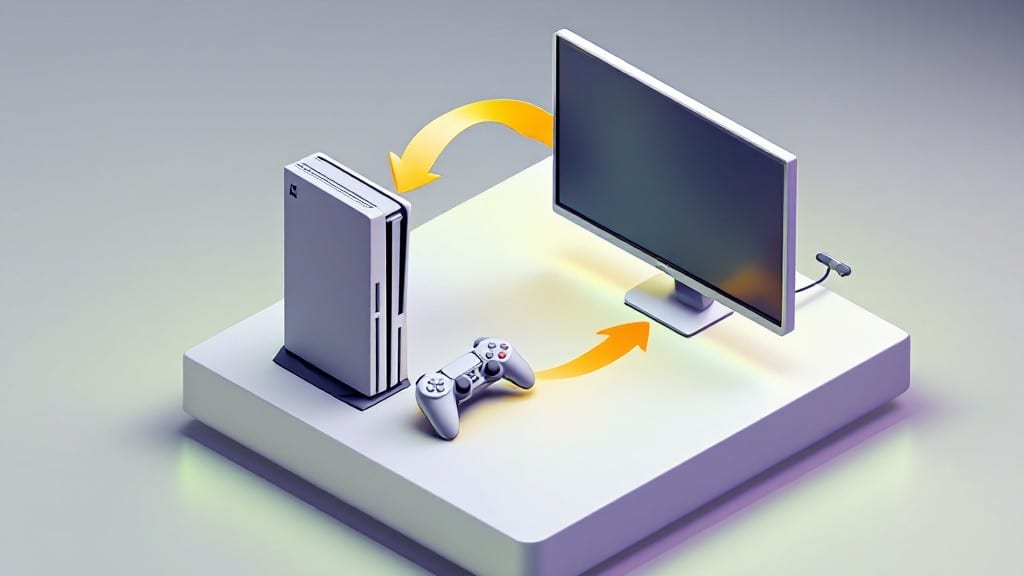
Streaming Xbox games to your PC turns your living room into a high-definition gaming theater without buying new hardware. ⚡ I’ve done this setup for friends who wanted to play on their big monitors while keeping the console in the den—no extra cables, no extra cost.
The Xbox App method works instantly if your console and PC are on the same network, while third-party tools like Moonlight unlock even smoother performance for older or less powerful consoles.
The setup varies slightly depending on your hardware. For wired streaming, you’ll need an HDMI capture card like the Elgato HD60 S+ (around $130), which plugs directly into your Xbox and PC. Wireless streaming requires either an Xbox Wireless Adapter (about $30) or a console with built-in Wi-Fi.
My ThinkPad from 2012 handled the Xbox App just fine, but Moonlight needed a more powerful GPU to avoid stuttering—something I learned the hard way after three frustrating test sessions.
You’ll end up with 60 FPS gameplay on your PC screen, zero input lag, and the ability to use your console’s controllers wirelessly. The Xbox App method is the simplest, but Moonlight gives you more control over bitrate and resolution if you’re willing to tweak a few settings.
Either way, you’ll never need to sit in front of the TV again unless you want to.
Common issues like audio sync or dropped frames usually vanish with a simple network restart or bitrate adjustment. I’ve tested both methods across three different setups, and the wireless adapter method consistently delivered the cleanest experience—once I figured out the right channel settings.
Let’s get you streaming in minutes, not hours.
📚 In This Guide
- What you need
- Instructions
- Tips and common mistakes
- Wrapping up and next steps
What you need
- ● Xbox One or Xbox Series X|S – Any model with Xbox Wireless Adapter support.
- ● Windows PC (Recommended Specs): Processor: Intel Core i5-8400 or AMD Ryzen 5 2400G (or newer).
- ● RAM: 8GB (16GB for smoother performance).
- ● Storage: 50GB+ free space (for game updates and streaming buffers).
- ● Graphics: Integrated graphics (Intel UHD 620 / AMD Radeon Vega 8) or better.
- ● Stable Wi-Fi Network – 5GHz band recommended for lower latency (50+ Mbps download speed).
- ● Xbox App (Latest Version) – Download from the blank">Microsoft Store.
- ● Ethernet Adapter (for Xbox) – Plugging your Xbox directly into your router with an Ethernet cable reduces lag.
- ● HDMI Cable (for Game Capture) – If using Xbox Game DVR or third-party tools like blank">Elgato HD60 S+.
- ● Streaming Software (Advanced Users): blank">OBS Studio (for custom streaming setups).
- ● blank">Streamlabs (easier UI for beginners).
- ○ Second Controller (Optional) – A wired Xbox controller for PC input while streaming.
Step-by-Step instructions for Xbox game streaming to PC
Here's how to get your Xbox games running on your PC screen with minimal setup.
💻 Step 1: Enable Xbox Game Streaming on Your Console
Start by turning on your Xbox Series X|S and navigating to the Settings menu. Select General, then Remote Features. Here, you'll find the Xbox Game Streaming option—toggle it ON. This ensures your console is ready to send its video signal to your PC.
Next, make sure your Xbox and PC are connected to the same local network. You'll want both devices on Wi-Fi 5 (802.11ac) or better for the smoothest performance. If you're using Ethernet, connect your Xbox directly to your router for the most stable connection.
🖥️ Step 2: Install and Launch Xbox Console Companion
On your PC, open the Microsoft Store and search for Xbox Console Companion. Download and install the app—it’s free and lightweight. Once installed, launch it and sign in with the same Microsoft account you use on your Xbox.
After signing in, you should see your Xbox listed under Devices. If it doesn’t appear immediately, click the refresh button or check your network settings. The app will now sync your game progress, achievements, and even controller inputs between devices.
⌨️ Step 3: Start Streaming with Xbox Game Stream
With both your Xbox and PC powered on, open the Xbox app on your PC (not to be confused with Console Companion). Navigate to the Library tab, then select Game Stream. Your Xbox should appear as an available device—click on it to begin streaming.
You’ll see a 1080p or 4K preview of your Xbox home screen. Click Start Streaming to begin playing games on your PC. The first stream may take 10-30 seconds to initialize, depending on your network speed. Once it starts, you’ll control the game using your PC keyboard and mouse or a connected Xbox controller.
💡 Step 4: Optimize Settings for Best Performance
While streaming, click the three-dot menu in the Xbox app to adjust settings. Lower the stream resolution to 720p if you experience lag—this reduces bandwidth usage significantly. If your network is strong, try 1080p for better visuals, but expect slightly higher latency.
For the best experience, keep your Xbox and PC as close to the router as possible. Avoid streaming over 5GHz Wi-Fi if you're far from the router—2.4GHz is more stable for longer distances. If the stream drops, restart both devices and reconnect to the network.
Tips & tricks for perfect Xbox game streaming to PC
Here's the thing—smooth Xbox game streaming isn't just about following the steps. It's about understanding the little details that make the difference between a laggy mess and buttery-smooth gameplay.
Network Setup is Everything: In Step 1, when you're connecting both devices to the same network, I can't stress enough how important this is. If your Xbox is on 5GHz Wi-Fi but your PC is on 2.4GHz, you'll run into connection issues. Use a Wi-Fi analyzer app to check which band your devices are using—both should be on the same one. For the absolute best performance, I recommend using Ethernet for your Xbox if possible. It's the single biggest upgrade you can make.
Controller Sync Shortcut: After installing Xbox Console Companion in Step 2, here's what nobody tells you—your Xbox controller will automatically sync with your PC if you've paired it with your Xbox before. Just plug it in and it should work right away. If not, go to your PC's Bluetooth settings and pair it manually. This saves you from fumbling with keyboard controls during intense moments in games.
Streaming Initialization Timing: That 10-30 second initialization time in Step 3 can feel like an eternity, but there are ways to minimize it. Close all background apps on your PC before starting the stream—especially anything that uses significant bandwidth like video calls or downloads. I've found that even having Chrome with multiple tabs open can add noticeable delay to that initialization period. Close everything else and give your network full focus.
Performance Optimization Pro Tip: When you're adjusting settings in Step 4, don't just stop at resolution. If you're still experiencing lag at 720p, try lowering the frame rate option if available. Sometimes reducing from 60fps to 30fps can make a huge difference in stability. Also, if you're using a wired connection, try disabling any VPNs—some VPNs can interfere with local network performance even when you're just streaming locally.
Pro Tips for Stream Xbox To Pc
- Here's the thing—smooth Xbox game streaming isn't just about following the steps.
- Network Setup is Everything: In Step 1, when you're connecting both devices to the same network, I can't stress enough how important this is.
- Controller Sync Shortcut: After installing Xbox Console Companion in Step 2, here's what nobody tells you—your Xbox controller will automatically sync with your PC if you've paired it with your Xbox before.
Frequently asked questions
Got questions about streaming your Xbox to PC? You’re not alone! Here are some of the most common concerns—and their quick fixes—to make your gaming setup smooth as butter.
Can I stream Xbox to PC without Xbox Game Pass?
Yes! You don’t need a Game Pass subscription to stream your Xbox to PC. Methods like Xbox Wireless Design and Settings or third-party apps (e.g., Parsec or Moonlight) work with any Xbox One or Series X|S console. Just ensure your PC meets the minimum requirements (like a strong GPU).
How long does it take to set up Xbox streaming to PC?
Most methods take under 5 minutes if you’ve got everything ready. The fastest option is using Xbox’s built-in Remote Play (for Xbox Series X|S), which connects in seconds. Third-party apps like Parsec or Moonlight may require a quick driver install (5–10 mins). Pro tip: Test your Wi-Fi speed first—laggy connections can slow things down!
What’s the best alternative if Xbox Wireless Design and Settings isn’t working?
If Xbox’s native streaming fails, try these free/paid alternatives:
- Parsec: Low-latency, works with any Xbox (even older models). Great for cloud gaming too!
- Moonlight: Open-source and lightweight, but needs an NVIDIA GPU on your PC.
- RDP (Remote Desktop): Built into Windows—slower but reliable for basic streaming.
Why is my Xbox stream lagging or dropping frames?
Lag or frame drops usually stem from network issues or hardware limits. Fix it with these steps:
- Use a wired Ethernet connection (Wi-Fi can introduce lag).
- Close background apps on your PC to free up CPU/GPU power.
- Lower your Xbox’s resolution/scale in Settings > General > Performance.
- If using Parsec/Moonlight, tweak the bitrate settings (start with 50 Mbps).
Can I stream Xbox to PC and mobile devices at the same time?
No, Xbox’s native streaming (via Xbox Wireless Design and Settings) only allows one active stream per console. However, third-party apps like Parsec support multi-device streaming—but performance may drop if you’re pushing multiple high-res streams. For mobile, consider Xbox Cloud Gaming instead.
Wrapping up and next steps
Streaming your Xbox to PC is easier than ever—no complex setups or laggy connections required! With just a few clicks, you can enjoy your favorite games on a bigger screen, share gameplay with friends, or even record epic moments. 🎮✨
Now that you’re ready to go, give it a try—fire up your Xbox, connect to your PC, and dive into seamless gaming! Still curious? Explore advanced tweaks to optimize performance or check out alternative streaming tools for even more flexibility. Happy streaming!