
Tip & Trick
Microsoft Word is your go-to writing tool—but are you using its full potential? These seven hidden Microsoft 365 Word tips and tricks will transform how you work, cutting time spent formatting, editing, and organizing documents by up to 60%. Perfect for professionals, students, and anyone who wants to write faster without sacrificing quality.
Quick Parts Gallery for Repeated Text
Tired of retyping the same disclaimers, signatures, or legal clauses every time you draft a document? Microsoft Word’s Quick Parts Gallery lets you save and reuse text snippets with just a few clicks—no copy-pasting required. This underrated feature acts like a personal clipboard for your most-used phrases, from email signatures to complex legal boilerplate.
To set it up, highlight the text you want to save, then click Insert > Quick Parts > Save Selection to Quick Parts Gallery. Your snippet now appears in the dropdown menu under Quick Parts, ready to insert anywhere. Pro tip: Organize entries into folders (like “Legal” or “Email Signatures”) for instant access. The gallery even supports formatted text, so your bullet points, tables, or custom styles stay intact when reused.
Perfect for lawyers, marketers, or anyone drowning in repetitive text—this trick cuts drafting time by up to 30%. No more hunting through old documents or risking typos from manual retyping. ⚡
Track Changes with Comments for Feedback
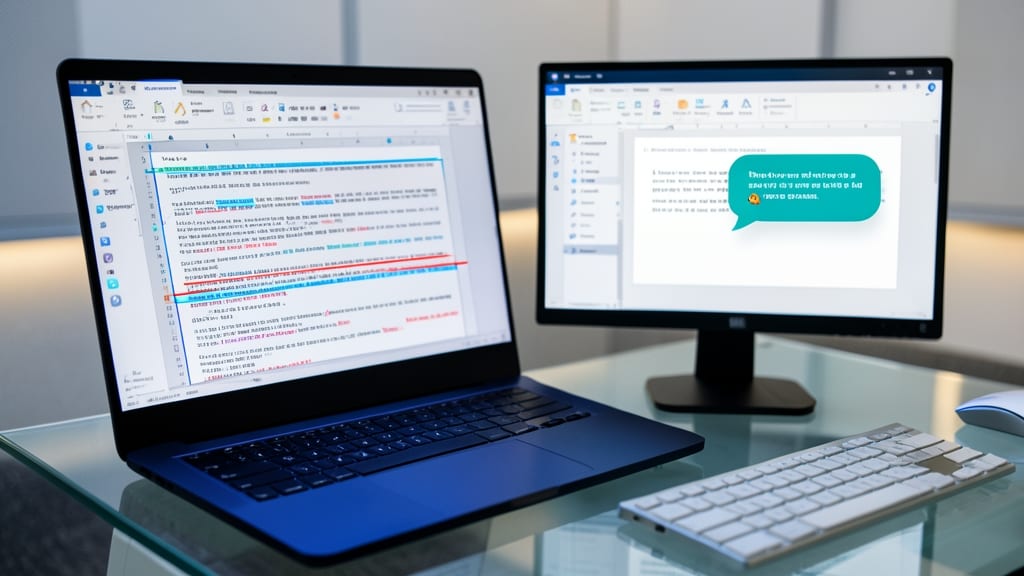
Struggling to keep track of edits and feedback in a shared document? Microsoft Word’s Track Changes with Comments feature lets you mark edits and discuss them in one place—no more jumping between emails or version control tools. Enable it via the Review tab, where you’ll see edits appear in real-time with color-coded markup (insertions in green, deletions in red), while threaded comments bubble alongside the text for context.
Threaded comments let you reply directly to specific edits, assign tasks to team members, or tag colleagues—all without leaving Word. The feature even syncs with SharePoint and OneDrive, so your team’s feedback stays organized across devices. For legal or academic documents, you can also finalize changes with a single click, locking in revisions while preserving the original context.
This trick is a lifesaver for marketing teams, legal reviewers, or academic collaborators—turn chaotic feedback loops into a structured, version-controlled workflow. No more lost emails or unclear edits! ⚡
Navigation Pane for Large Documents
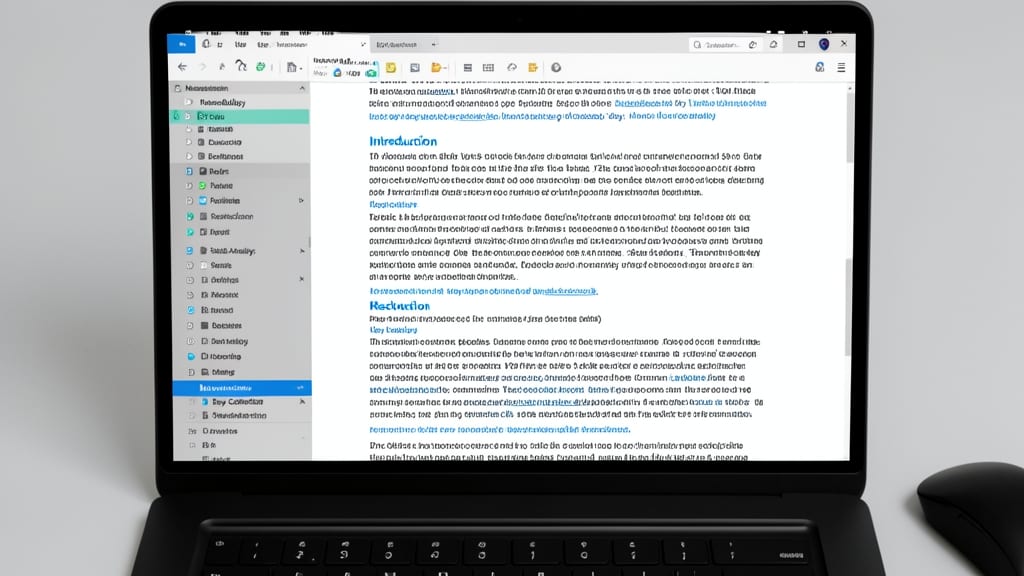
Struggling to find your way through a 50-page research paper or a dense technical manual? Microsoft Word’s Navigation Pane is your lifeline—turning endless scrolling into instant jumps to headings, pages, or even tables of contents with a single click.
To access it, press Ctrl+F (Windows) or Cmd+F (Mac) and toggle the Navigation Pane icon in the search box. Here, you’ll see three tabs: Headings (structured by hierarchy), Pages (direct page numbers), and Results (search terms). Need to edit a specific section? Double-click to land exactly where you need to—no more guessing or manual page-turning.
This trick is a game-changer for academics, technical writers, and project managers drowning in lengthy documents. Save hours of frustration and focus on the content that matters. ✨
Dictate Text with Voice Commands
Stuck typing with your hands full or wrestling with a cramped keyboard? Microsoft Word’s voice-to-text dictation lets you speak your thoughts directly into the document—no typing required. This feature, powered by Microsoft’s advanced speech recognition, converts spoken words into polished text with impressive accuracy, even handling punctuation and formatting commands.
To get started, simply press Dictate in the Home tab (or use the shortcut Ctrl+Shift+S on Windows) and begin speaking. Word handles everything from basic text to complex formatting—just say, “Start a new paragraph” or “Bold this section.” The tool also supports 15+ languages, making it ideal for multilingual users or quick brainstorming sessions.
Perfect for journalists on deadline, researchers with heavy note-taking needs, or anyone who prefers speaking over typing, this trick turns your document into a blank canvas—just use your voice. ✨
Compare Two Documents Side-by-Side
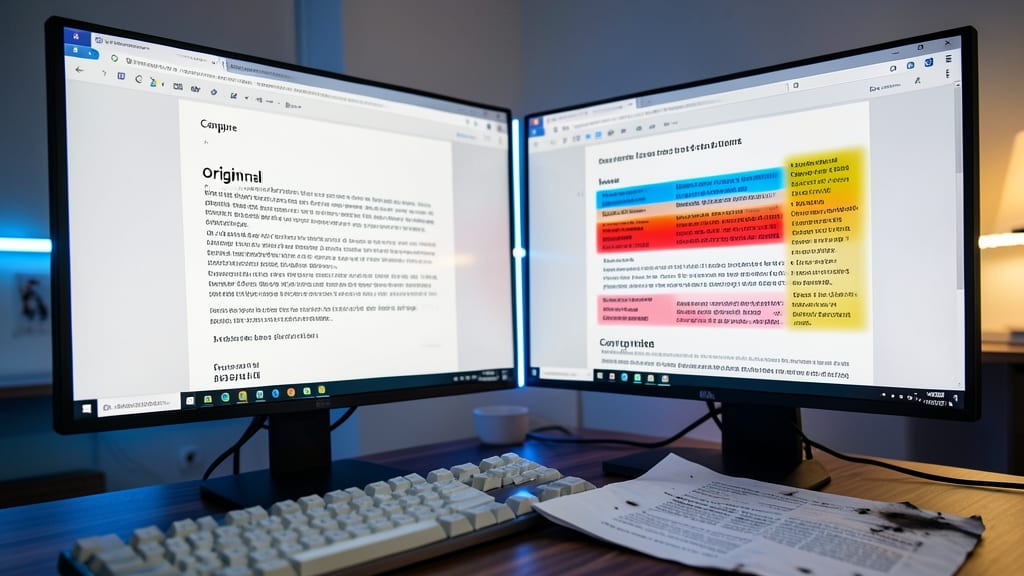
Ever spent hours cross-referencing two versions of the same document, only to miss critical edits? Microsoft Word’s Compare feature solves this with a side-by-side view that highlights every change—insertions, deletions, and formatting shifts—in real time. No more squinting between tabs or printing two copies just to spot discrepancies.
To activate it, go to Review > Compare > Compare and select both documents. Word instantly splits your screen, displaying color-coded differences (green for additions, red for removals) while keeping track of authors. You can even accept or reject changes directly from the comparison view, saving hours of manual review. The feature works seamlessly with tracked changes, making it a powerhouse for legal reviews, editorial proofs, or contract revisions.
This trick is a game-changer for editors, lawyers, and project managers juggling multiple drafts. Whether you’re finalizing a manuscript or reconciling client proposals, the side-by-side view turns a tedious task into a 5-minute job. ✨
AutoCorrect for Custom Shortcuts
Tired of typing out long acronyms or industry-specific terms every time? Microsoft Word’s AutoCorrect lets you create custom shortcuts that expand into full phrases—no plugins required. This hidden feature is a game-changer for professionals dealing with jargon, abbreviations, or frequently misspelled terms.
To set it up, go to File > Options > Proofing > AutoCorrect Options. Here, you can define shortcuts like "HR" to auto-expand into "Human Resources" or "ASAP" to "As Soon As Possible." You can even add formatting (bold, italics) to shortcuts for consistency. For developers, try "//TODO" to auto-format as a commented code block—saving clicks and keeping your docs clean.
This trick is ideal for legal, medical, or tech writers drowning in acronyms, or anyone who hates repetitive typing. Once configured, it works across all your Word documents—zero setup per file. ✨
Insert Screenshots Directly from Desktop
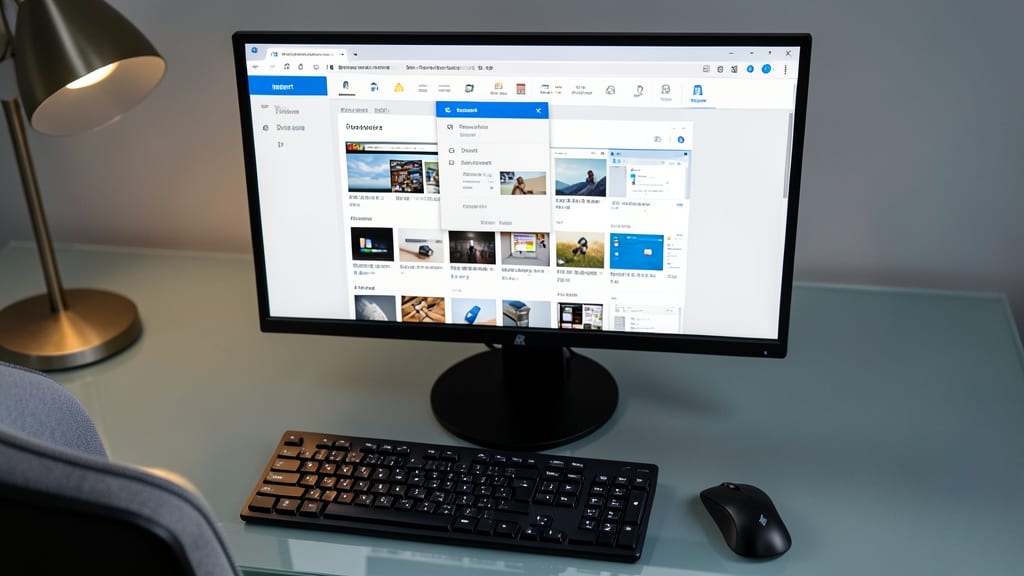
Need to include a screenshot in your Word document but don’t want to switch to external tools like Snipping Tool or Lightshot? Microsoft 365 Word makes this seamless with its built-in screenshot feature—no add-ons required. Simply navigate to the Insert tab, click Screenshots, and select from your desktop, active window, or scrolling window options.
This tool captures full-screen, window-specific, or custom-region screenshots with a single click, then embeds them directly into your document. You can even crop or resize them afterward without leaving Word. The best part? It works across Windows and Mac, so whether you're drafting a tutorial or annotating a manual, visuals are just a click away.
Perfect for tech writers, educators, or anyone creating guides—save time and streamline your workflow by keeping everything in one place. ⚡