
Software
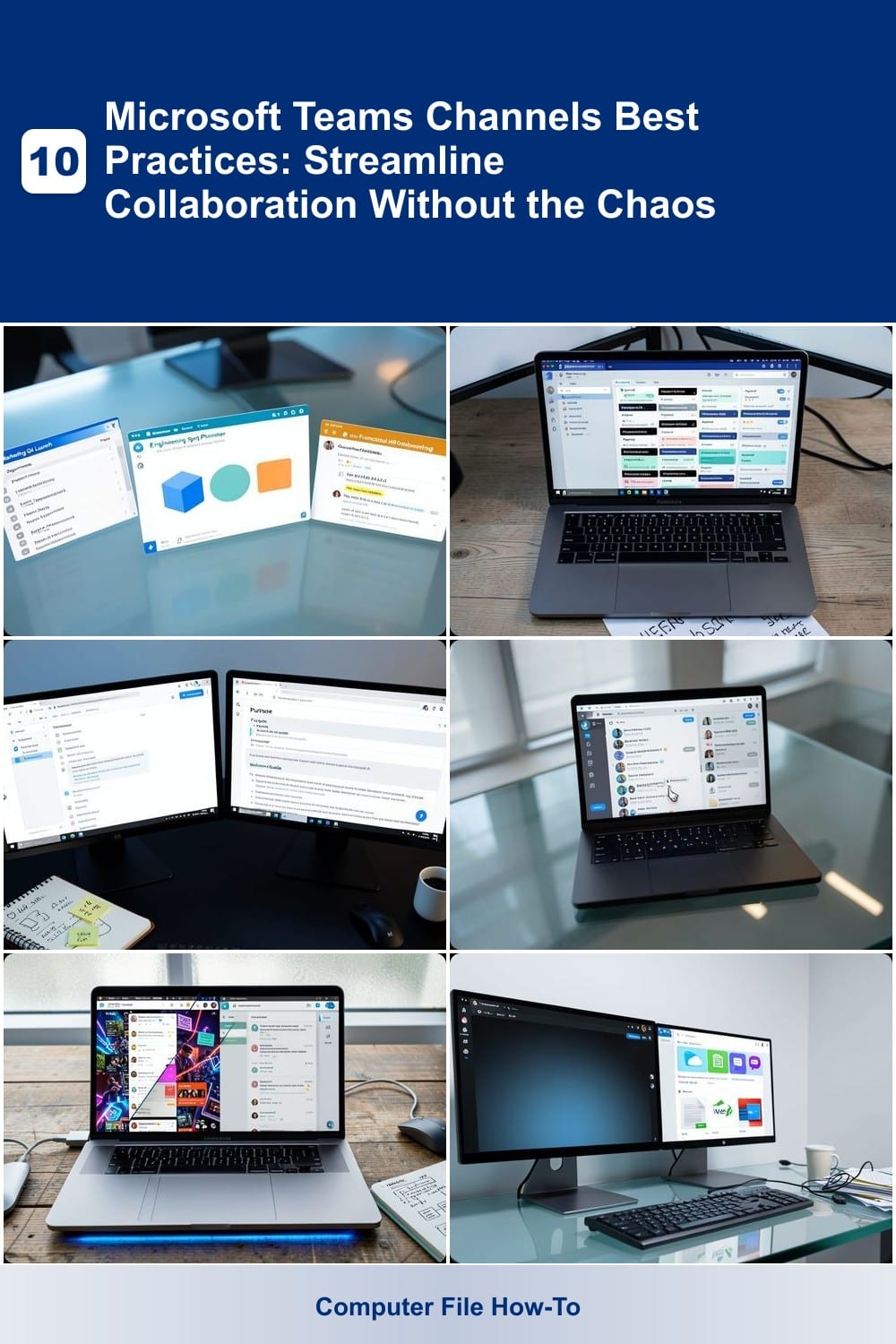
Microsoft Teams channels can become cluttered or inefficient if not managed properly. These 10 best practices will help you organize your workspace, boost productivity, and ensure seamless collaboration without overwhelming your team.
Organize Channels by Department or Project
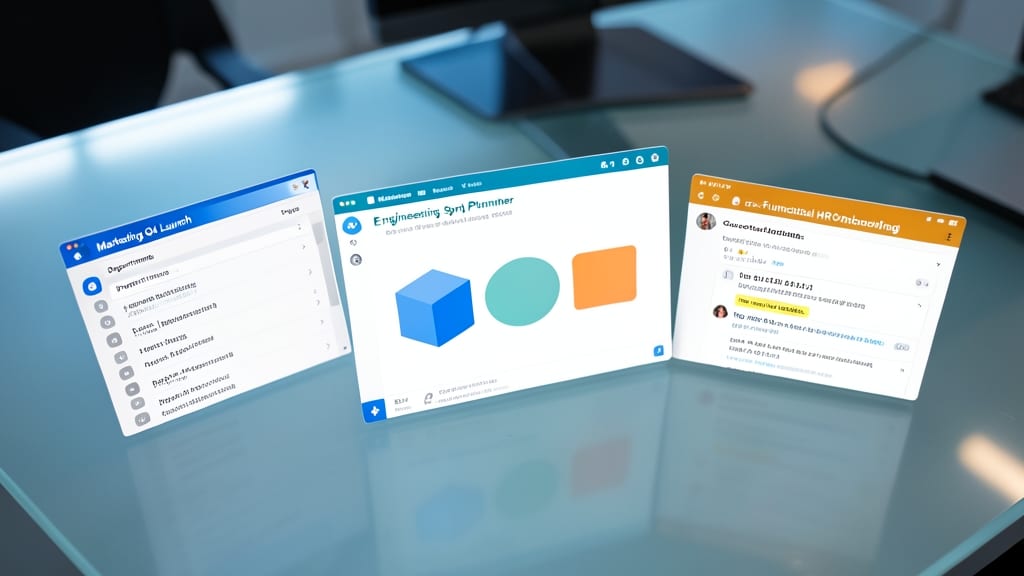
Struggling to find the right Teams channel when your team spans multiple departments or projects? Grouping channels by department or project turns chaos into clarity, ensuring every discussion stays in its proper place—no more lost updates or cross-department confusion.
Start by creating a dedicated team for each department (e.g., Marketing, Engineering, HR) or project (e.g., Product Launch Q3). Within each team, organize channels by function—like Fin-Payroll under Finance or Dev-Frontend under Engineering. Use color-coding (via team themes) to visually distinguish groups at a glance. For cross-functional projects, create a shared team (e.g., Project-X) with channels like X-Design and X-Dev to keep all contributors aligned without cluttering individual departments.
This structure works best for mid-sized to large teams or agencies with multiple client projects. It’s the foundation for a scalable, searchable workspace where everyone—from new hires to contractors—knows exactly where to go. 💻
Use Standardized Channel Naming Conventions
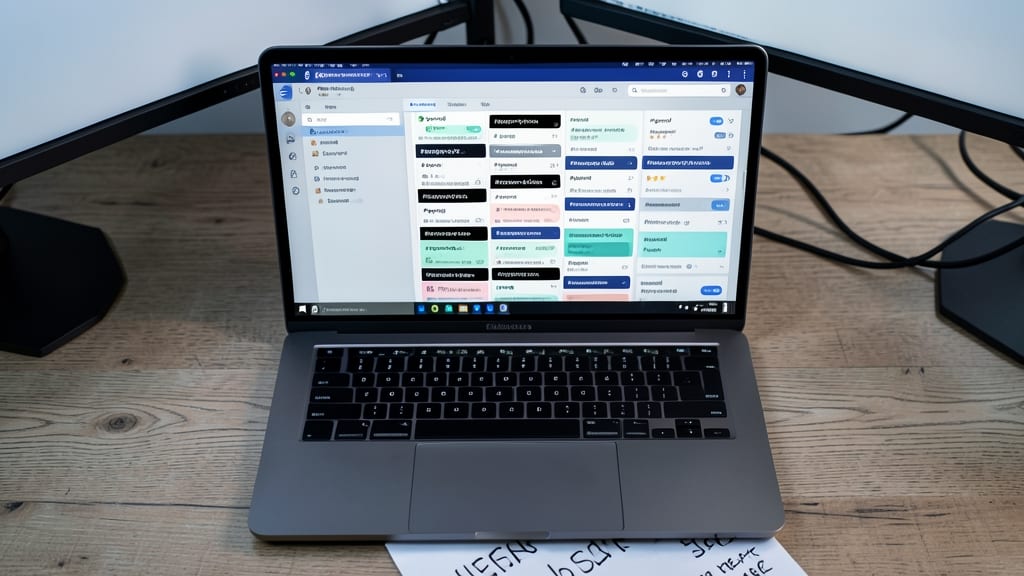
Frustrated when your Teams sidebar looks like a chaotic mix of #general, #project-x, and #random-ideas? Standardized naming conventions transform that mess into a searchable, intuitive system—no more guessing whether #payroll or #finance-payroll is the right place for updates.
Start by adopting departmental prefixes like HR-, Fin-, or Prod- to instantly group related channels. For example, instead of #onboarding and #new-hires, use HR-Onboarding. This prevents duplicate channels for similar purposes and makes it effortless to spot where a discussion belongs. Teams’ built-in search even works better with consistent naming—just type \"Fin-\" to filter all finance-related channels instantly.
This approach shines for large organizations or cross-functional teams where departments frequently collaborate. A little upfront planning here saves hours of confusion later—especially when onboarding new hires or switching projects. ✨
Leverage Channel Descriptions for Context
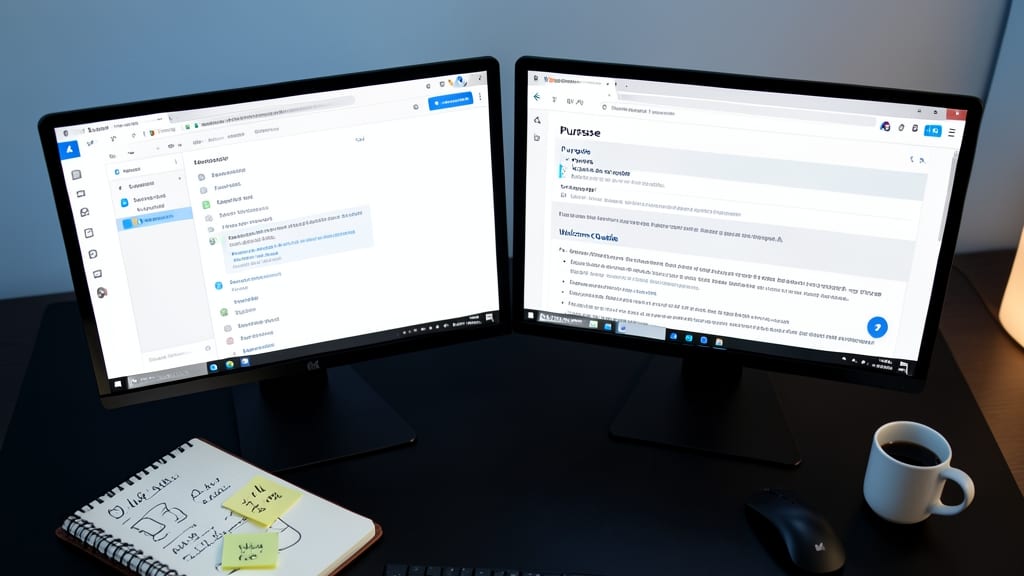
New hires or temporary team members often waste time figuring out where to start—until you add a clear channel description. A well-crafted description acts like a welcome guide, instantly explaining the channel’s purpose, key topics, and who’s responsible, so everyone jumps in without confusion.
Microsoft Teams lets you include up to 1,000 characters in a channel description, so you can detail everything from meeting schedules to file storage rules and who to tag for help. For example, a #marketing-campaigns channel could
Limit Active Channels to Essential Teams

Ever feel like your Teams sidebar is a digital junk drawer? The solution is simpler than you think: limit active channels to only what’s essential. Instead of letting every project or team create their own channel, enforce a rule of thumb—if it’s not actively used in the last 30 days, archive or delete it. This isn’t about cutting off communication; it’s about focusing energy where it matters most.
Start by identifying high-priority channels—those tied to active projects, client work, or daily operations. Use Teams’ built-in archive feature (right-click channel > Archive) to tuck away inactive discussions without losing them forever. For truly obsolete channels, a clean delete keeps your workspace lean and distraction-free. Pro tip: Set a quarterly audit to review channels with your team, ensuring nothing slips through the cracks.
This approach works best for remote teams or departments with fluctuating priorities, like marketing campaigns or IT support tickets. By trimming the fat, you’ll spend less time scrolling and more time collaborating. ✨
Enable Channel Moderation for High-Traffic Discussions

Public-facing channels or cross-departmental hubs can quickly spiral into chaos with spam or irrelevant posts. Channel moderation acts as your digital gatekeeper, ensuring only relevant, high-quality discussions make it through—without requiring a full manual review every time.
To enable it, navigate to Channel Settings > Moderation and toggle "Require approval for new posts" for high-traffic channels. This feature works seamlessly with Microsoft 365 Groups, letting you restrict posts while still allowing replies in approved threads. For extra control, assign specific moderators who can bypass approvals for urgent updates.
This setup is perfect for client portals, company-wide announcements, or hybrid teams where maintaining professionalism is critical. It’s a zero-config way to keep discussions focused while reducing the noise. ✨
Use Tabs for Organized Resource Centralization
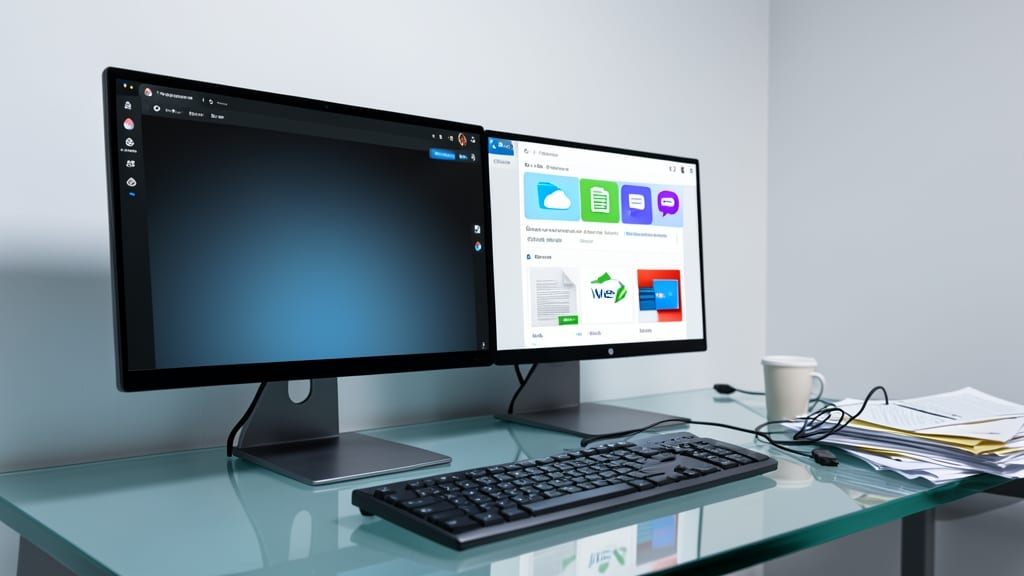
Tired of team members digging through emails, Slack threads, and shared drives just to find the right file or tool? Microsoft Teams tabs solve this by turning every channel into a single, searchable hub for all your essential resources.
With just a few clicks, you can pin OneDrive folders, SharePoint sites, or third-party apps like Trello or Asana directly into a channel’s tab. Need quick access to project docs? Add a Files tab to surface them instantly. Prefer tools like Zoom or Google Drive? Integrate them via custom tabs for zero-app-switching workflows. The best part? Tabs update in real time, so everyone stays on the same page—no more "Where did we save that?" chaos.
This works best for project teams managing multiple tools or remote teams relying on shared resources. Start with a Documents tab for files and a Tools tab for apps—your team’s productivity will thank you! ✨
Set Clear Channel Ownership and Roles
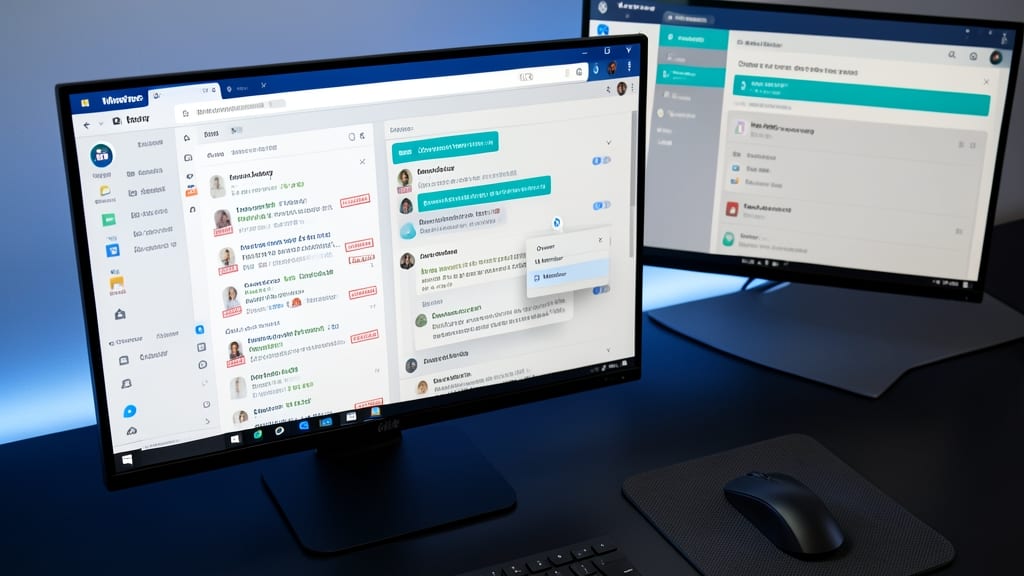
Ever find yourself drowning in a sea of unanswered questions or outdated files in your Teams channels? Assigning clear ownership and defined roles is the secret weapon to keeping your workspace running smoothly—no more guessing who’s responsible for what.
Start by designating a channel owner (typically the team lead or project manager) to oversee updates, cleanup, and troubleshooting. Then, add moderators to help enforce guidelines, approve posts, and keep discussions on track. Microsoft Teams makes this easy: just navigate to Channel settings > Members, where you can assign these roles in seconds. This structure ensures that when issues arise—like broken links or off-topic spam—there’s always someone accountable to fix it.
Teams with rotating shifts, remote workers, or cross-departmental projects benefit the most from this approach. It turns passive channels into proactive hubs where everyone knows their role and can step up when needed. ✨
Archive Inactive Channels Instead of Deleting
Ever lost critical project details because you deleted an old channel? Microsoft Teams’ archive feature lets you stash inactive channels—keeping all files, posts, and context intact while decluttering your active workspace.
To archive, simply right-click a channel in your team’s list, select Archive, and confirm. Archived channels remain searchable and accessible via Manage Teams > Archived, so you can restore them instantly if needed. This is a game-changer for compliance-heavy industries (like finance or healthcare) where audit trails matter, or for long-term projects where past discussions may resurface later.
Perfect for teams juggling multiple phases of a project or those who need to retain historical data without sacrificing a clean, focused workspace. ✨
Use Threads for Side Conversations

Ever found yourself in a Teams chat where a single topic spirals into a 50-message detour? Threads are your secret weapon—nesting replies under the original post keeps the main conversation clean while letting deep dives happen naturally.
With just a click, you can reply to a specific message instead of the entire thread, making it easy to follow complex discussions. Teams even auto-indents threaded replies, so everyone knows which comment belongs where. This feature works seamlessly with @mentions—tag a teammate in a nested reply to pull them into the side conversation without disrupting the main flow.
Perfect for brainstorming sessions, technical troubleshooting, or project planning where multiple angles need exploration. Your team stays focused on the big picture while diving deep where it matters. 💡
Regularly Audit and Clean Up Channels
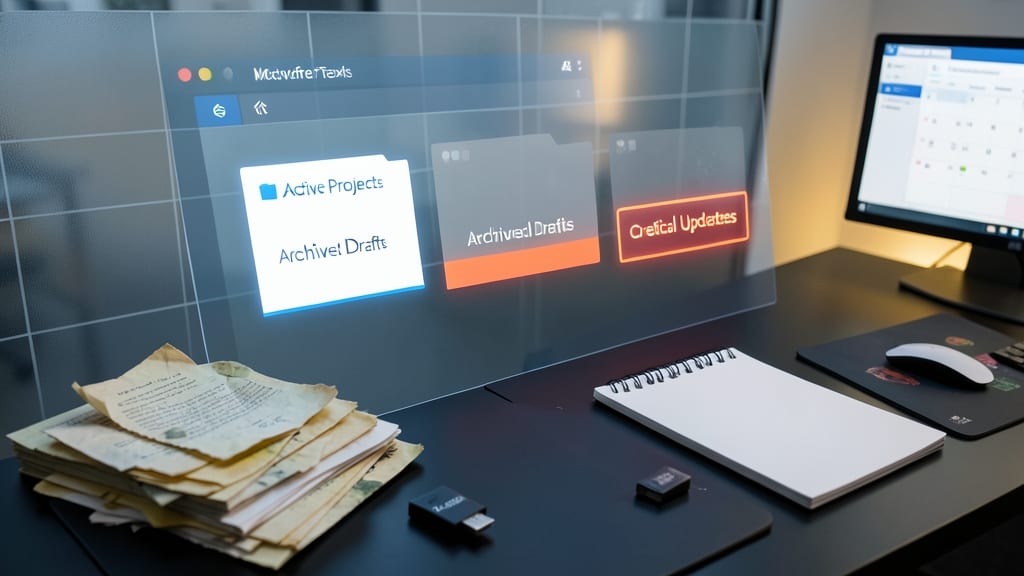
Think of your Microsoft Teams channels like a digital workspace—if you don’t tidy up occasionally, important files get buried under old drafts, and critical updates get lost in the noise. A quarterly audit keeps your channels running smoothly by removing outdated clutter and highlighting what truly matters.
Start by deleting old or irrelevant files (like drafts or obsolete versions) and pinning active discussions at the top for quick reference. Update channel descriptions every 3-6 months to reflect current priorities—this ensures new team members instantly grasp the channel’s purpose. Use Teams’ built-in analytics to spot underused channels and archive them if they’re no longer relevant. ⚡