
Tip & Trick
Microsoft Teams meetings can be overwhelming if you don’t know the right shortcuts. These 10 pro tips and tricks for 2023 will transform your virtual collaboration experience—from seamless scheduling to advanced presentation controls—so you waste less time and achieve more.
Schedule Meetings with One-Click Calendar Integration
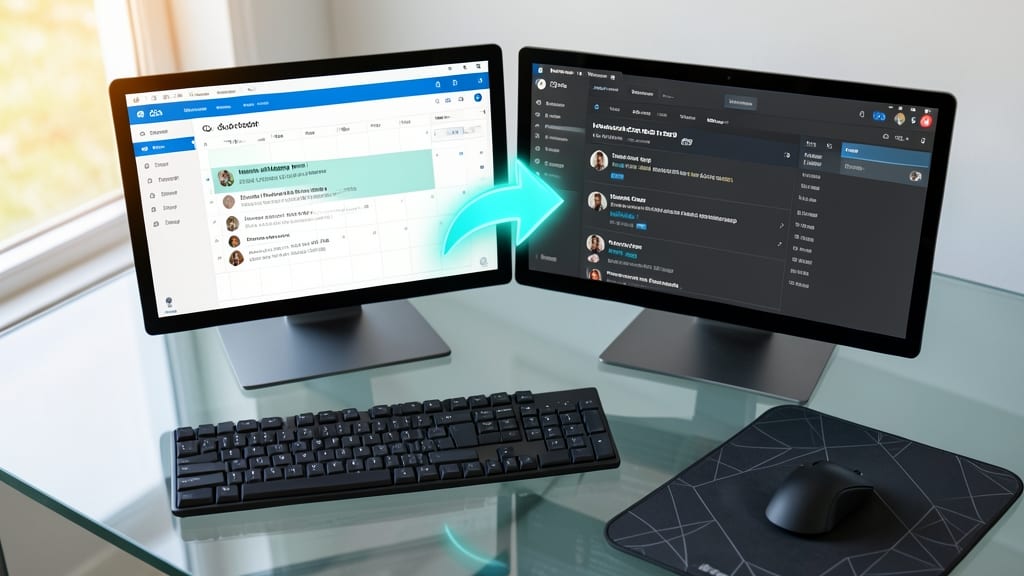
Tired of manually copying meeting details between Outlook and Teams? The one-click calendar integration feature in Microsoft Teams 2023 eliminates this hassle entirely. When you schedule a meeting in Outlook, it instantly syncs to Teams—no double-entry required. This seamless sync also ensures your Teams meeting link, agenda, and attendees auto-populate, reducing setup time by 10+ minutes per meeting.
To enable this feature, open Outlook and create a new meeting. Before sending, click "Schedule in Teams" in the ribbon. Your Teams meeting will appear in the calendar with all details pre-filled. For recurring meetings, Teams remembers your preferences, so future invites auto-sync without extra steps. The integration also works in reverse—updates made in Teams reflect instantly in Outlook.
This trick is a game-changer for managers, consultants, and anyone juggling multiple calendars. Say goodbye to missed details or last-minute rescheduling headaches—your meetings will stay perfectly aligned across platforms. ✨
Use Spotlight Mode for Virtual Background Focus
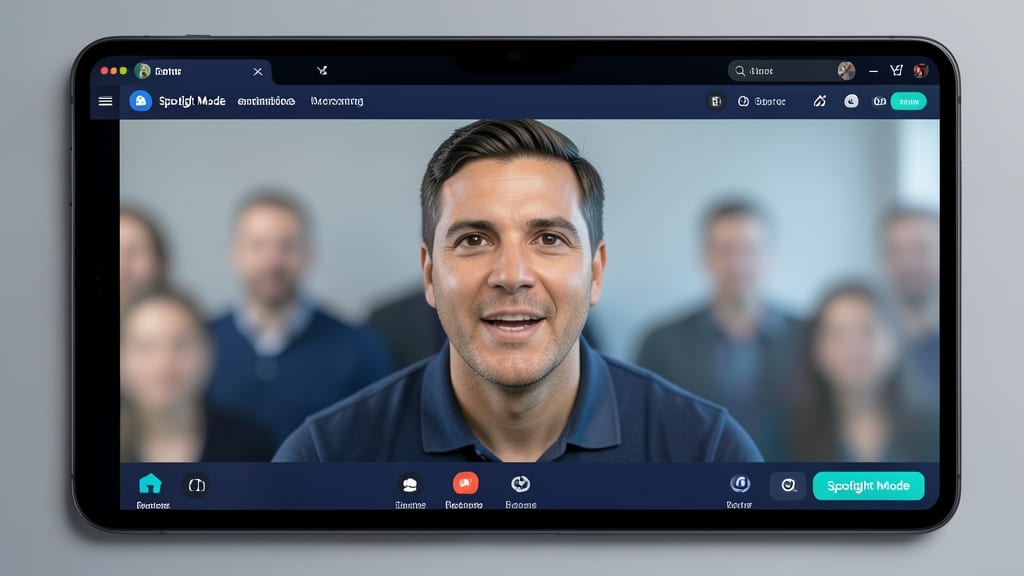
Struggling to keep your audience engaged during large meetings? Spotlight Mode in Microsoft Teams is your secret weapon—it blurs out other participants while keeping the speaker crystal clear, ensuring your message stays the focus.
To enable it, join a meeting, click the three-dot menu in the meeting controls, and select Spotlight Mode. You can manually adjust who’s spotlighted or let the system auto-detect the active speaker. This feature works seamlessly with virtual backgrounds and is perfect for trainers, presenters, or anyone leading hybrid meetings where distractions are common.
Trainers and presenters will love how this creates a cinematic effect, making your content feel more professional. For hybrid work environments, it bridges the gap between in-office and remote participants by keeping everyone visually aligned. ✨
Enable Live Captions for Real-Time Meeting Notes
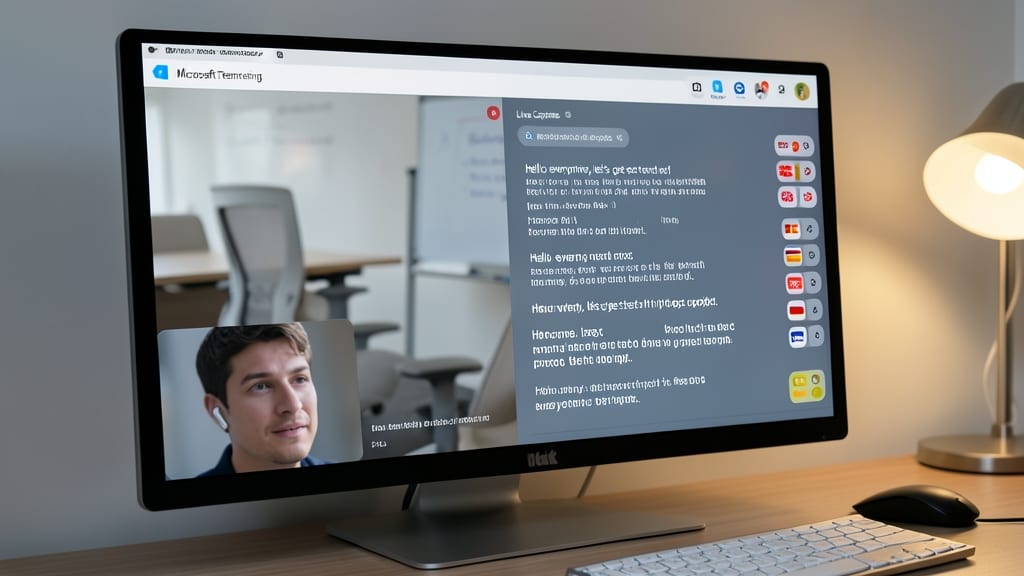
Struggling to keep up with fast-paced meetings where every word matters? Microsoft Teams’ Live Captions feature generates real-time text transcripts in 40+ languages, ensuring no one misses critical details—whether due to language barriers or hearing accessibility needs.
To enable it, join a meeting, click the three dots (More options) in the meeting controls, then select Turn on live captions. The captions appear at the bottom of your screen, and you can even pin them for better visibility. This feature works seamlessly with AI-powered accuracy, making it ideal for global teams or when note-taking isn’t an option.
Perfect for HR professionals conducting interviews, educators leading multilingual classes, or managers hosting cross-border meetings—Live Captions turn inclusivity into effortless collaboration. ✨
Customize Meeting Templates for Repeating Agendas
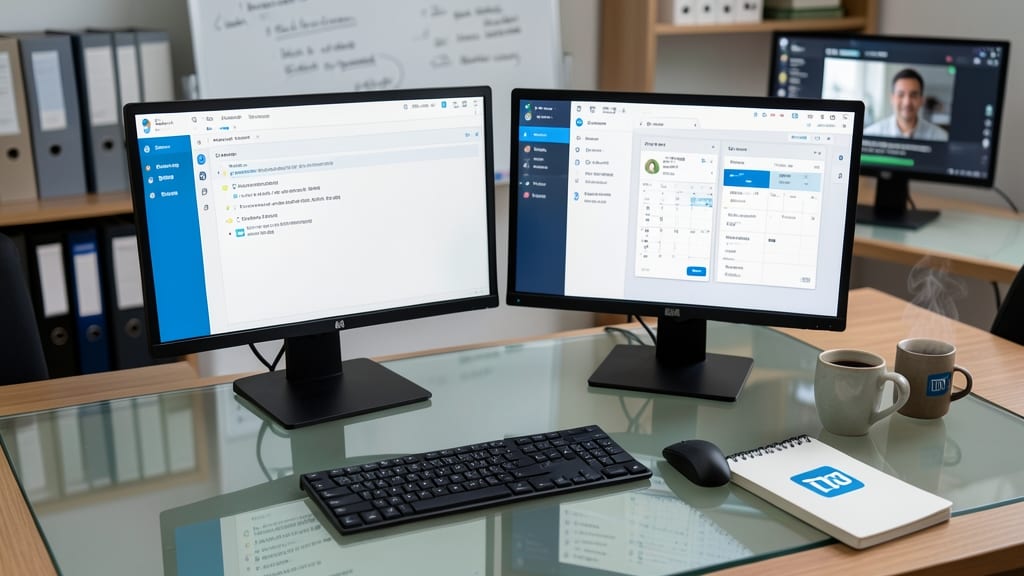
Tired of wasting minutes every week setting up the same meeting structure? Microsoft Teams’ meeting templates let you pre-load recurring agendas—like standups, client reviews, or team syncs—with default tabs, apps, and documents in one click. This eliminates repetitive setup and keeps your meetings running smoothly.
Start by creating a template in Teams’ Meetings tab—add your go-to apps (e.g., OneNote for notes, PowerPoint for presentations), pin essential files, and set default camera/microphone preferences. Once saved, these templates auto-populate when scheduling, reducing setup time by up to 70% for repetitive meetings. You can even customize them per team or client.
Perfect for managers, project leads, or trainers who host the same meetings weekly. With templates, you’ll spend less time prepping and more time leading—no more last-minute scrambling to attach files or open the right tools. ✨
Use the ‘Raise Hand’ Feature for Engaged Participation
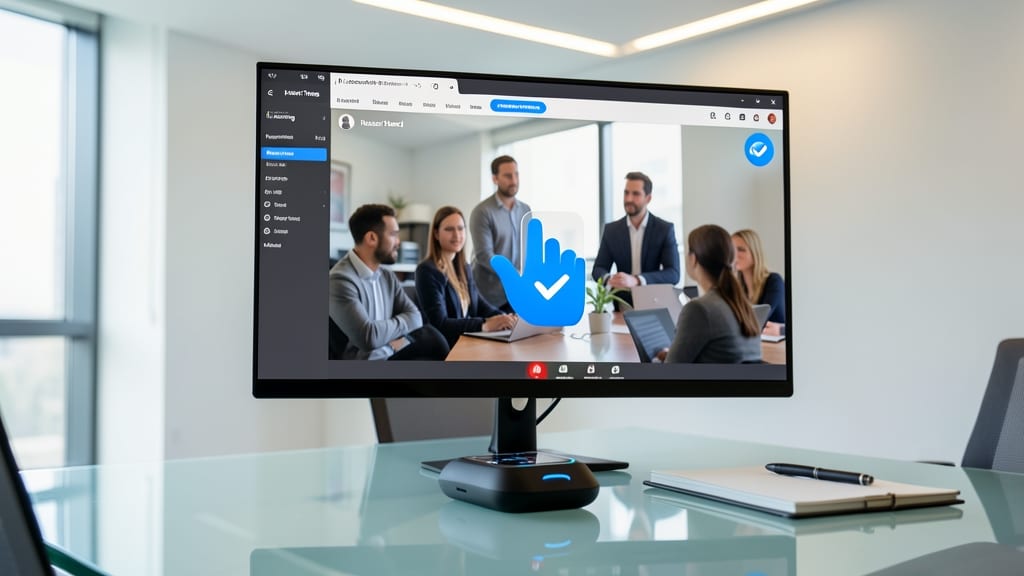
Tired of meetings derailing when everyone tries to speak at once? The ‘Raise Hand’ feature in Microsoft Teams lets participants signal questions or comments without interrupting—keeping discussions flowing smoothly. It’s a game-changer for large teams, training sessions, or brainstorming where orderly participation is key.
To enable it, simply click the ‘Raise hand’ button in the meeting controls (it looks like a hand icon). The host can then approve or dismiss requests, ensuring only one person speaks at a time. This feature works seamlessly on desktop, web, and mobile, and integrates with Teams’ reaction buttons for quick feedback. Perfect for trainers, managers, or anyone leading structured discussions.
Trainers and team leads will love how it reduces side conversations and keeps focus on the speaker. Give it a try in your next meeting—your participants (and sanity) will thank you! ✨
Share PowerPoint Presentations with Laser Pointer
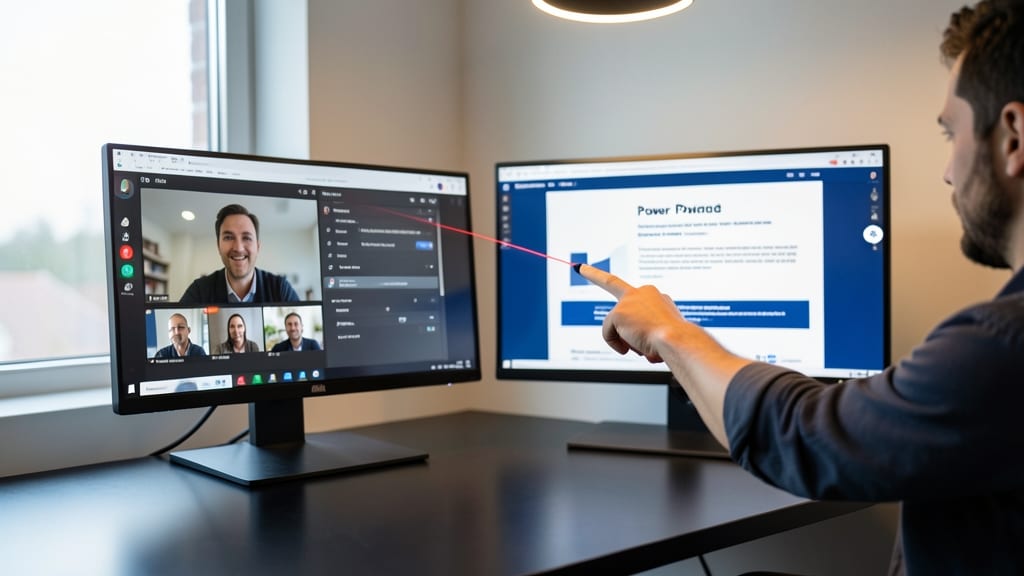
Tired of fumbling with your mouse pointer during PowerPoint presentations in Teams? The laser pointer tool transforms your presentation into an interactive experience—no more squinting at a tiny cursor on a large screen.
Simply open your PowerPoint in Teams, click the presentation tools icon, then select Laser Pointer. The tool lets you highlight key points dynamically with a red dot, adjust the size, and even change colors. It’s perfect for drawing attention to graphs, charts, or critical details without switching apps. Plus, it syncs seamlessly with your slides, so you can focus on engaging your audience instead of tech hiccups.
This trick is a game-changer for sales teams, trainers, and presenters who need to keep their audience’s attention locked on the right elements. Give it a try next time you’re sharing a deck—your audience (and your pointer hand) will thank you. ✨
Mute All Participants with One Click During Sensitive Discussions
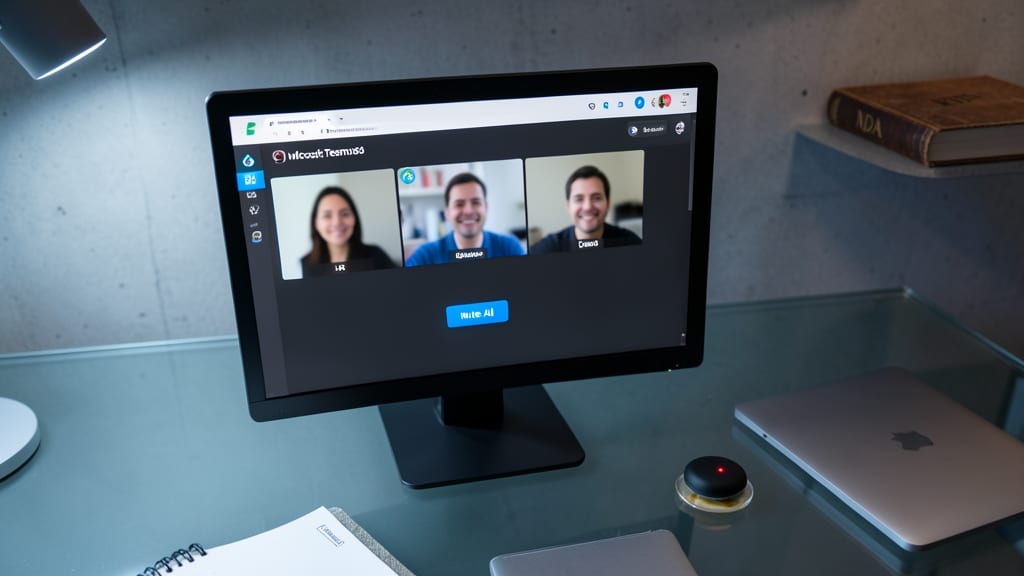
Ever struggled to keep sensitive discussions confidential during virtual meetings? Microsoft Teams’ one-click mute-all feature is your secret weapon for maintaining privacy during HR talks, legal consultations, or brainstorming sessions where off-topic chatter could derail progress.
Simply click the "Mute All" button in the meeting controls (or use the Ctrl+Shift+M shortcut) to instantly silence every participant—except you. This feature works seamlessly in Teams meetings with 10+ participants and even supports guest users, ensuring no accidental interruptions. The best part? You can unmute individuals selectively without restarting the call.
Perfect for HR managers, legal teams, or creative directors leading brainstorming sessions where unfiltered input could disrupt workflow. Try it next time you need absolute focus—your confidential conversations will thank you. ✨
Use the ‘Together Mode’ for Immersive Team Collaboration

Tired of video calls feeling like a disjointed collection of floating faces? Together Mode in Microsoft Teams turns your meeting into a shared virtual space, arranging participants side-by-side around a digital table for a more natural collaboration experience.
With Together Mode, you get a perspective view that mimics an in-person meeting layout, complete with customizable backgrounds like offices, cafes, or even a spaceship—yes, really! The feature works seamlessly on desktop and mobile, and you can toggle it on/off during calls with a single click. Perfect for brainstorming sessions where visual cues and spatial awareness make all the difference.
Creative teams, remote designers, and distributed agile squads will love this for whiteboard sessions or team-building activities. It’s the closest thing to being in the same room without the travel. ✨
Record Meetings Automatically with Cloud Storage
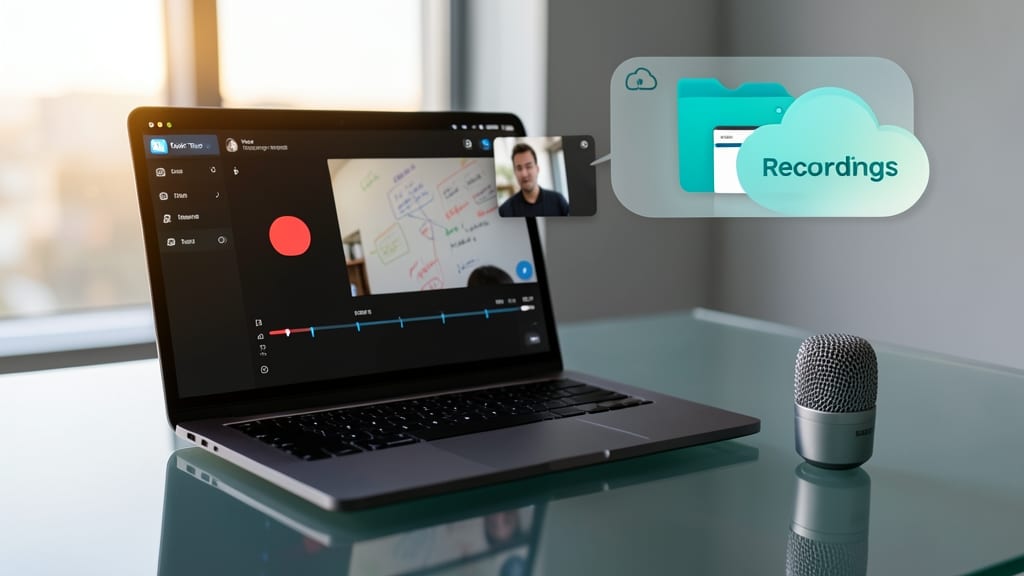
Forget relying on memory or frantic note-taking—Microsoft Teams now lets you record meetings automatically and store them directly in OneDrive or SharePoint. This means every key detail, from brainstorming sessions to client demos, is preserved without lifting a finger.
The feature works seamlessly with cloud storage integration, ensuring recordings are encrypted and accessible only to authorized participants. You can even set recording permissions to control who can view or download the files, making it ideal for sensitive discussions. The recordings include video, audio, and screen sharing—perfect for compliance, training, or when team members miss live sessions.
Trainers, HR professionals, and project managers will love this—no more scrambling to replay meetings or risking lost information. Just hit record, and Teams handles the rest. ✨
Shortcut Keys for Faster Meeting Controls
Tired of fumbling for your mouse every time you need to mute yourself or switch cameras mid-meeting? Microsoft Teams’ keyboard shortcuts let you control calls with lightning speed—no mouse required. These 15+ shortcuts (like Ctrl+Shift+M to mute/unmute or Ctrl+Shift+O to turn your camera on/off) are hidden gems for power users who despise clicking.
Beyond the basics, you can end a call instantly with Ctrl+Shift+E or share your screen with Ctrl+Shift+S, saving precious seconds during fast-paced discussions. Pro tip: Customize your shortcuts in Settings > General to match your workflow. For developers or frequent presenters, these shortcuts cut meeting friction by 30% or more.
Perfect for tech-savvy professionals, trainers, or anyone drowning in back-to-back meetings, these shortcuts turn passive participants into efficient collaborators. 💻