
Tip & Trick
Mastering Microsoft Word can save you hours weekly—but most users only scratch the surface. These 10 underutilized tips and tricks will transform how you work, from document formatting to advanced automation, making you a Word productivity powerhouse in minutes.
Quick Parts Gallery for Repeated Text
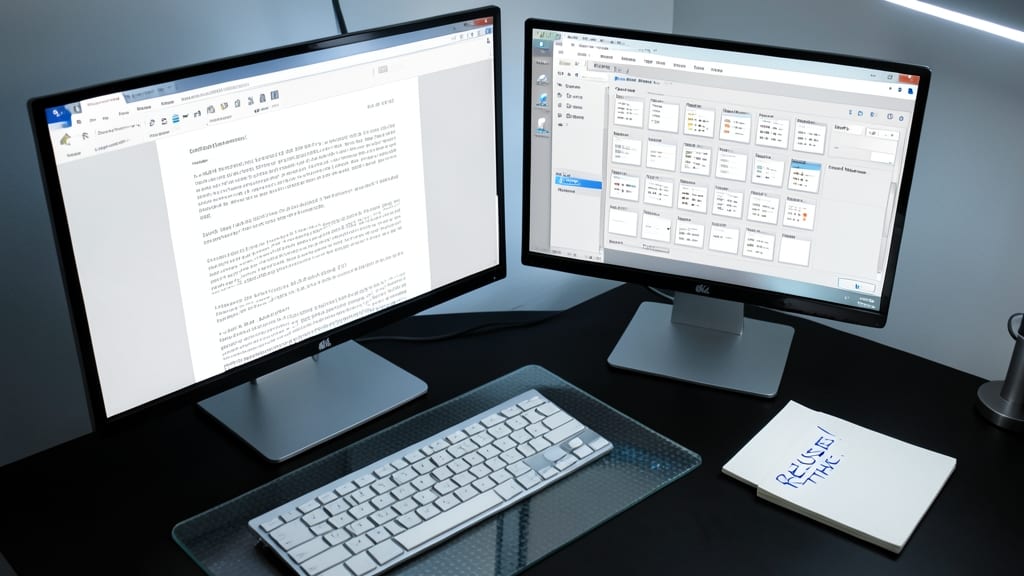
Tired of retyping the same disclaimers, legal clauses, or boilerplate text every time you draft a document? The Quick Parts Gallery in Microsoft Word lets you store frequently used phrases—like signatures, standard paragraphs, or project templates—so you can insert them with a single click. This hidden gem cuts down repetitive typing by up to 70%, making it a game-changer for legal professionals, marketers, or anyone juggling repetitive documents.
To set it up, type your phrase, highlight it, then click Insert > Quick Parts > Save Selection to Quick Parts Gallery. Next time, just navigate to Insert > Quick Parts and select your saved entry. Pro tip: Organize items into folders (like "Legal," "Marketing," or "Boilerplate") for easy navigation. You can even use AutoText to trigger snippets with a shortcut (e.g., typing "sig" could auto-expand to your full signature). For power users, the Building Blocks Organizer lets you categorize and manage hundreds of reusable parts.
Perfect for lawyers drafting contracts, HR teams sending onboarding packets, or freelancers recycling client templates—this tool turns manual work into a one-click workflow. No more copy-pasting errors or wasted time. 💻
Navigation Pane for Large Documents
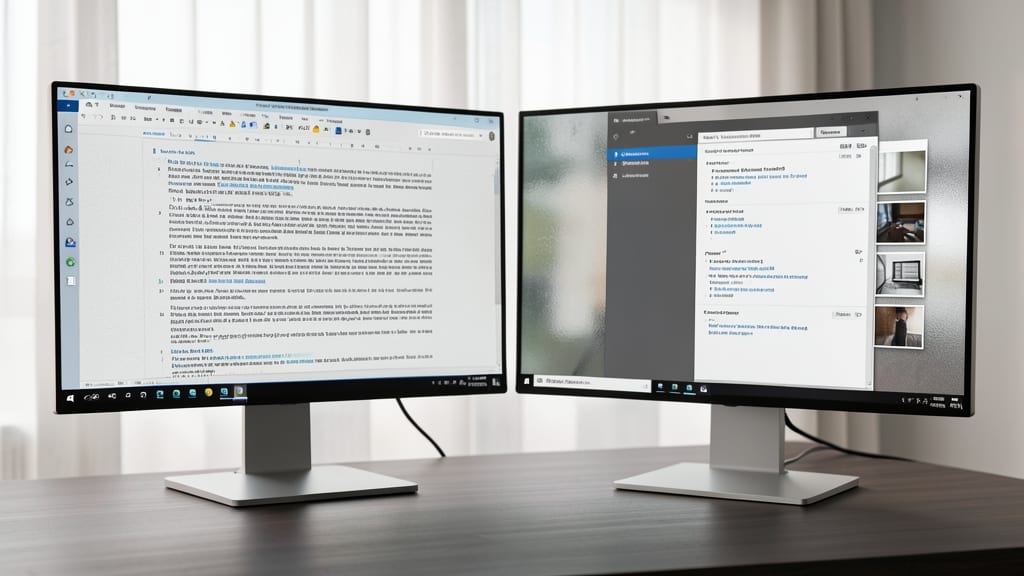
Drowning in a 50-page dissertation or 100-slide report where scrolling feels like a marathon? The Navigation Pane in Microsoft Word is your secret weapon for instant jumps—no more endless page-turning.
Access it via View > Navigation Pane to reveal a collapsible sidebar showing headings, pages, and graphics in your document. Click any heading to zoom straight to that section, or use the Go to Page feature to land on page 47 in seconds. For visual learners, the graphics thumbnail preview lets you jump to tables, charts, or images without searching. This is especially powerful when editing long manuals or academic papers where structure matters.
Perfect for students, technical writers, or project managers juggling dense documents—try it next time you’re stuck scrolling through pages of text. ⚡
Track Changes with Comments and Highlights
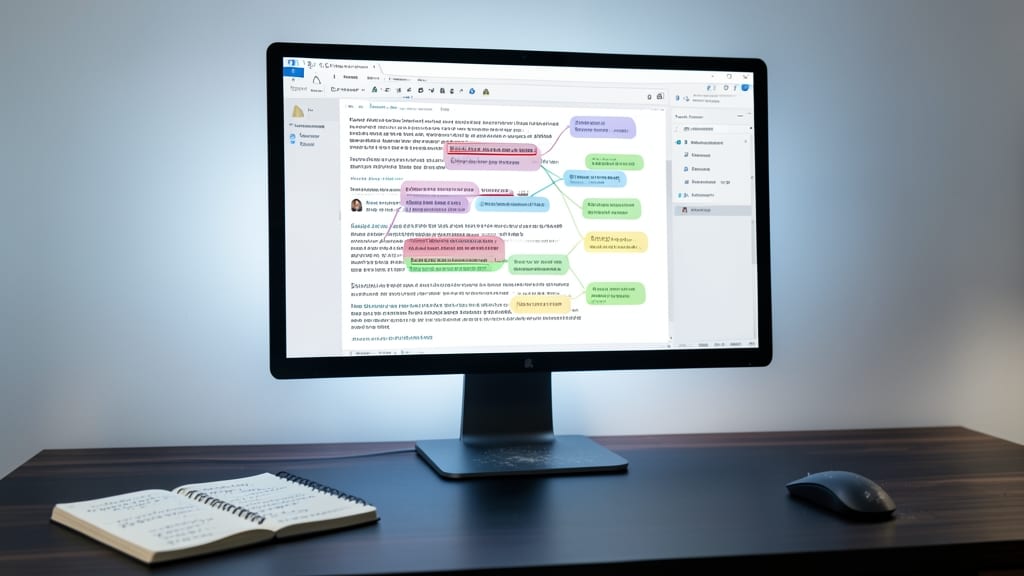
Ever spent hours untangling feedback from multiple reviewers only to lose track of which edits belong to whom? Track Changes in Word isn’t just about red strikethroughs—it’s a full collaboration powerhouse when paired with threaded comments and color-coded highlights. This trio lets you annotate, discuss, and mark up documents without version chaos.
Enable it via the Review tab, then use Insert Comment (Ctrl+Alt+M) to leave notes tied directly to specific text. Assign reviewers unique colors for highlights (yellow for edits, green for approvals) to instantly visualize feedback zones. The Final Showing Markup dropdown lets you toggle between seeing only comments, changes, or both—perfect for finalizing documents before sharing.
Lawyers, editors, and project managers will love this for client reviews or team drafts, while students can use it for professor feedback. No more email ping-pong—just a single, organized workspace. ✨
Macros to Automate Repetitive Tasks
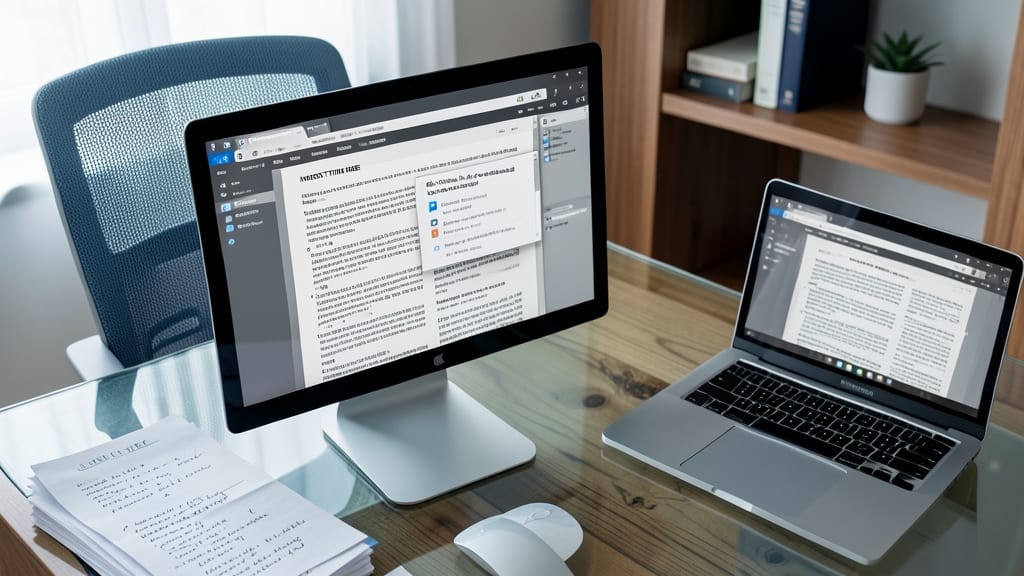
Tired of repeating the same formatting steps every time you generate a report? Macros let you record a sequence of actions—like inserting headers, adjusting column widths, or applying styles—and replay them instantly with a single click.
To get started, enable the Developer tab (File > Options > Customize Ribbon), then click Record Macro. Perform your repetitive tasks (e.g., formatting a table or inserting a disclaimer), and Word generates VBA code you can save and reuse. Need to adjust? Edit the macro directly in the VBA editor—no coding experience required for basic tasks.
Accountants crunching numbers or HR teams drafting onboarding docs will see the biggest time savings. For the tech-savvy, macros unlock zero-config automation—no third-party tools needed. ⚡
SmartArt Graphics for Visual Hierarchies
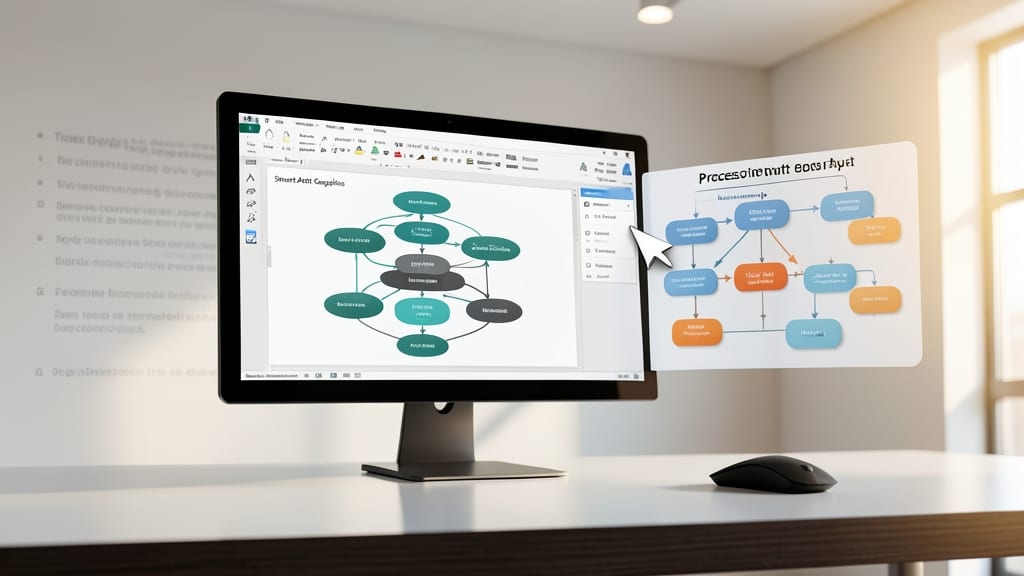
Tired of bullet points that fail to capture complex ideas? SmartArt Graphics in Word transforms flat text into interactive, visually compelling diagrams—perfect for org charts, workflows, or multi-step processes. With just a few clicks, you can replace static lists with dynamic visuals that adapt to your content.
Choose from 20+ layouts (like pyramids, radials, or process flows) and customize colors, shapes, and text to match your brand. The best part? SmartArt stays editable—update a single text box, and the entire diagram adjusts automatically. Need to present a project timeline or explain a sales funnel? This tool turns abstract concepts into clear, professional visuals in seconds.
Ideal for trainers, managers, or anyone crafting presentations or proposals, SmartArt elevates your content from basic to brilliant with minimal effort. ✨
Find and Replace with Wildcards
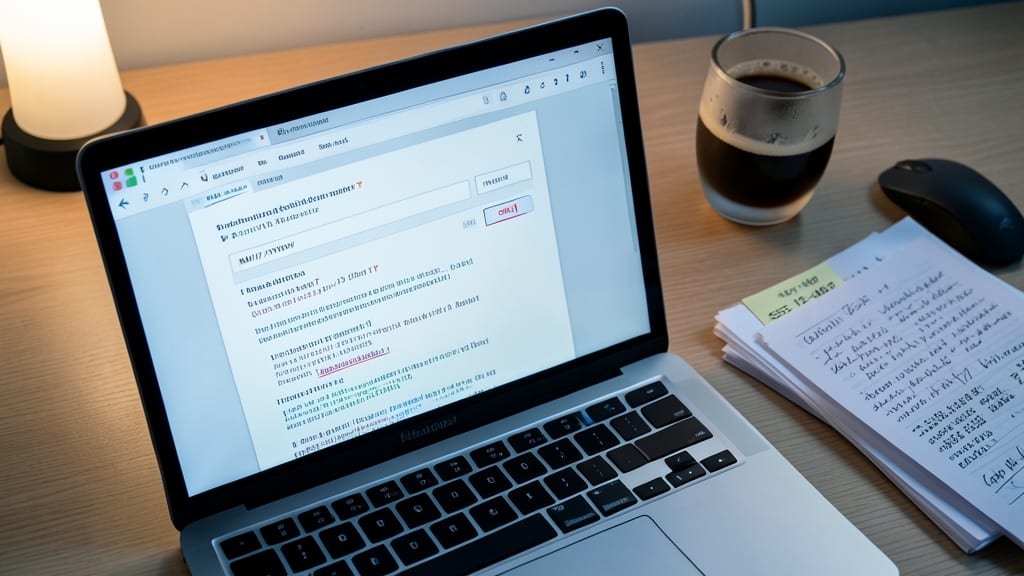
Stuck manually editing documents with messy dates, scattered phone numbers, or inconsistent formatting? Microsoft Word’s Find and Replace with Wildcards lets you hunt for patterns—not just exact text—using special symbols like ? (any single character) and * (any sequence of characters).
Type Ctrl+H to open the Replace dialog, then click More to reveal the wildcard options. Search for phone numbers with \d{3}-\d{3}-\d{4}, or find all MM/YYYY dates using \d{2}/\d{4}. Need to standardize formatting? Replace ??.??.???? with MM/DD/YYYY to fix every date in a document at once. This is a game-changer for data cleanup or legal reviews where precision matters.
Researchers, editors, and compliance officers will save hours by automating tedious fixes. No more scrolling through pages—just one-click pattern matching for flawless documents. 💡
Compare Documents for Edits
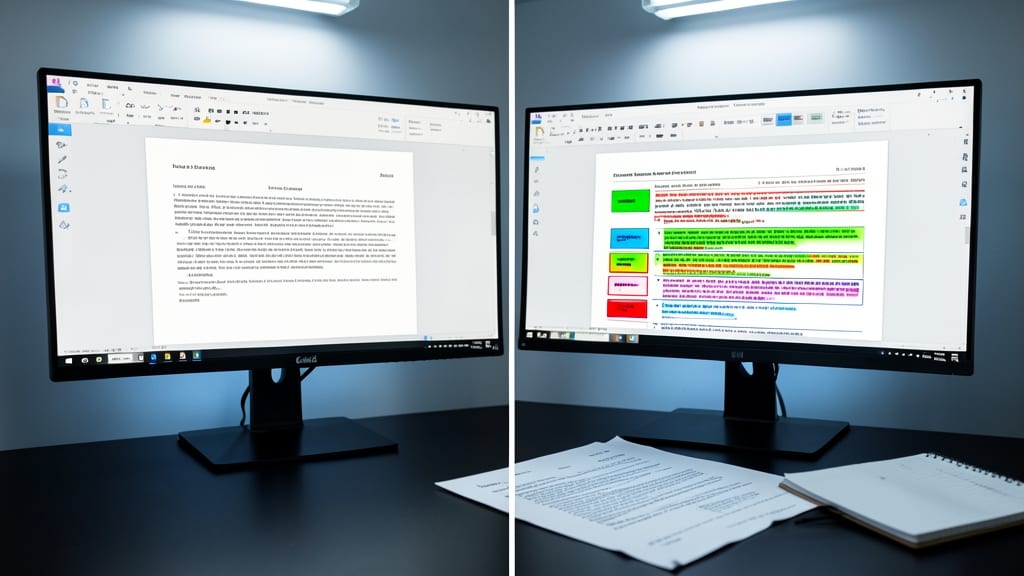
Ever spent hours cross-referencing two versions of a legal contract or grant proposal, only to miss critical edits? Microsoft Word’s Compare Documents feature solves this with a side-by-side visual merge—highlighting additions in green, deletions in red, and formatting changes in blue for instant clarity.
Access it via Review > Compare > Compare, then select your original and revised files. The tool generates a detailed report showing line-by-line differences, including moved text and comments. For legal teams or grant writers, this eliminates the guesswork of manual reviews while preserving formatting integrity.
Perfect for collaborative workflows where version control is non-negotiable—think academic papers, business proposals, or even family wills. ⚡
Custom Tab Shortcuts with Quick Access Toolbar
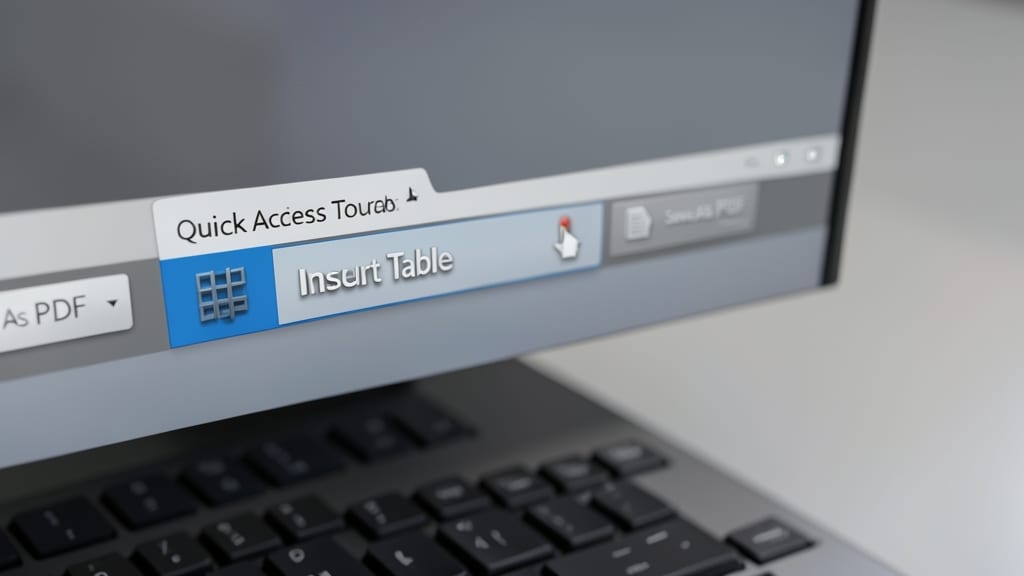
Tired of digging through Word’s ribbon menus every time you need to insert a table or save as a PDF? The Quick Access Toolbar lets you pin your most-used commands—like Insert Table, Save As PDF, or Track Changes—right at the top of the screen for instant access.
To customize it, right-click the toolbar and select "Customize Quick Access Toolbar." Drag commands from the ribbon or choose from the dropdown list. You can even add keyboard shortcuts for faster workflows. Pro tip: Sync your toolbar across devices using OneDrive for consistency. ⚡
Dictate Text with Speech-to-Text

Struggling to type long emails or reports while juggling calls? Microsoft Word’s Speech-to-Text feature turns your voice into flawless text—no keyboard required. Simply click the microphone icon in the ribbon, speak naturally, and watch your words appear instantly.
This tool supports punctuation commands (like "period" or "new line") and even dictation formatting (e.g., "bold," "bullet list") for polished results. It’s powered by Microsoft’s AI-driven speech recognition, which adapts to your accent and improves over time. Perfect for accessibility needs, brainstorming sessions, or when your hands are full.
Ideal for writers, professionals with mobility challenges, or multitaskers—try it for your next draft and reclaim hours of productivity. ✨
Embed Equations for Technical Writing
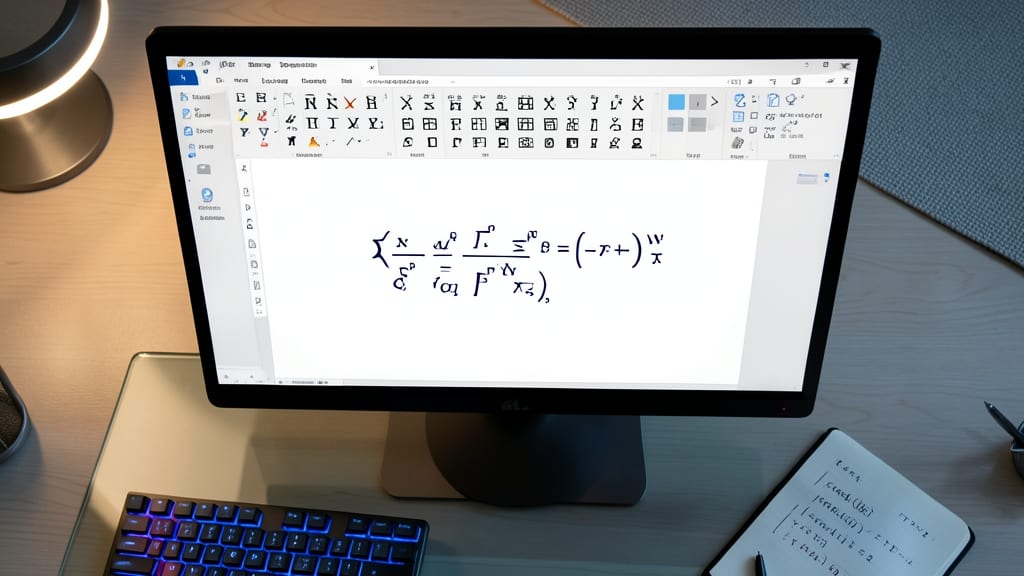
Struggling to format complex equations in Word without resorting to pixelated images? The Equation Editor lets you insert precise, editable math—from simple fractions to advanced calculus—directly in your documents. With LaTeX-like syntax and a built-in palette of 250+ symbols, you’ll never need external tools again.
Simply type your formula in the Math input pane (or use the in-line equation shortcut: Alt + =), and Word converts it to a scalable, searchable object. Need to tweak a subscript? Just double-click the equation to edit it—no redesigning graphics required. This feature also supports multi-line equations and matrix notation, making it perfect for lab reports or engineering specs.
Engineers, students, or researchers who dread formatting equations will love this—it turns messy handwritten drafts into polished, professional documents in seconds. ✨