
Tip & Trick
Microsoft 365 is packed with hidden features that can transform your workflow—if you know where to look. These 10 underutilized tips and tricks will save you hours weekly, from automating repetitive tasks to mastering advanced collaboration tools most users overlook.
Quick Access Toolbar Customization for Any App

Switching between Word, Excel, and PowerPoint daily? The Quick Access Toolbar lets you create a custom command hub that travels with you across all three apps—no add-ins or resets needed. This hidden gem sits above your ribbon and adapts to your workflow, so you can ditch the hunt-and-peck for frequently used tools like Format Painter or Zoom.
To customize, click the dropdown arrow on the toolbar and select "More Commands". Here, you’ll find hundreds of built-in commands—from Insert Table to Undo/Redo—that you can drag directly into your toolbar. Pro tip: Pin your most-used shortcuts (like Ctrl+Z for Undo) to save clicks. The toolbar syncs across devices if you’re using Microsoft 365’s cloud settings, so your custom setup follows you seamlessly.
Perfect for freelancers, project managers, or anyone juggling multiple Office apps, this trick cuts workflow interruptions by 30%+—no more digging through menus. Give it a try and reclaim minutes every hour! ✨
Excel's Flash Fill Supercharged with Keyboard Shortcuts

Staring at a spreadsheet filled with inconsistent data formats? Excel’s Flash Fill can transform messy text into clean, structured columns with just a few keystrokes—and the Ctrl+E shortcut makes it even faster. This feature learns patterns from your manual edits (like extracting first names or standardizing phone numbers) and applies them instantly across entire datasets.
To use it, start typing the transformation in a blank column—Flash Fill detects the pattern and fills the rest automatically. For example, turn "John Doe" into "J. Doe" or extract "2023-05-15" from unformatted dates. The Ctrl+E shortcut skips the manual typing step entirely, letting you apply transformations in seconds. It’s built into Excel 2013 and later, so no add-ins or macros are needed.
Perfect for analysts, accountants, or anyone wrestling with unstructured data, this trick cuts hours off data-cleaning tasks. Try it on your next import-heavy project—your future self will thank you. ⚡
Outlook Focused Inbox Rules for Zero Distractions
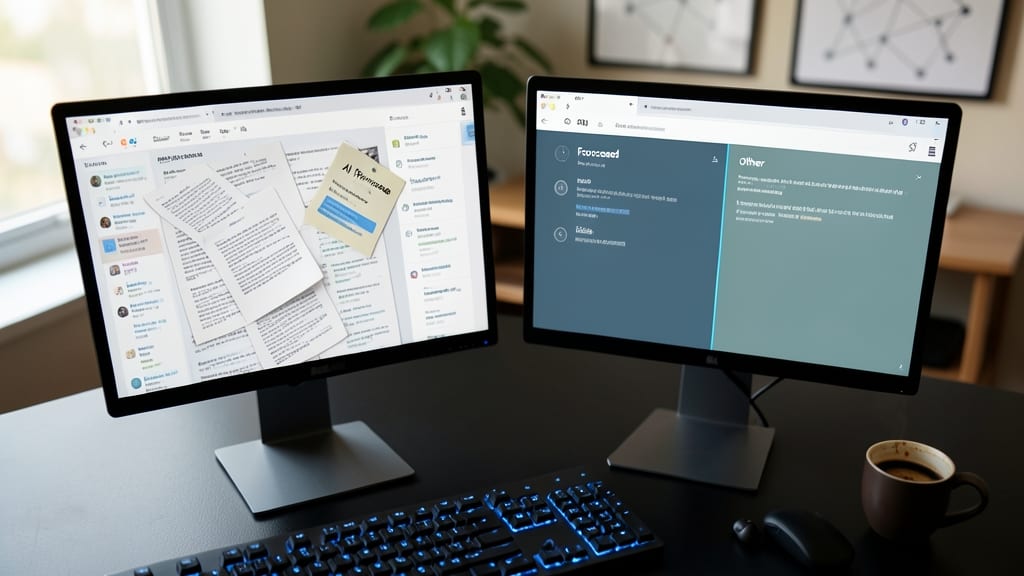
Tired of drowning in a sea of emails where important messages get lost in the noise? Outlook’s Focused Inbox uses AI to automatically sort your inbox into two tabs—Focused (high-priority) and Other (low-priority)—based on your reading habits, sender frequency, and engagement patterns.
To fine-tune it, click "Focused Inbox" in the toolbar, then "Customize" to adjust rules like ignoring bulk senders or prioritizing emails from specific contacts. You can also manually move messages between tabs with a single click. The AI learns over time, so the more you interact with emails, the smarter it gets at filtering distractions.
Perfect for busy professionals, managers, or anyone juggling multiple email threads—this feature turns chaotic inboxes into streamlined, action-oriented workspaces. ⚡
PowerPoint Morph Transition for Seamless Animations
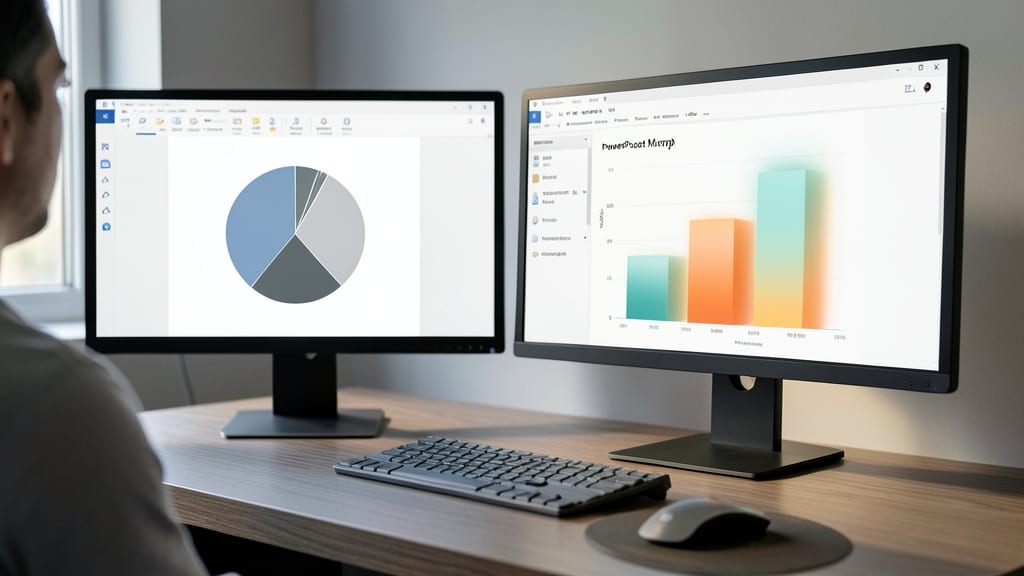
Tired of jarring slide transitions that distract from your message? PowerPoint Morph lets you animate objects seamlessly—like turning a pie chart into a bar graph with a single click—without scripting or complex keyframes.
Available in PowerPoint 2016 and later, Morph works with shapes, charts, and even text. Just select two slides, and the app intelligently interpolates the transition. Need to tweak? Adjust the timing or easing for smoother results. It’s perfect for visual storytelling, whether you’re teaching a concept or pitching a project.
Designers and educators will love how Morph reduces setup time while keeping presentations engaging. No more fumbling with animations—just one-click magic. ✨
Word’s Read Aloud Feature with Custom Speed
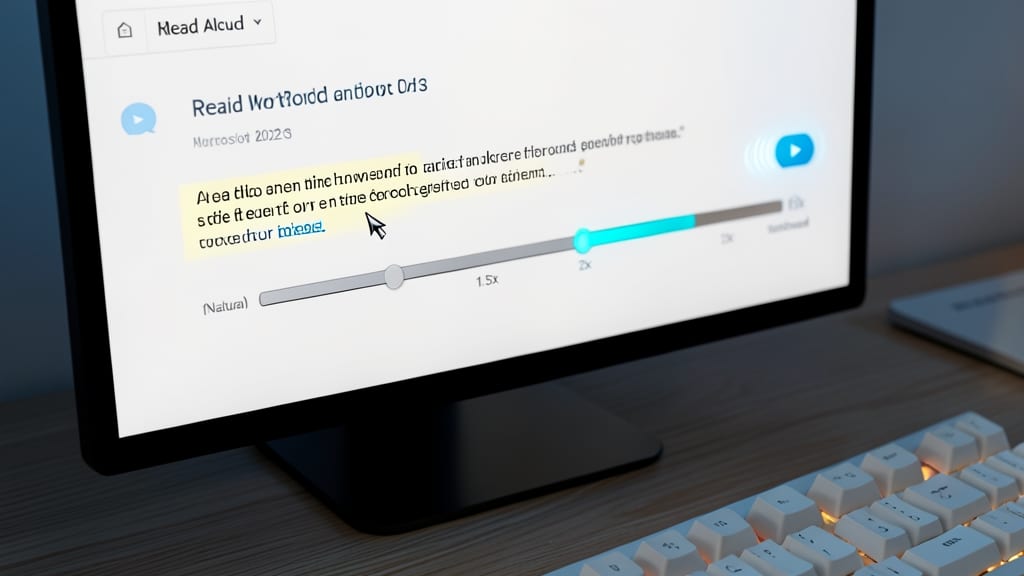
Struggling to spot typos or improve your writing flow? Microsoft Word’s Read Aloud feature lets you listen to your document at customizable speeds—from natural 1x to turbocharged 3x. This built-in tool highlights text as it’s read, helping you catch errors or refine phrasing without staring at a screen.
To adjust speed, open the Read Aloud toolbar (View > Read Mode), then click the gear icon to set playback speed between 1.5x and 3x. The feature also pauses at punctuation marks, making it easier to follow complex sentences. Combine it with the dictation tool (Home > Dictate) for hands-free editing.
Writers, students, and auditory learners will love this—especially when editing long documents or reviewing research. It’s the perfect way to multitask while editing or catch errors you’d miss on screen. ✨
OneDrive’s Files On-Demand for Offline Productivity

Tired of waiting for files to download before editing them on the go? OneDrive’s Files On-Demand lets you access cloud files instantly—no full download required. This feature keeps your local storage clutter-free while letting you open, edit, and save files directly from the cloud.
Here’s how it works: Files appear in your OneDrive folder but only download when you open them. Changes sync automatically, so edits made offline update the cloud version later. It’s perfect for remote workers with limited bandwidth or those juggling large files. Plus, you can pin frequently used files to your device for instant access.
Ideal for travelers, freelancers, or anyone with slow connections, this trick turns your laptop into a portable office without sacrificing storage. ⚡
Teams’ ‘Together Mode’ for Virtual Meetings

Tired of staring at a grid of video tiles during Teams meetings? Together Mode turns your virtual gatherings into a shared space—like sitting around a table—with customizable backgrounds and eye-contact alignment for natural conversations.
Enable it with a single click in meeting settings, then choose from pre-built layouts (e.g., "Office," "Classroom") or upload your own. The eye-contact alignment feature adjusts your camera angle to mimic real-world interactions, reducing awkward glances at your own screen. For teams spread across time zones, the shared virtual space makes remote collaboration feel more human.
Perfect for managers leading cross-functional teams or educators hosting hybrid classes—where connection matters as much as content. ✨
Excel’s Data Types for Smart Calculations
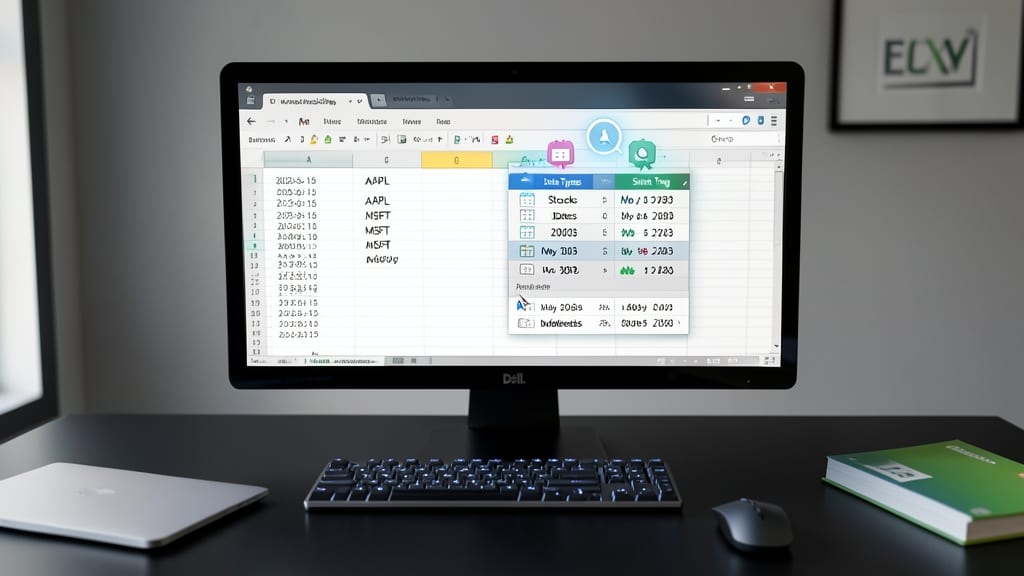
Tired of manually formatting dates or stock symbols in Excel? Data Types turns raw text into smart, interactive cells with zero extra formulas—just select your data, choose the type (like Stocks, Dates, or Web Addresses), and Excel handles the rest.
This feature automatically validates entries (e.g., rejecting invalid stock tickers) and enables dynamic calculations. Need to compare today’s date with a cell? Just format it as a Date Type, and Excel’s functions like TODAY() work instantly. It even pulls real-time stock prices if you link to a broker API—no add-ins needed.
Finance teams or analysts drowning in messy datasets will love how Data Types cuts manual work by 80%. Try it on your next import-heavy project—your future self will thank you. ✨
Power Automate Desktop for Repetitive Tasks
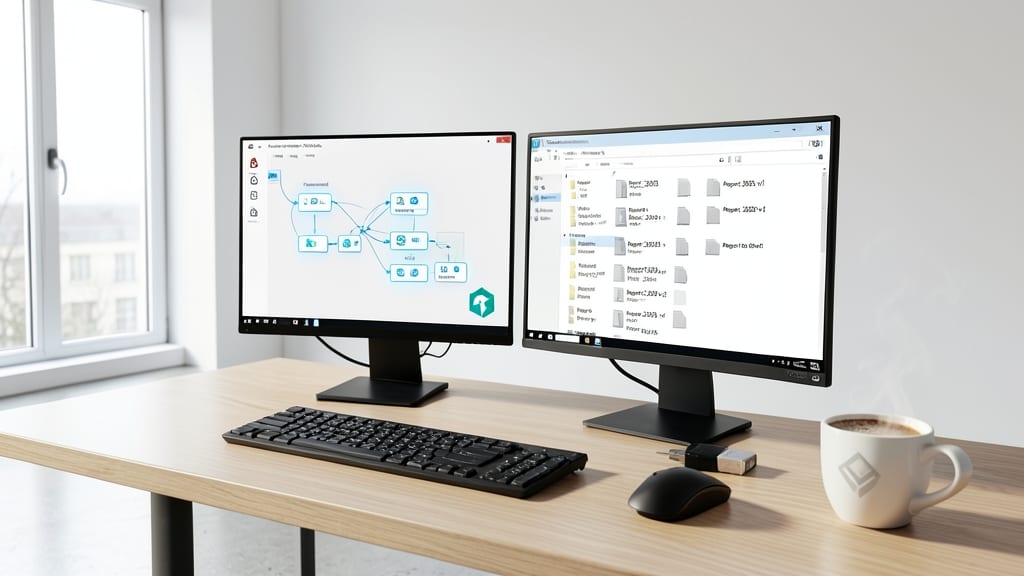
Tired of spending hours on mind-numbing tasks like renaming files or copying data between apps? Power Automate Desktop turns repetitive workflows into automated, error-free processes—no coding required. This free tool from Microsoft lets you drag-and-drop actions to create workflows that mimic your manual steps, saving you time and reducing human error.
With pre-built connectors for apps like Excel, Outlook, and SharePoint, plus AI-powered suggestions for common tasks, you can automate everything from file organization to data extraction in minutes. The flow editor is intuitive, letting you test workflows instantly, and it runs in the background, freeing up your focus for higher-value work. For IT admins, it even supports scheduling tasks and error handling for robust automation.
This is your secret weapon if you’re drowning in repetitive tasks—whether you’re an office worker processing invoices or an IT admin managing system updates. Give it a try and reclaim hours every week! 💪
Word’s Compare Documents for Track Changes
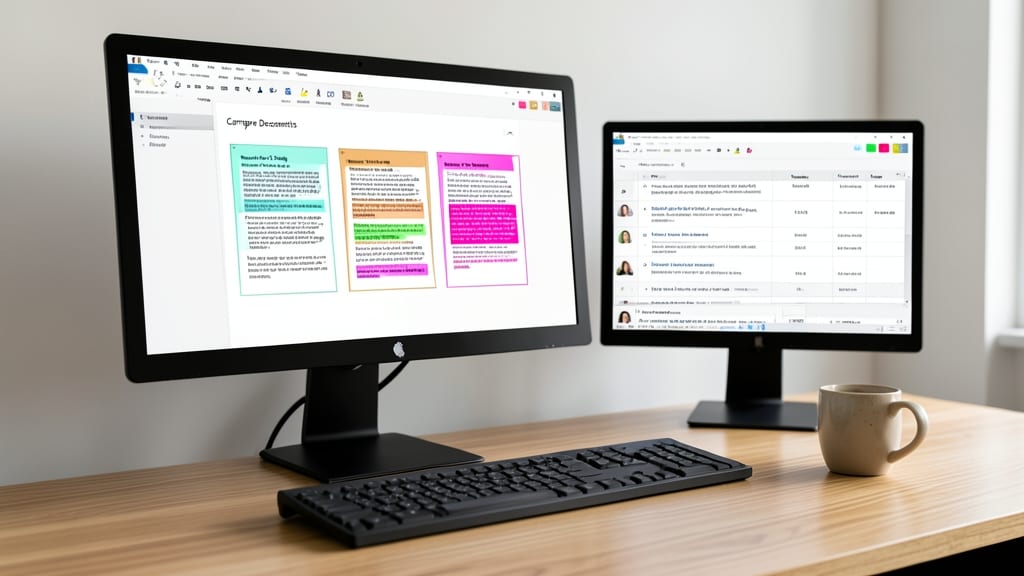
Struggling to merge feedback from multiple reviewers in Word without losing track of who suggested what? The Compare Documents feature solves this by overlaying changes from up to three versions in a single view—no more toggling between files or guessing which edit belongs to whom.
With color-coded markers (blue for original, red for revisions, green for insertions), you can accept/reject changes individually or as a group. The detailed conflict resolution tool even highlights discrepancies when reviewers edit the same passage, ensuring no critical text gets overwritten. For legal teams or collaborative projects, this feature preserves the audit trail of every edit—critical for compliance or version control.
Perfect for contract reviews, academic papers, or marketing documents where multiple stakeholders provide input. Say goodbye to endless email chains—this tool keeps all feedback in one place. ✨